Call Features
Flyingvoice Network Technology Co., Ltd. 15
incoming call after ending all calls.
Procedure
1. Navigate to Menu > Features > Auto Answer.
2. Enable the Auto Answer.
3. Select Save.
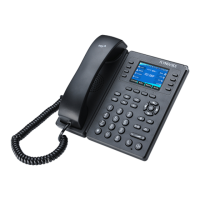
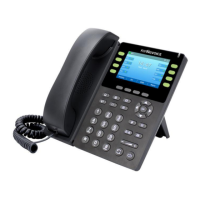
Switching Among the Handset, Speakerphone
and Headset Modes
You can select the desired mode before placing a call or can alternate among Speakerphone,
headset, and handset modes during a call.
When using the headset, the LED indicator glows green.
Procedure
1. During the call, pick up the handset, press the Speakerphone key , or press the
HEADSET key.
For example, if you're using the handset, press the HEADSET key to switch to the headset, or
press the Speakerphone key
to switch to the speakerphone.
Note Your system administrator can disable you to use the handset, speakerphone (Hands-
free) or headset mode.
Disabling Call Waiting
If the call waiting feature is disabled, when there is already a call, the new incoming call will
be rejected automatically.
Before You Begin
Check with your system administrator if the call waiting off code is required. If required, get
it from your system administrator.
Procedure
1. Navigate to Menu > Features > Call Waiting.
2. Select Disabled from the Call Waiting field.
3. Select Save.
Silencing or Rejecting Incoming Calls
When you receive an incoming call, you can choose to silence or reject the call instead of
answering.
Rejecting Calls with Do Not Disturb (DND)
You can enable DND to reject all incoming calls automatically when you do not want to be
interrupted.
Note Check with your system administrator to find out if the DND feature is available on
your phone.



 To Next Page