22
5. Routing Section
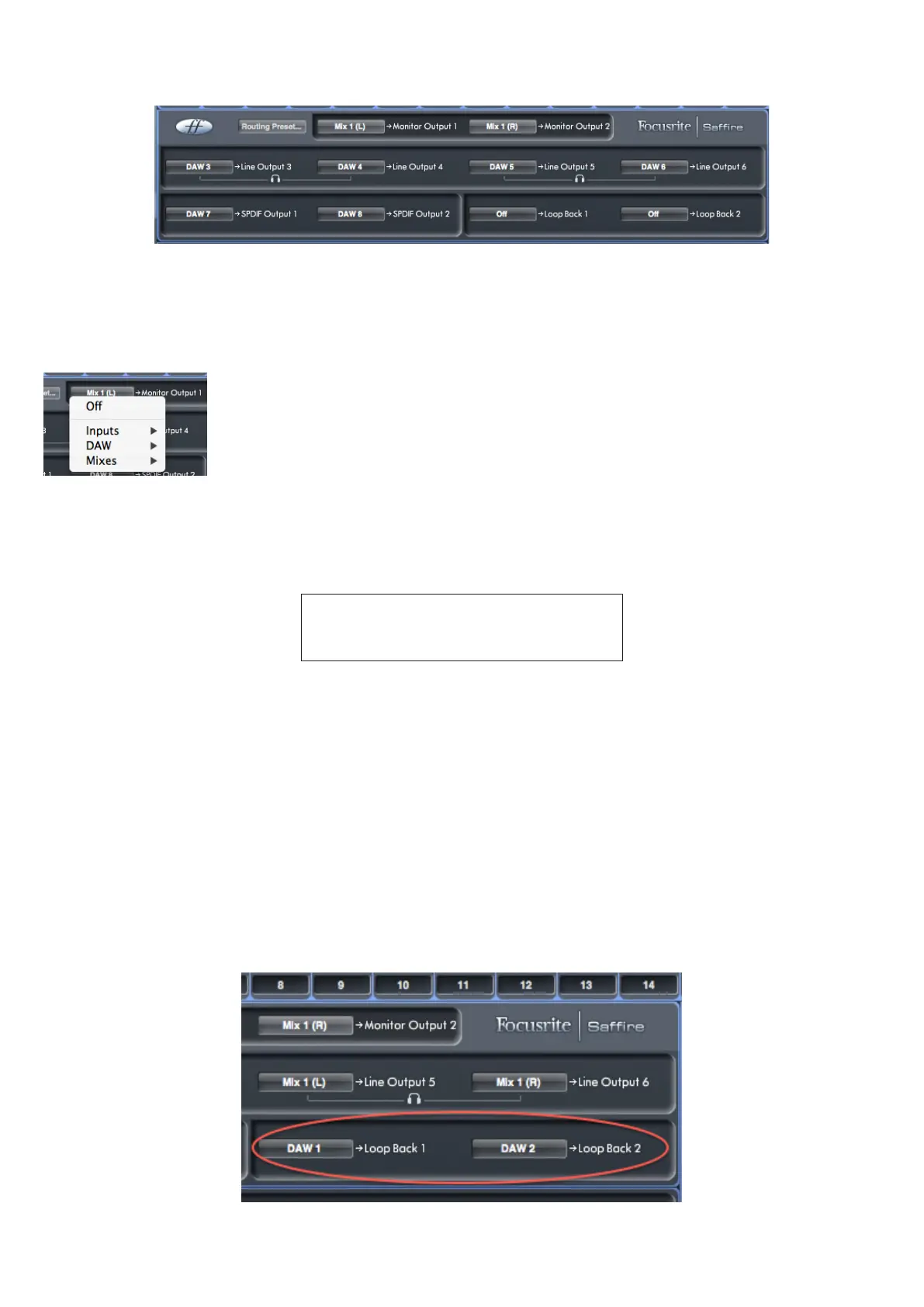
The routing section allows you to set up how the various audio sources in the mixer are to be routed to the outputs.
The routing section displays all the Saffire PRO 26’s physical outputs plus the two “Loop Back” outputs (see “Using Loop Back”
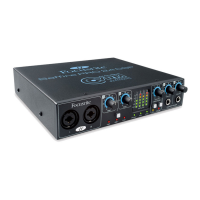
below), and a list of the audio sources which can be routed to each is listed for selection in the drop down menu.
The available sources include:
• Any input signal
• Any DAW track
• Any of the mixes created in the mixer. (If you have renamed the mix, this name is displayed as the
mix source name.)
Note that the routing section is linked to the selection made for the output channel destination set-up in the mixer. If you assigned
outputs when you created the mix, you will see the routing selections are already set up. Similarly, if you change the output
destination from the routing section, the output of the mix will change automatically.
Headphones 1 is a copy of line outputs 3 and 4.
Headphones 2 is a copy of line outputs 5 and 6.
NOTE: When working at sample rates of 88.2 kHz or 96 kHz, the number of ADAT channels available is reduced to four (ADAT SMUX
standard). At these sample rates, ADAT channels 5-8 are greyed out.
Using Loop Back
Saffire MixControl’s Loop Back feature lets you record other audio sources from within your computer (e.g., the sound output from
a web browser). Loop Back uses the Saffire PRO 26’s “virtual” inputs 9 and 10 (see table on page 12). These have no physical
connectors on the interface itself, but may be selected within the DAW as signal sources for recording in the same way as any
other. Thus by selecting Inputs 9 and 10 as the recording sources on a stereo DAW track, you can record from another software
application. Note that your computer will assign DAW1 and DAW 2 as the default sound output channels.
TIP: You can quickly select configure Loop Back by selecting the Loopback option from the Routing Presets menu (see page 25).
An example of configuring Loop Back in MixControl is given below:




 To Next Page