23
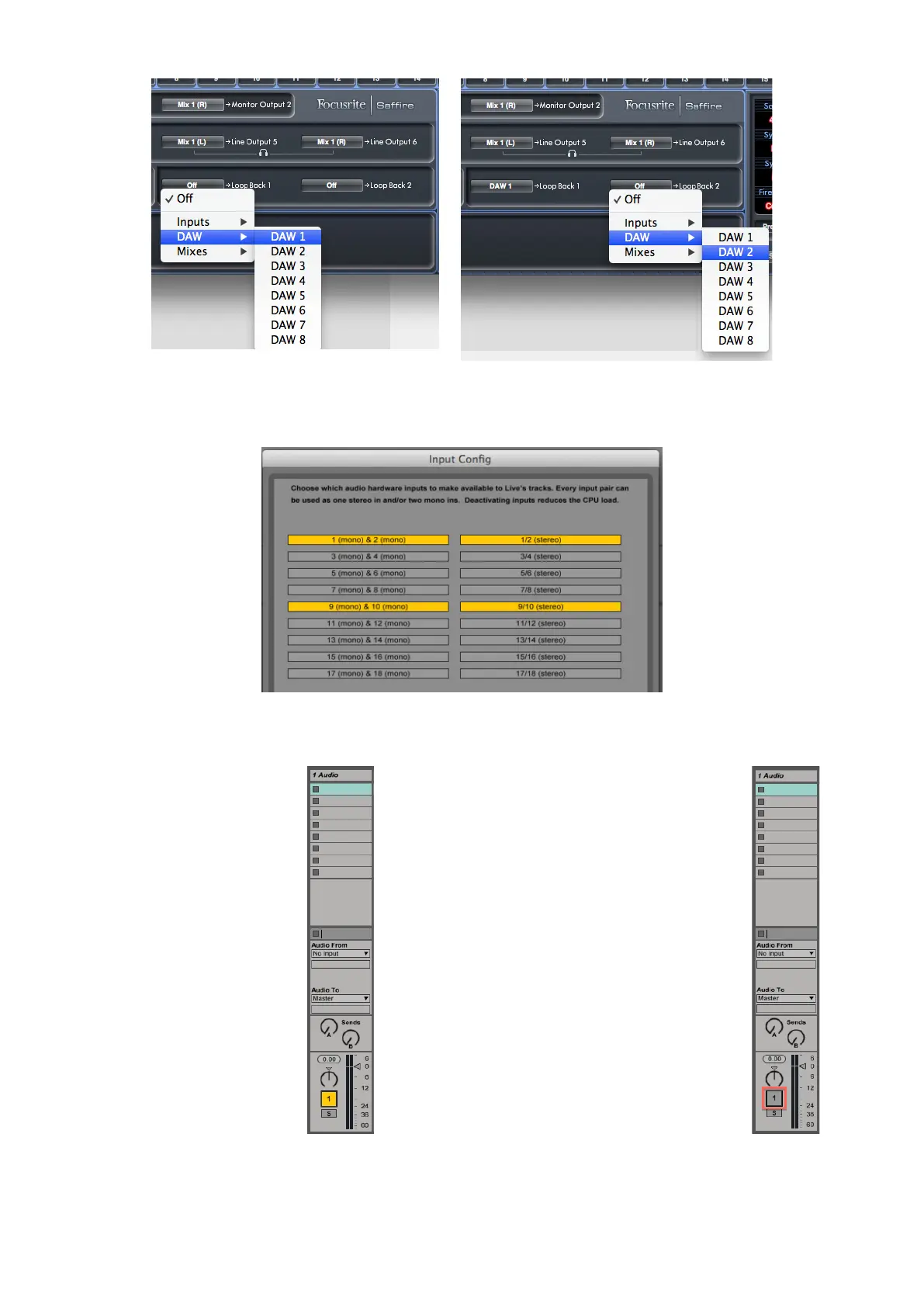
1. Select DAW 1 for Loop Back 1, and DAW 2 for Loop Back 2.
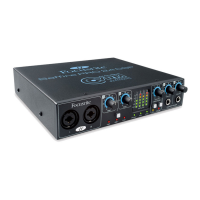
2. In your DAW, ensure that inputs 9 – 10 are enabled for recording. (Screenshots below are from Ableton Live Lite 9.) Note that
inputs 1 & 2 are also shown enabled in this example.
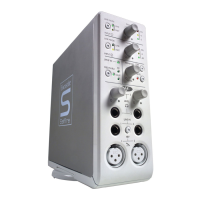
3. Create a new audio track. 4. Important! - MUTE THE DAW CHANNEL. If
you are routing the output of the channel you are
recording to back to DAW 1 & 2, a feedback loop
will be created, potentially damaging for your
speakers, or worse – your ears.




 To Next Page