28
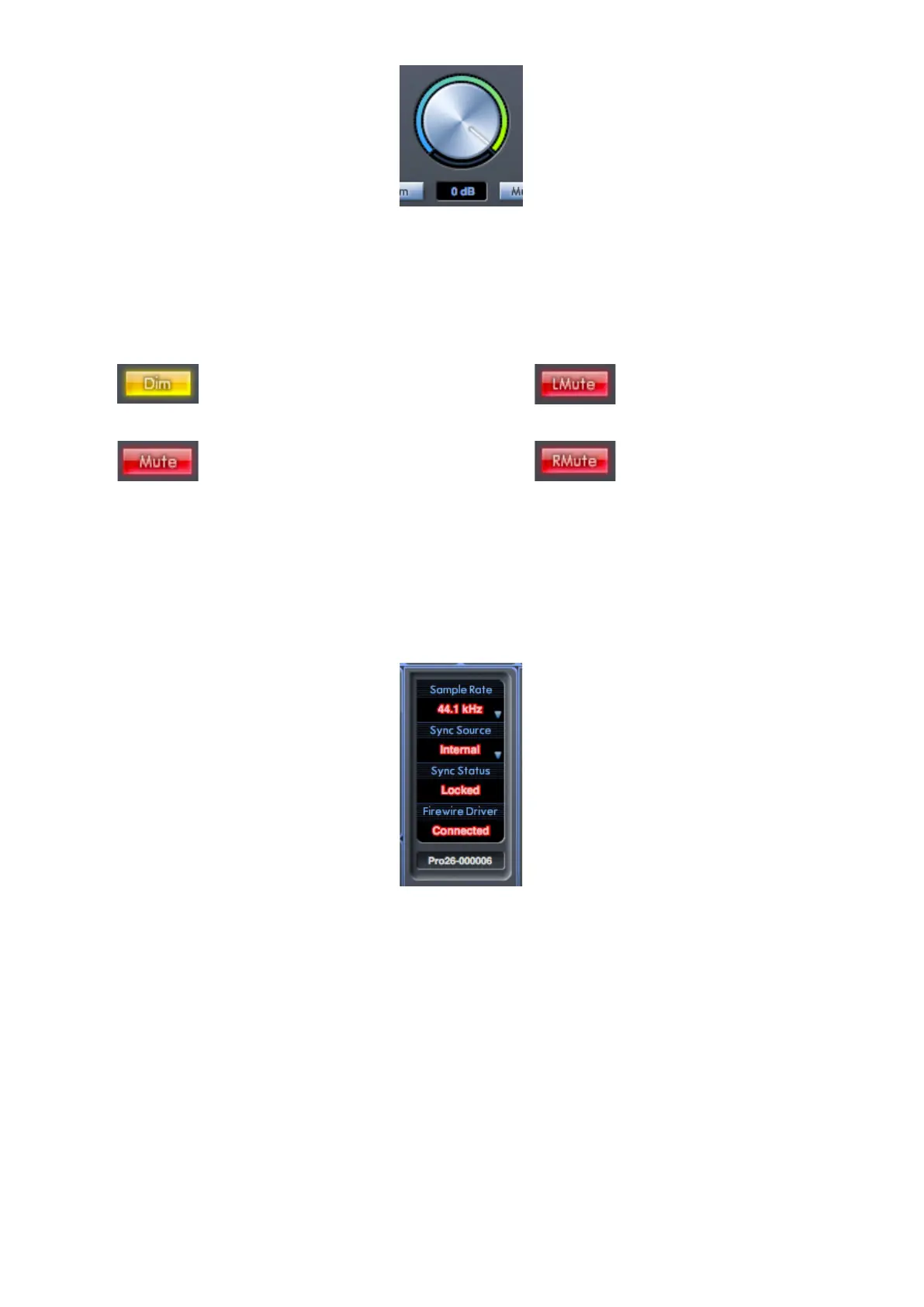
Monitor level control
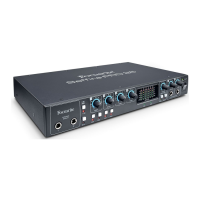
Set the level of all assigned outputs (see ‘Blue’ on page 26) with this rotary control. Note that the physical MONITOR control on
the Saffire PRO 26’s front panel must also be “turned up” for audio to be heard from Line Outputs 1 & 2; the hardware and software
monitor volume controls are effectively “in series” for these outputs. The dB display below shows the current level to which the
monitor knob is set.
Dim
Attenuates the monitor level(s) by 18dB.
Left Mute
Mutes the left output.
Mute
Mutes the monitor output(s).
Right Mute
Mutes the right output.
Remember that the Dim and Mute buttons only affect the outputs selected for control (i.e., ‘Blue’) in the monitor control section.
7. Device Status Section
The Device Status section displays the current sample rate, synchronisation source and sync and driver statuses of the Saffire
PRO 26. Sample rate and external synchronisation source can also be set, permitting the Saffire PRO 26 to be used with other
digital devices.
Sample rate
This displays the sample rate currently set for the Saffire PRO 26. To change the sample rate, click on the red sample rate value and
select from the available options: 44.1k Hz , 48kHz, 88.2k Hz , or 96kHz.
Note: it is advisable to quit your DAW application BEFORE you make sample rate changes to prevent any undesirable audible side-
effects!
Sync Source
Displays the currently selected sync source. To change the sync source, click on the red sync source value and select from the
available options: Internal, ADAT, S/PDIF.




 To Next Page