8
To prevent permanent damage, we recommend that the sequence below is always followed:
Connecting your unit(s):
• Ensure that your computer is turned OFF
• Connect the Saffire to your computer
• Attach the power supply if necessary
• Turn ON your Saffire
• Turn ON your computer
• Turn ON your monitor speakers
Disconnecting your unit(s):
• Shut down Saffire MixControl
• Turn OFF your monitor speakers
• Turn OFF your computer
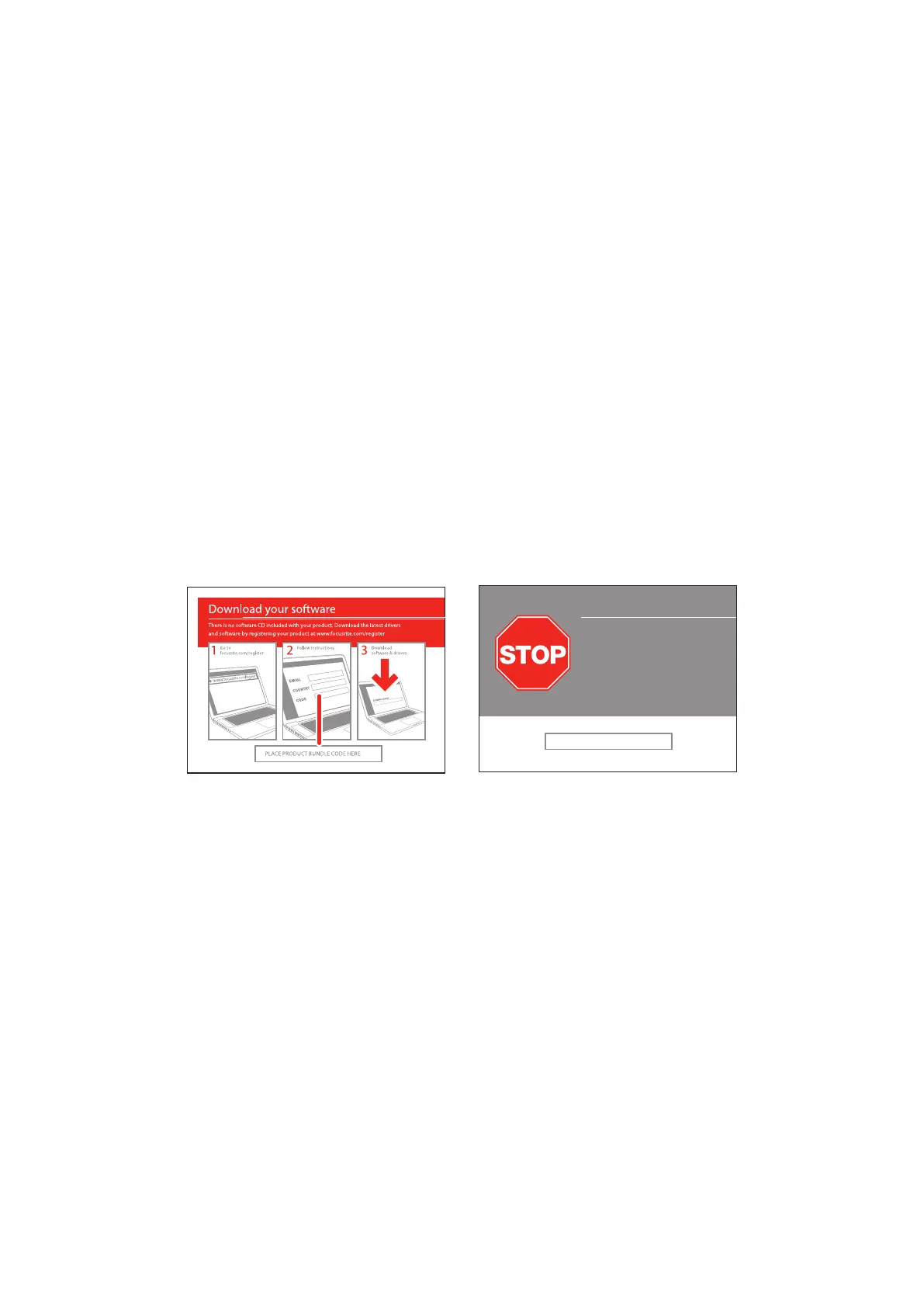
Software installation
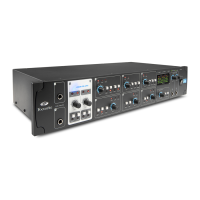
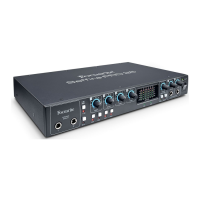
All software required by the Saffire PRO 26 - and several powerful and useful extras - are available for download from the Focusrite
website (www.focusrite.com/register). The Software Activation card provided with your Saffire PRO 26 contains a registration code
which you will need to enter at the above web address. This procedure ensures that you will have the most up-to-date software
version.
Can’t get started?
If you have any trouble with this product
do not go back to the place of purchase.
Contact our support team on:
US:
UK &
International:
Online:
PLACE SERIAL NUMBER STICKER HERE
1-855-24-FOCUS (1-855-243-6287)
Support available Monday - Friday 8am – 6pm (PST)
+44 1494 462246
Support available Monday - Friday 9:30am – 6pm (GMT/BST)
www.focusrite.com/support
www.novationmusic.com/support
FA0736-01
1. Using your usual browser, go to www.focusrite.com/register.
2. Follow the on-screen instructions, entering the “Product Bundle Code” into the form where prompted. Your “Product Bundle
Code” can be found on the Software Download Card packed with the unit.
3. You will then be able to access the “My Products” page, where the software products to which your registration entitles you are
available for download, complete with activation codes where applicable.
4. Download and install Saffire MixControl. Follow all on-screen instructions.
5. When the installation is complete, shut down your computer, and connect your Saffire PRO 26, carefully following the
instructions above - Connecting your unit(s).




 To Next Page