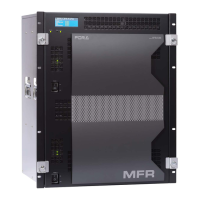
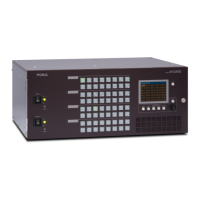
HVS-1200
HVS-491OU/492OU/492WOU/492ROU
1. Connection
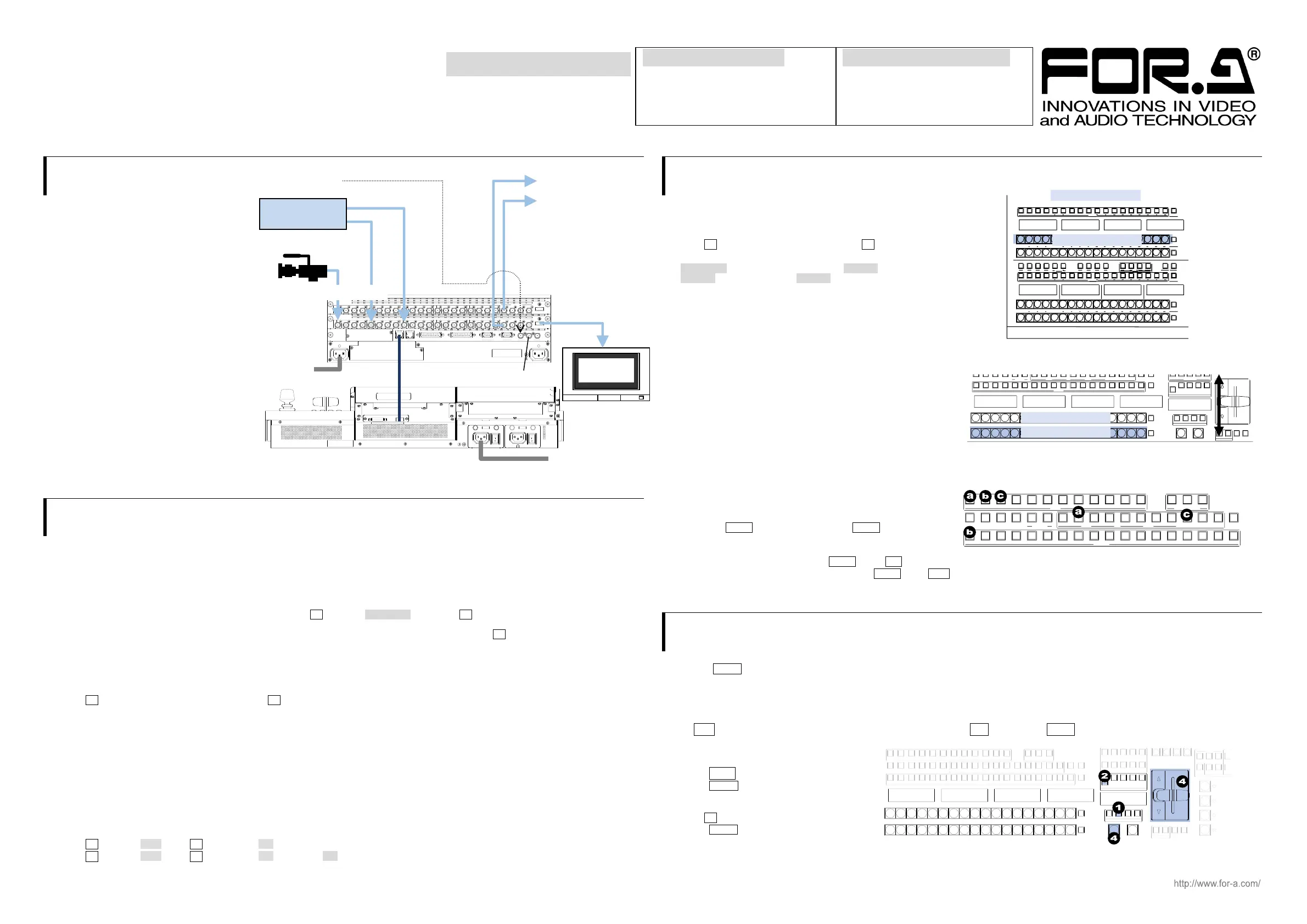
(1) Connect SDI video signal inputs.
(2) Input a reference signal. Terminate the
other connector with 75-ohm,
if it is not looped-through.
If no reference signal is input, refer to
Sec. 2 “Setup” to turn on frame synchronizers.
(3) Connect combined SDI video signal outputs.
(4) Use the supplied LAN cable to connect HVS-1200
LAN HVS (OU) to HVS LAN on the control panel.
(5) Supply power to HVS-1200 and the control panel
respectively using the supplied AC cables.
(6) Turn on power switch(es) on the
rear control panel.
(7) Turn on power switch(es) on the
HVS-1200 front panel.
* HDMI outputs can display preview and
program images as well as combined
images such as multiview and input images
via AUX bus.
* An Ethernet hub can be used for LAN
connections.
2. Setup
Select an MU (HVS-1200)
(1) A menu is displayed on the control panel at power ON.
(2) Tap the PANEL tab on the touch panel menu screen.
(3) Tap NETWORK to display the [PANEL > NETWORK > NETWORK] menu.
(4) Press the down arrow (▼) button to go to PAGE 2. Turn F1 to select HVS-1200 and press F1. Tap YES on the confirmation
dialog box to restart the control panel. After restart, control panel buttons will light up when the control panel is connected to
HVS-1200. If the buttons stay unlit, set the MU (HVS-1200) IP address (LAN HVS(OU) port). Press F2 on the [PANEL > NETWORK >
NETWORK] menu PAGE 2. Enter the address using the keypad and press Enter.
Select a System Signal Format
(1) Open the [SETUP > SYSTEM > FORMAT] menu.
(2) Turn F1 to select the signal format, then press F1. Tap YES on the confirmation dialog box to reboot the MU (HVS-1200).
When changing the signal format between 4K and HD, menu settings for M/E1, M/E2 or AUX are reset. After restarting the
HVS-1200, the new format is applied.
Set Date and Time
Open the [SETUP > SYSTEM > TIME] menu to set the date.
Go to PAGE 2 to set the time. Go to PAGE3 to set the time zone and summertime on/off.
Turn Frame Synchronizer to ON
Turn on the frame synchronizer, if necessary.
(1) Open the [SETUP > INPUT > SIGNAL] menu.
(2) Turn F1 to select IN01. Turn F4 to set FS to ON.
(3) Turn F1 to select IN02. Turn F4 to set FS to ON. Set FS to ON for other inputs in the same manner.
3. Select Output Video
Assign SDI OUT Videos
(1) Open the [SETUP > OUTPUT > SDI OUT] menu.
(2) Turn F1 to select an output port and turn F2 to select a combined
image.
ME1 PGM is assigned to SDI OUT1, AUX 01 to SDI OUT2,
AUX 02 to SDI OUT3 and AUX 03 to SDI OUT4 as factory default.
Select the M/E1PGM Video Source
Press a bus button on the M/E1PGM row. The SDI OUT1 on the HVS-1200
rear panel displays the selected source image.
Change the M/E1PGM Video
(1) Press a button on the M/E1 PST row to select a next video.
(2) Move the fader from end to end.
The SDI OUT1 screen will change to the selected next video.
This is called a "background transition."
(3) Move the fader from end to end again. The screen changes
to the previous video.
* The PGM and PST signal selections switch as soon as the
PGM video changes, and the next video can be selected
always on the bottom (PST) row.
Select AUX Output (Internal bus) Video
(a) Bus selection buttons and the KEY/AUX bus* are located
above the M/E1 bus.
Press the AUX1 button, then the M/E1 OUT1 button.
M/E1 OUT1 (PREV video) is assigned to AUX1.
ME1 PREV video is output via SDI OUT2.
(b) To assign Input 1 to AUX2, press AUX2, then 1 in the KEY/AUX bus*. Input 1 is output from SDI OUT3.
(c) To assign a multiview video to AUX3, press AUX3, then MV1. A multiview image is displayed on the SDI OUT4 screen.
* KEY/FLX/AUX bus (HVS-491OU)
4. Perform Background Transitions
Select a next video on the PST bus.
Verify that BKGD is turned on. If not, press the button to turn on the button light.
Transitions
- CUT - MIX
Press CUT. The background image changes instantly. Press MIX. Then press AUTO. (Or move the fader from end to end.)
- Pattern
(1) Press WIPE.
(2) Press BKGD twice quickly to display the
[M/E FLEXaKEY > M/E1 > BKGD PGM >
TRANS > TRANS] menu.
(3) Turn F4 to select a pattern.
(4) Press AUTO.
(Or move the fader from end to end.)


 To Previous Page
 Loading...