59/65
Remove the cable and the device will automatically turn off.
2. Data Transmission Via Bluetooth
You can use your device with an iOS (5.0.1 or higher) Android system (4.3 API
Level 18 or higher) or PC (Windows 8 or higher) to download data from your
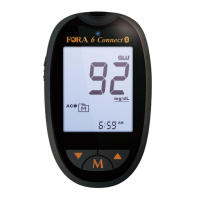
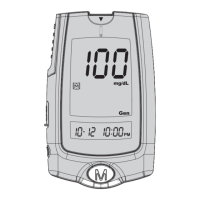
BGM via Bluetooth. Follow the steps below to transmit data from your BGM.
Please contact your local customer service or place of purchase for assistance.
(1) Install the APP (iFORA BG, iFORA MP, iFORA HM) to your device with an
iOS or Android system.
(2) Every time the BGM is turned off, the Bluetooth will be initiated for data
transmission. The Bluetooth indicator flashes in blue.
(3) Make sure your BGM is already paired with your device with an iOS, Android
system or PC by following the instructions below.
(4) If your device with an iOS, Android system or PC is within the receiving
range, the data transmission will start and the Bluetooth will signal in blue.
Once it is finished, the BGM will automatically switch off.
Note:
This step is recommended if it is the first time the meter is paired to
a Bluetooth receiver, or another new Bluetooth receiver is paired
with the meter.
(5) If your device with an iOS, Android system or PC is not within the receiving
range, the BGM will automatically switch off.
Note:
While the meter is in transmission mode, a blood glucose test



 To Next Page