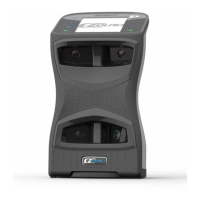
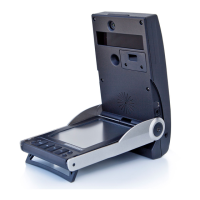
The Foresight Falcon is a high-speed camera-based launch monitor designed for golf simulation and performance analysis. It captures detailed data on both the golf ball and club, providing insights for golfers of all skill levels.
Function Description:
The Falcon launch monitor utilizes a system of inboard and outboard high-speed cameras, along with IR LEDs, to precisely track the golf ball and club during a swing. It offers two primary hitting zones: a "Club Zone" that collects data on both the ball and club, and a "Ball Only Zone" that focuses solely on ball data. This dual-zone capability allows for comprehensive analysis depending on the user's needs. The device connects to a computer via an Ethernet or USB-C cable, enabling integration with Foresight Sports' FSX Play or FSX Pro gaming and performance software. Through this software, users can view shot data, play golf courses, and engage in practice sessions. The Falcon also features a status bar that provides visual feedback on its operational state, such as booting up, looking for the ball, or being ready to hit.
Important Technical Specifications:
- Hitting Zones:
- Club Zone (L & R): Measures 11 inches wide by 17 inches deep each, with a 25-inch gap between them. This zone collects both ball and club data.
- Ball Only Zone: Measures 59 inches wide by 28 inches deep. This zone collects only ball data.
- Mounting Height (Recommended): 9.5 feet.
- Distance from Screen (Recommended): 10-12 feet from the hitting mat to the screen.
- Distance from Falcon to Hitting Mat (Recommended): 4 feet.
- Connectivity: Ethernet cable, USB-C cable.
- Power: Requires a GFCI-protected outlet or power strip.
- Components:
- Launch Monitor (Falcon device itself)
- Ceiling Mount
- Calibration Wand (with five white dots)
- Power Cord
- Ethernet Cable
- USB to USB-C Cable
- Plastic Tees (2)
- Fiducial Dispenser
Usage Features:
- Installation Layout: The Falcon is designed for ceiling mounting. Optimal installation involves a ceiling height of 9.5 to 10.5 feet, with the center of the hitting mat positioned 10 to 12 feet from the screen and 4 feet away from the Falcon. Sufficient room for both left-handed and right-handed golfers to swing is crucial.
- Power On/Off and Reset: The device is turned on by pressing the POWER button, which can be accessed using the grip end of a golf club. The status bar illuminates yellow during boot-up. To turn off, press the POWER button again. To reset, hold the POWER button for 5 seconds.
- Status Bar Indicators: The status bar provides clear visual cues about the device's state:
- Yellow (Steady): Booting Up
- Blue (Blinking): Looking For Ball
- Blue (Steady): Ready To Hit
- Green (Blinking): Looking For Ball (Club Enabled)
- Green (Steady): Ready To Hit (Club Enabled)
- Red (Steady): Error
- Device Connectivity: The Falcon connects to a computer via an Ethernet or USB-C cable. It is recommended to connect the PC to the internet before calibration.
- Calibration: The Foresight Calibration App, automatically installed with FSX Play or FSX Pro, guides users through the calibration process. This involves holding a calibration wand with white dots facing the device, moving it around the hitting area until all on-screen squares turn bright green. A blue light on the Falcon indicates successful calibration.
- Software Integration: After calibration, the Falcon connects to FSX Play or FSX Pro software. Users navigate to the device connection screen, locate their device by its serial number (underlined in blue), and click "connect." A refresh button is available if the device is not immediately recognized.
- Dual Device Support: The software includes an option to "Enable dual device" for both right and left-handed players, suggesting flexibility in setup for different users.
- Auto Connect: An "Auto Connect with solo device" option allows for automatic connection during startup, streamlining the user experience.
Maintenance Features:
- GFCI Protection: The power cord must be plugged into a GFCI-protected outlet or power strip, ensuring electrical safety. Users are advised to contact an electrician if they have questions about GFCI protection.
- Calibration Wand: The calibration wand is a key component for maintaining accurate tracking. Regular calibration, especially after initial setup or if tracking issues arise, is essential.
- Software Updates: While not explicitly detailed in the provided pages, launch monitors typically benefit from regular software updates to improve performance, add features, and resolve bugs. Users should check Foresight Sports' support channels for information on updates.
- Support Resources: Foresight Sports provides a full manual and additional support through QR codes and their website (www.foresightsports.com/support), offering comprehensive resources for troubleshooting and maintenance.

 Need help?
 General

 To Next Page