3.1 Device Status
Device Status contains four columns: Device Information, Device Status, Session Status and
Log, it will show you various information about your camera.
3.1.1 Device Information
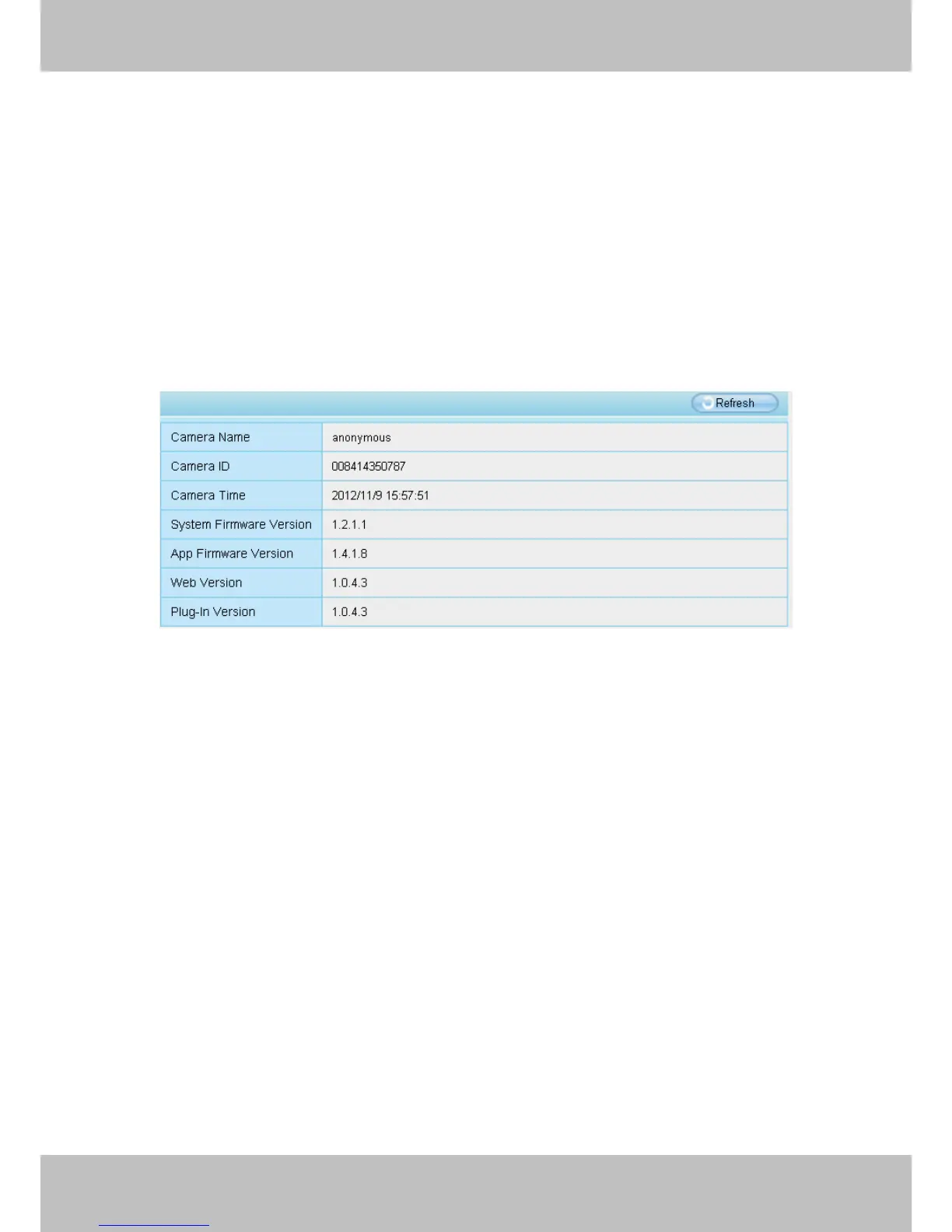
Figure 3.1
Device name: The Device Name is a unique name that you can give to your device to help you
identify it. Click Basic Settings and go to Device Name panel where you can change your camera
name. The default device name is anonymous.
Device ID: Display the MAC address of your camera. For example Device ID is 008414350787,
the same MAC ID sticker is found at the bottom of the camera.
Device time: The system time of the device. Click Basic Settings and go to Camera Time
panel and adjust the time.
System Firmware version: Display the System Firmware version of your camera.
App Firmware version: Display the application firmware version of your camera.
Web version: Display the web UI version of your camera
Plug-in version: Display the plug-in version of your camera


 To Next Page