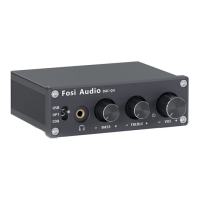
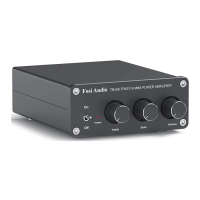
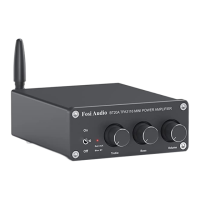
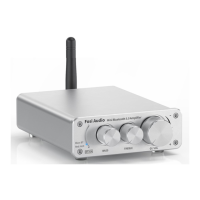
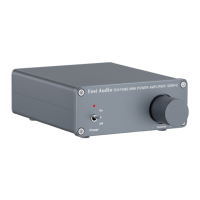
The Fosi Audio DAC-Q4 is a compact mini digital-to-analog audio converter designed to enhance your audio experience. It serves as a preamplifier or volume control for PC/MAC/Computer systems, ensuring exquisite musicality, accurate and realistic phasing, and faithful reproduction of the original sound.
Function Description:
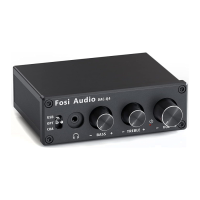
The DAC-Q4 features multiple digital inputs, including USB, optical, and coaxial, allowing it to connect to a wide range of audio sources. For output, it provides a classic 3.5mm headphone jack and RCA outputs, making it suitable for most home audio systems. The device incorporates bass and treble controls, enabling users to fine-tune the audio output to their preferences. A multi-function knob on the front panel acts as both a power switch and a volume control. Input selection is managed via a dedicated button, allowing users to switch between USB, optical, and coaxial sources.
Important Technical Specifications:
- Input Type: USB, Optical, Coaxial
- Output Type: 3.5mm Headphone, RCA
- Chipset: SA9023+CS8412+97220+NE5532
- USB Sampling Rate: 24Bit/96kHz
- Optical/Coaxial Sampling Rate: 24Bit/192kHz
- Headphone Impedance: 16-200Ω
- RCA Output Level: 2.3V
- Power Supply: 5V
- THD (Total Harmonic Distortion): ≤0.01%
- SNR (Signal-to-Noise Ratio): ≥105dB
- Size (LWH): 73.59833MM
- Net Weight: 0.4kg
Usage Features:
The DAC-Q4 is designed for straightforward setup and operation.
- PC-Windows Setup:
- Connect the Micro-USB cable to an AC adapter and then to the Q4 for power.
- Connect the Q4 to your PC via the PC-USB cable.
- Turn down the volume control to the lowest level (power off) and connect headphones to the 3.5mm jack.
- Adjust the input mode selection key to USB.
- Turn on the power switch (turn up the volume). The volume knob also functions as the power switch: clockwise to turn on/increase volume, counter-clockwise to turn off/decrease volume to minimum.
- Select "Fosi Audio Q4" (Digital HiFi Audio) as the playback device in your computer's sound settings.
- Open your audio application and enjoy.
Note: Always turn down the volume before connecting power to prevent hearing damage.
- Optical Setup (e.g., with TV):
- Connect the Micro-USB cable to an AC adapter and then to the Q4 for power.
- Connect your TV to the Q4's optical interface using an optical cable.
- Adjust the input selection button to optical mode.
- Set the TV's optical output sound to RAW/PCM.
Note: The Q4 does not support Dolby or DTS sound. Selecting these formats will result in noise or no sound output. Ensure your TV is set to RAW/PCM.
- Open your audio application and enjoy.
- Coaxial Setup (e.g., with TV):
- Connect the Micro-USB cable to an AC adapter and then to the Q4 for power.
- Connect your TV to the Q4's coaxial interface using a coaxial cable (not included).
- Adjust the input selection button to coaxial mode.
- Set the TV's coaxial output sound to RAW/PCM.
Note: Similar to optical, the Q4 does not support Dolby or DTS sound. Ensure your TV is set to RAW/PCM.
- Open your audio application and enjoy.
Troubleshooting/QA:
- Powering the DAC-Q4: Use the supplied Micro-USB cable and a PC-USB port/5V power adapter. Ensure the Micro-USB cable is not forced into the power port.
- Silent RCA Analog Output: Check if headphones are plugged into the headphone output. Unplug them to enable RCA output.
- Endless White Noise: Verify that your input device is not using Dolby/DTS audio. Switch off Dolby/DTS audio and retry.
- Noise through USB Input (No Dolby/DTS):
- Try switching to a USB 3.0 port or a different USB port, as some ports may have unstable data transmission.
- Try with another computer.
- Replace the PC-USB cable if it's faulty.
- Consider changing the power supply adaptation; an aging power supply can cause abnormal power and white noise. A PC-USB port/5V power adapter is recommended.
- USB Device Not Recognized on Windows:
- Go to Device Manager, expand "Universal Serial Bus controllers," uninstall each device, and restart your computer. USB controllers will reinstall automatically.
- If Windows update is the cause, update all Windows components and reboot.
- Plug and Play on Windows: Click the sound icon in the notification area, select "playback device," and choose "Fosi Audio Q4" (Digital HiFi Audio).
- Spotify Music Playback Issues: Exit Spotify, switch the playback device to the computer's own sound card, open Spotify, confirm it works, then switch back to DAC-Q4 "Digital HiFi Audio."
- Highest Resolution (24Bit/96kHz) on PC: Right-click the PC sound icon, open Volume Mixer, click the device/SPDIF icon ("Digital HiFi Audio"), go to Properties, then Advanced, and select 24Bit, 96000Hz.
- Intermittent Sound: Switch USB ports (USB 3.0 or another), as some ports have unstable data transmission. Replace the PC-USB cable if faulty.
- No Sound with PC-USB: Confirm that the digital playback output has been selected. Restart the computer and re-check device selection in PC sound settings. Use a USB port on the back panel of the computer if front panel ports are low quality.
- Device Stops Working: Ensure your audio source, headphones, amplifier, or powered speakers are working correctly. Check all input and output cable connections. Try changing the audio source, output devices, and cables. Verify the power supply is working.
Maintenance Features:
Fosi Audio products come with an 18-month limited warranty on parts and labor from the date of purchase. For any issues, users are encouraged to contact customer support. The company emphasizes high-quality materials and useful features in its designs.


 To Next Page
 General