13
2.3.4. Stopping Data Recording
Click Stop to stop recording. In Stop mode, MicroLite keeps all recorded data but
does not record new data. Use this mode to save battery power.
2.3.5. Temperature Sensor Calibration
A new MicroLite comes fully calibrated. After a long period of use however, you may
want to recalibrate the Temperature sensor.
The calibration is made directly to the MicroLite firmware i.e. the calibrated data is
displayed on the logger LCD, not just in the software following data download.
Calibration must be carried out while MicroLite is connected to the PC.
Calibration Password
To prevent accidental change of the calibration, the calibration procedure is protected by
a password.
The default password is: 1234.
To change the password:
1. Click Logger on the main menu, and then click Calibration.
2. Click Change Password to open the Change Password dialog box.
3. Enter the current password in the Current Password field.
4. Enter the new password in the New Password field.
5. Enter the new password a second time in the Confirm New Password field to
confirm your new password.
6. Click OK.
Note: The password must include at least 4 characters and is case sensitive.
Temperature Calibration
1. Connect the MicroLite to the PC.
2. Click Logger on the main menu, and then click Calibration.
3. Enter the calibration password, and then click OK.
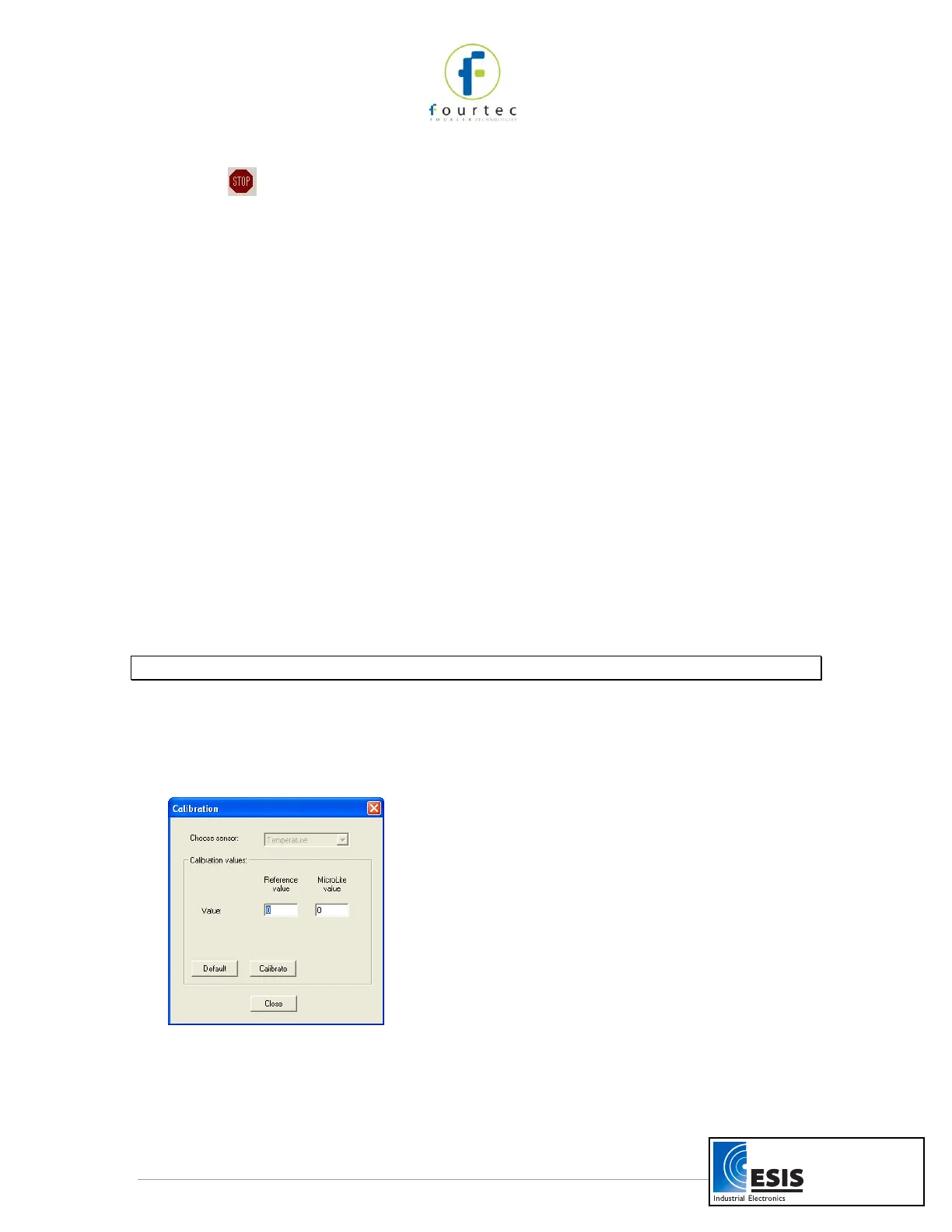
4. The Calibration dialog will open.
Figure 5: Calibration dialog box
www.esis.com.au
Ph 02 9481 7420
Fax 02 9481 7267
esis.enq@esis.com.au


 To Next Page