16
Smart Diagnostic & TPMS Scanner TS7000 User's Manual V1.0
3.3.1 Application Menu
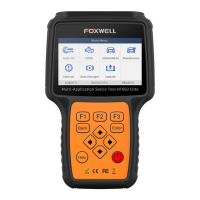
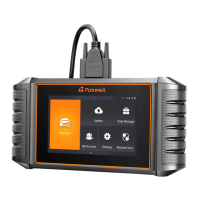
Figure 3-2 Sample Main Menu of Application
This section briefly introduces the applications that are preloaded into the
scanner:
● TPMS - leads to screens for TPMS function.
● Diagnostic - leads to test screens for diagnostic trouble code information,
freeze frame, live data and ECU information.
●
Maintenance - leads to screens for common used special functions like
Oil light reset, EPB, BRT, and DPF etc.
●
OE - enters vehicle selection by selecting "sensor brand" and part
number (OE number) at one time..
● OBDII - leads to OBDII screens for all 10 generic OBD system tests.
● Update - leads to screens for Foxwell ID registration and updating the
scanner.
●
Vehicle History - leads to the record of vehicle tests,
●
Data Manager - leads to screens for saved screenshots, pictures and
test reports, and playing back live data, as well as debug logging data.
● My Account - displays your Foxwell ID information like registered
products and personal information and allows for sending us feedbacks
about the scanner.
●
Settings - leads to screens for adjusting default settings to meet your
own preference and view information about the scanner.
● VCI Manager - VCI manage (Bluetooth and VCI binding, unbinding,
rescan vehicle software)
● Firmware Update - VCI firmware update.
●
Remote Control - leads to TeamViewer to get remote support from
Foxwell team or remote vehicle diagnostic.



 To Next Page