18
Smart Diagnostic & TPMS Scanner TS7000 User's Manual V1.0
The vehicle identification information presented is provided by the ECM of
the vehicle being tested. Therefore, certain attributes of the test vehicle must
be entered into the scan tool to ensure the data displays correctly. The
vehicle identification sequence is menu driven. Simply follow the screen
prompts and make a series of choices. Each selection you make advances
you to the next screen. Exact procedures may vary somewhat by vehicle.
It typically identifies a vehicle by any of the following means:
●
VIN Reading
●
Manual Selection
NOTE
Not all identification options listed above are applicable to all vehicles.
Available options may vary by vehicle manufacturer.
4.1 Vehicle Connection
To connect to vehicle:
1. Locate the data link connector (DLC). The DLC is generally located under
the dash on the driver side of the vehicle.
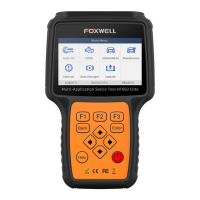
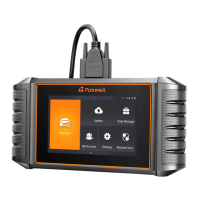
Figure 4-1 Sample Vehicle Connection Screen
2. Attached the diagnostic cable to the scanner and tighten the captive
screws to ensure good connection.
3. Connect a correct adapter to the data cable according to the vehicle
being serviced and plug it into the vehicle DLC.
4. Switch the ignition key to the ON position.
4.2 VIN Reading
VIN button on the title bar is a shortcut for VIN reading menu, which
includes Automatic Read, Manual Entry, eliminating the need for
navigating through complicated car identification process.



 To Next Page