17
Connect Windows PCs with Wi-Fi
The following topics describe how to connect your device with various versions of Windows PCs via Wi-Fi.
Connect Windows PCs to your device with Wi-Fi.
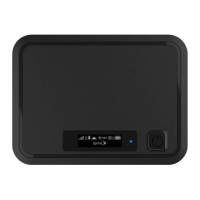
1. Press and hold the Power button to power on your R871.
Your device's Wi-Fi function activates and automatically connects to the Internet.
2. Activate your PC's Wi-Fi function.
The operations depicted are based on Window 10.
For other Window versions, consult your PC's operation manual for details on activating Wi-Fi.
3. On your PC, select WLAN icon
Select your device's Wi-Fi Name (SSID) from the list, and click Connect.
4. Enter the Wi-Fi password.
The PC connects to your device. The connected status icon on your device will show an
additional device has been connected.
Connect Mac Computers with Wi-Fi
Follow the instructions below to connect a Mac computer to your device via Wi-Fi.
Note: The operations depicted are based on Mac OS X 10.10.5
1. Press and hold the Power button to power on your R871.
Your device's Wi-Fi function activates and automatically connects to the Internet.
2. On your Mac, in the Apple menu, click System Preferences… > Network.


 To Next Page