FRITZ!Box 7272 32
Establishing a Wireless LAN Connection with a Network Key
6.3 Establishing a Wireless LAN Connection with a Network Key
You can establish a wireless LAN connection by entering the
FRITZ!Box network key on the wireless device:
1. If the “WLAN” LED on the FRITZ!Box is off, press the
“WLAN” button briefly.
The wireless radio network of the FRITZ!Box will be
switched on.
2. Open the wireless LAN software on your wireless device.
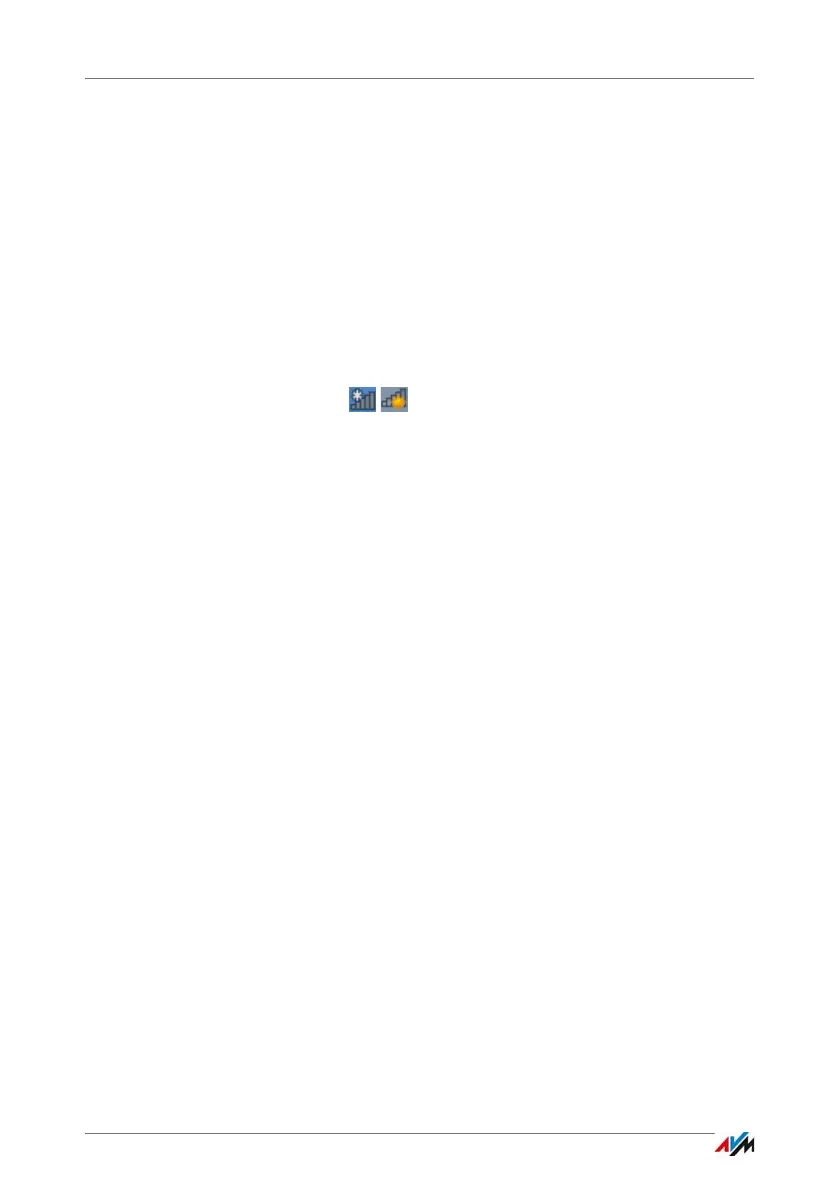
In Windows 8.1, 8 and 7, for instance, click the wireless
LAN icon in the task bar.
3. Select the wireless radio network of the FRITZ!Box.
The preconfigured name of the wireless LAN radio net-
work is “FRITZ!Box 7272”.
4. Click “Connect”.
5. Enter the network key of the FRITZ!Box in the wireless
LAN software.
In the user interface, see page 33, the network key and
additional settings for wireless LAN encryption are found
under “WLAN / Security”.
6. Confirm your entries.
The wireless LAN connection will be established.


 To Next Page