© 2015 Flanders Scientic, Inc.
34
Return to Table of Contents
Display Alignment Menu
Custom Calibration LUTs
AM series monitors are capable of loading custom calibration 3D LUTs. This advanced feature requires use of Display
Alignment software (such as Light Illusion’s LightSpace CMS or SpectraCal’s CalMAN, both of which are currently supported)
and a professional grade probe. The steps below cover the general process of updating LUTs on the monitor.
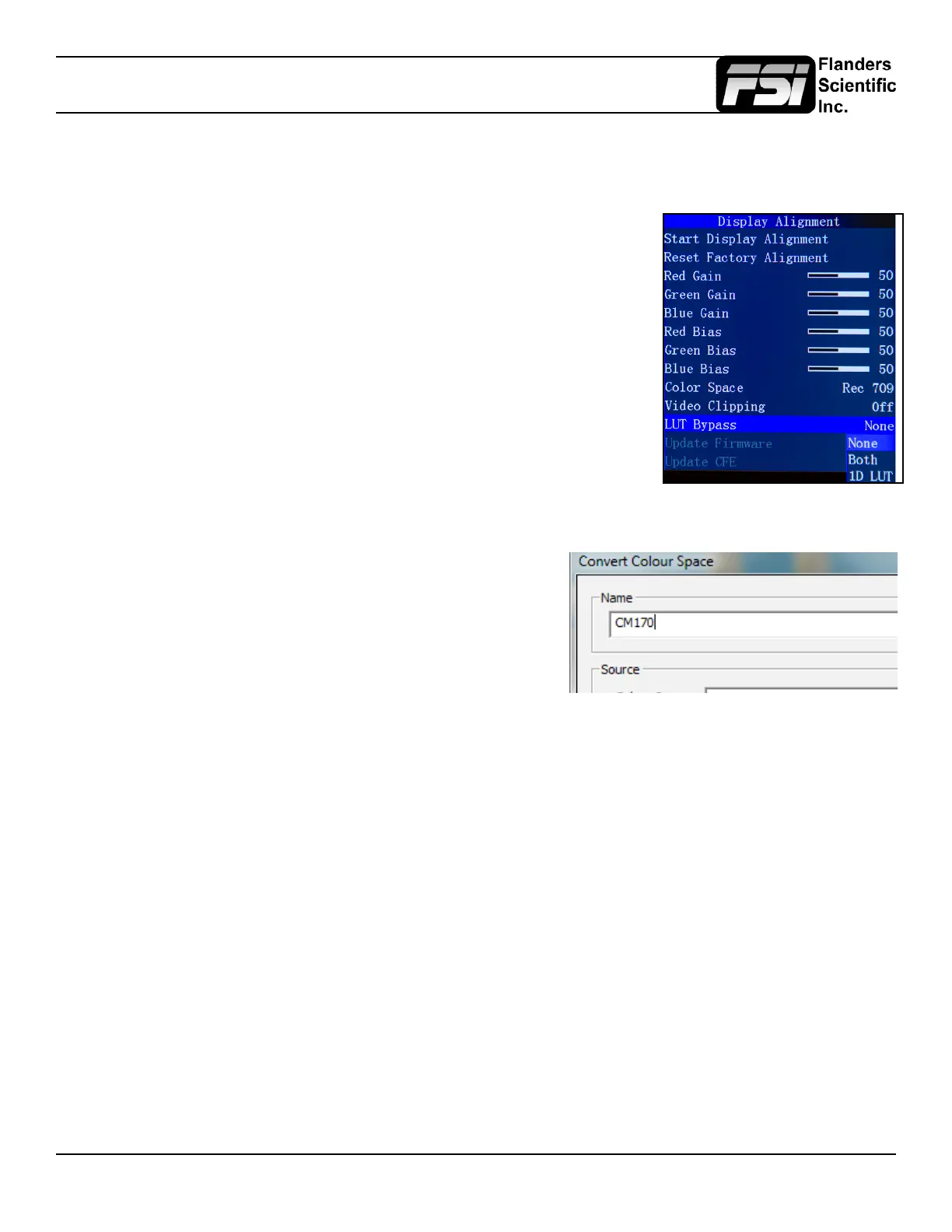
In the Display Alignment menu, set LUT Bypass to 3D LUT, effectively placing the
monitor in Wide Gamut mode and bypassing the factory 3D LUTs. The monitor should
be placed in this mode before proling with any third party solution.
Special Notes for OLED Monitors
We suggest setting the Color Matching Function (CMF) selection to CIE 1931 for
proling and 3D LUT creation. Once calibration is complete you can switch to Judd
modied if you prefer to operate with a Judd modied CMF based calibration.
When using LightSpace to generate custom user LUTs for FSI monitors, the colorspace image name typed into the
Convert Color Space Window MUST match the monitor model name. Valid Model Names: AM210, AM250, AM420,
AM550.
Once you’ve generated your custom LUT, You must rename
the .cfe le saved by the third party program to “user1”,
“user2”, or “user3” if not already named this way before you
attempt to import it.
Loading Custom Calibration LUTs
For guidance on proling a monitor with a third party program that outputs LUTs in a
compatible FSI LUT format please see the program specic instructions for the solution
you are using. The instructions in this manual will only cover pre-proling setup and
how to load a completed 3D LUT to the monitor.


 To Next Page