EasyManua.ls Logo

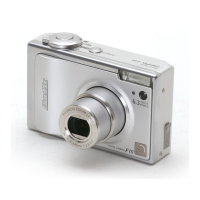
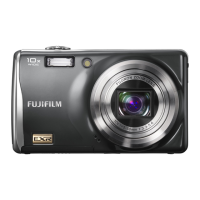
FujiFilm Finepix F480 - User Manual

FujiFilm Finepix F480
132 pages
Print Icon
To Next Page IconTo Next Page
Loading...
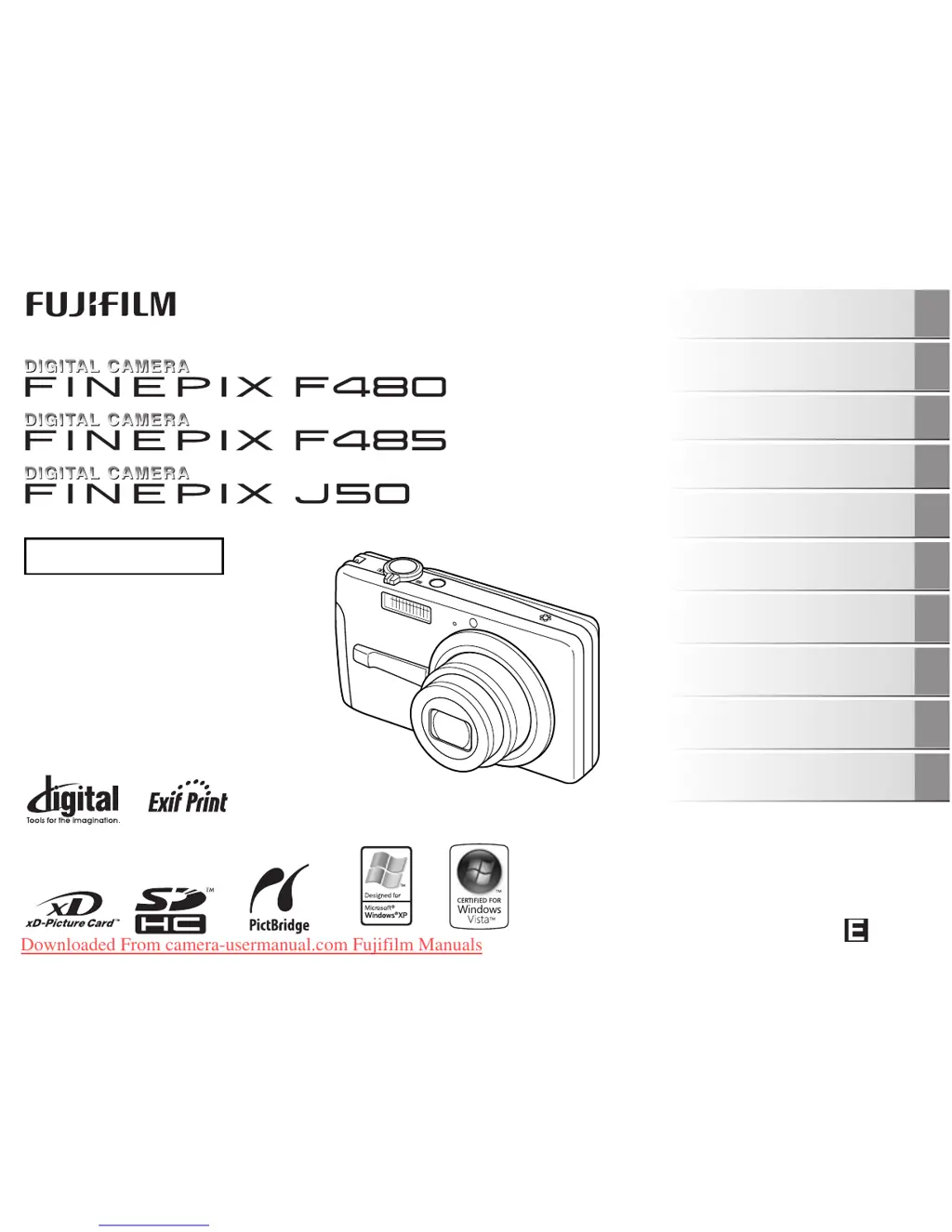
OWNER’S MANUAL
This manual will show you how to use
your FUJIFILM DIGITAL CAMERA
FinePix F480 / FinePix F485 / FinePix J50
correctly.
Please follow the instructions carefully.
BL00641-204(1)
Getting Ready
Using the Camera
Advanced Features
Photography
Settings
Camera Connection
Software
Installation
Playback
•Movie
Appendices
Troubleshooting
Downloaded From camera-usermanual.com Fujifilm Manuals

Table of Contents

Other manuals for FujiFilm Finepix F480

Questions and Answers

  • J
    Joshua BrownSep 10, 2025
    Why FujiFilm Finepix F480 Digital Camera cannot print with PictBridge?
    • J
      Jacqueline YorkSep 10, 2025
      If you're having trouble printing with PictBridge from your FujiFilm Digital Camera: * Ensure the USB cable is correctly connected to both the printer and the camera. Set up the camera and connect the USB cable correctly. * Make sure the printer is turned on.
  • T
    tylerharveyAug 22, 2025
    What to do if my FujiFilm Finepix F480 Digital Camera doesn't turn on?
    • A
      Andrea SnowAug 22, 2025
      If your FujiFilm Digital Camera isn't turning on, here are a few potential reasons: * The batteries may be dead, so try loading fully charged batteries. * The batteries might be loaded backward; ensure they are in the correct direction. * The battery cover may not be closed securely; make sure it's properly closed. * If using an AC adapter, ensure it's correctly connected to both the camera and the power outlet.
  • W
    williamdixonAug 25, 2025
    Why do my FujiFilm Finepix F480 batteries drain so fast?
    • A
      adamsdanielAug 25, 2025
      If the batteries in your FujiFilm Digital Camera are draining quickly, here are a few possible explanations: * If you're using the camera in extremely cold conditions, try warming the batteries in your pocket before use. * The battery terminals might be soiled; wipe them with a clean, dry cloth. * The batteries may be old and no longer rechargeable; try loading new batteries.
  • M
    Michael LawrenceAug 26, 2025
    What to do if my FujiFilm Finepix F480 keeps turning off?
    • A
      amanda43Aug 27, 2025
      If your FujiFilm Digital Camera keeps losing power during operation, here are a couple of things to check: * The batteries may have run out. Load fully charged batteries. * If using an AC power adapter, make sure the plug hasn't come out of the power outlet. Plug the adapter back in.
  • S
    Sandra CowanAug 27, 2025
    Why is my FujiFilm Digital Camera not charging?
    • R
      Robert HernandezAug 28, 2025
      If your FujiFilm Digital Camera isn't charging, consider these potential issues: * The battery might be loaded backward; ensure it's in the correct direction. * The battery charger and connection cord may not be properly connected. Double-check the connections. * The battery terminals could be soiled. Remove the battery briefly and wipe the terminals with a clean, dry cloth before reloading. * The battery may no longer be rechargeable. Try a new battery.
  • K
    Katherine GregoryAug 29, 2025
    Why FujiFilm Finepix F480 can't focus?
    • K
      kimberly94Aug 29, 2025
      If your FujiFilm Digital Camera is having trouble focusing, consider the following: * If you're taking a close-up shot, make sure you've selected Macro mode. * If you're photographing scenery, ensure Macro mode is canceled. * If the subject is not suited to autofocusing, use AF/AE lock to take the picture.
  • K
    kevin54Sep 18, 2025
    Why [CONT.] not working in FujiFilm Finepix F480 Digital Camera?
    • L
      Lisa ParkerSep 18, 2025
      If [CONT.] in the frame number setting is not functioning on your FujiFilm Digital Camera, you may have opened the battery cover without turning the camera off when replacing the batteries or memory card. Always turn the camera off when replacing the batteries or memory card. Opening the battery cover without turning the camera off may cause the frame number memory to not function.
  • T
    tammybrownSep 12, 2025
    Why is there no sound from my FujiFilm Finepix F480?
    • L
      Lisa DavisSep 12, 2025
      If your FujiFilm Digital Camera isn't emitting any sound: * The camera volume might be set too low. Adjust the volume. * The microphone might have been blocked during shooting/recording. Take care not to block the microphone. * Something might be covering the speaker during playback. Make sure the speaker is uncovered.
  • S
    swilliamsSep 8, 2025
    Why my computer doesn't recognize FujiFilm Digital Camera?
    • T
      Tasha AyersSep 8, 2025
      If your PC isn't recognizing your FujiFilm Digital Camera, the USB cable may not be correctly connected to the PC or camera. Ensure that you set up the camera and connect the USB cable correctly.
  • R
    Rachael OrtizSep 5, 2025
    How to fix FujiFilm Finepix F480 Digital Camera flash not working?
    • J
      Jenna ParkerSep 5, 2025
      If the flash on your FujiFilm Digital Camera isn't working, consider the following: * Ensure you wait until the flash is fully charged before pressing the shutter button. * The shooting mode may be incompatible with flash use. Change the shooting mode. * The batteries may have run out; load fully charged batteries. * The flash may be set to [C SUPPRESSED FLASH] mode. Change to another flash mode. * The flash settings may be restricted due to the current camera settings. Change the shooting mode for more flash options.

Summary

Warning and Safety Information

Regulatory Compliance (USA & Canada)

Details on FCC compliance for USA and regulatory notes for Canada.

IMPORTANT NOTICES

End User License Agreement

Terms and conditions for using the bundled software.

EC Declaration of Conformity

Product Disposal Guidelines

Troubleshooting Guide

Memory Card Information

About this Manual

Manual Conventions and Model Details

Explains manual symbols, illustrations, cable notation, and model-specific functions.

Included Accessories

Attaching Camera Accessories

Instructions for attaching the camera strap.

Camera Parts Identification

LCD Monitor Display Examples

Shooting and Playback Screen Elements

Illustrates and explains icons and data shown on the LCD in shooting and playback modes.

Battery Charging Procedure

Compatible Battery Types

Information on the compatible rechargeable battery NP-40N.

Loading the Battery Correctly

Loading the Memory Card

Supported Memory Card Types

Details on using xD-Picture, SD, and SDHC memory cards.

Internal Memory Usage

Turning the Camera On and Off

Camera Power States

Describes how to turn the camera on/off in shooting and playback modes.

Initial Camera Setup: Language, Date, Time

Date Format and Power Settings

Checking the Battery Charge Level

Correcting Date and Time Settings

Selecting the Language

Taking Pictures in AUTO Mode

Composition and Focus Adjustment

Capturing the Image

Indicator Lamp Meanings

Focus and Exposure Lock

Autofocus Performance Considerations

Adjusting Shot Composition

Framing Best Practices

Tips for optimal subject positioning and composition on the LCD monitor.

Viewing Images

Entering Playback Mode

Instructions for switching the camera to playback mode.

Single-Frame Image Playback

Playback Zoom Functionality

Advanced Image Playback Features

Organizing Images by Date

Erasing Images and Movies

Erase Operations Guide

Covers erasing via erase button and playback menu.

Erasing Individual Frames

Erasing All Frames

Photography Function Setup

Function Specification Methods

Explains specifying functions via buttons and shooting menu.

[SHOOTING MENU] Options Overview

Setting the Shooting Mode

Scene Position Mode Selection

Guide to selecting scene modes from the shooting menu.

Shooting Mode Descriptions

Common Shooting Modes

Details on AUTO, BABY, PICTURE STABILIZATION, RED EYE REDUCTION, DIGITAL ZOOM modes.

Scene Position Modes (Part 1)

Scene Position Modes (Part 2)

Scene Position Modes (Part 3)

Scene Position Modes (Part 4)

[s MANUAL] Mode Details

Explains the manual shooting mode and its controls.

Macro (Close-up) Mode

Flash Setting Options

Flash Mode Descriptions

Details on AUTO, RED EYE, FORCED, and SUPPRESSED flash modes.

Advanced Flash Modes

Self-Timer Functionality

Self-Timer Operation Guide

Instructions for setting and using the self-timer.

Using the 2-Second Self-Timer

Adjusting Monitor Brightness

Using the [SHOOTING MENU]

Navigating the Shooting Menu

Step-by-step guide to accessing and changing shooting menu settings.

[SHOOTING MENU] Options List

[SHOOTING MENU] Settings

Sensitivity ([ ISO]) Settings

How to adjust ISO sensitivity for different lighting conditions.

Image Quality ([ QUALITY]) Settings

How to select image resolution and quality.

Image Area and Quality Settings

Adjusting Exposure Compensation

Exposure Compensation Guide

Tips for adjusting exposure for contrasty scenes.

Adjusting Color Balance

Continuous Shooting Mode

Using the [PLAYBACK MENU]

Navigating the Playback Menu

Step-by-step guide to accessing and changing playback menu settings.

Automatic Playback Settings

DPOF Print Frame Settings

Specifying Print Options

Canceling DPOF Settings

Understanding DPOF (Digital Print Order Format)

Protecting Images from Deletion

Frame Protection Operations

How to protect and unprotect individual or all frames.

Copying Images Between Storage

Selecting Copy Source and Destination

Guide to copying images between internal memory and memory card.

Copying Individual Frames

Copying All Frames

Rotating Images in Playback

Trimming Images in Playback

Specifying Trimming Area

How to select the part of the image to trim.

Recording Movies

Setting Movie Mode

Instructions for setting the camera to movie recording mode.

Zooming During Movie Recording

Information on using zoom before and during movie recording.

Recording Movie Clips

Playing Back Recorded Movies

Movie Playback Controls

Details on playback, pause, stop, fast forward, and rewind functions.

Adjusting Movie Playback Volume

Using the [SET-UP] Menu

Navigating the Set-Up Menu

Guide to opening, paginating, and changing settings in the Set-Up menu.

[SET-UP] Menu Options Overview

[ SET-UP] Menu Settings

Formatting and System Settings

Covers FORMAT, LANGUAGE, AUTO POWER OFF, TIME DIFFERENCE, VIDEO SYSTEM, RESET.

[FRAME NO.] Setting

[DIGITAL ZOOM] Functionality

[LCD POWER SAVE] Feature

[PLAYBACK VOLUME] Adjustment

[LCD BRIGHTNESS] Adjustment

[FORMAT] Procedure

[AUTO POWER OFF] Setting

[TIME DIFFERENCE] Function

Using the Time Difference Feature

How to set time differences for travel.

Connecting the Camera to a TV

Direct Printing via PictBridge

Connecting to a Printer

Steps for connecting the camera directly to a PictBridge printer.

Specifying Images for Printing

Printing with DPOF Settings

Printer Connection Management

Windows PC Software Installation

Pre-installation Requirements

Hardware and software requirements for Windows installation.

Software Installation Process (Windows)

Installing FinePixViewer Software

Step-by-step guide for installing FinePixViewer on Windows.

Mac OS X Software Installation

Pre-installation Requirements

Hardware and software requirements for Mac OS X installation.

Launching the Installer Manually

Configuring Image Capture Settings

Connecting the Camera to a PC

FinePixViewer Software Overview

Features of FinePixViewer for image management.

Camera Disconnection Procedures

Using FinePixViewer Software

Mastering FinePixViewer Features

Guide to FinePixViewer functions like slide shows.

Uninstalling Software

Instructions for removing FinePixViewer and drivers.

System Expansion Options

Accessories Guide

Using Your Camera Correctly

Places to Avoid

List of locations and environmental conditions to avoid for camera use and storage.

Storage and Handling Precautions

Advice on avoiding damage from water, sand, condensation, and travel.

Memory Card and Internal Memory Notes

Handling Memory Cards

Guidelines for inserting, removing, and caring for memory cards.

Internal Memory Considerations

Information on internal memory limitations and data backup.

Using Memory Card;Internal Memory with PC

Advice on PC compatibility and data management.

Warning Displays

Troubleshooting Categories

Getting Ready Issues

Troubleshooting common problems related to batteries and setup.

Menu and Display Issues

Troubleshooting problems with menu settings and screen display.

Shooting Troubleshooting

Basic Operations Problems

Resolving issues with taking photos, memory cards, and battery.

Focusing and Macro Issues

Troubleshooting focusing difficulties and macro mode usage.

Flash and Image Troubleshooting

Flash Usage Problems

Resolving issues with flash not firing or settings being restricted.

Photographed Image Issues

Troubleshooting blurred images or speckling.

Playback and Erasing Troubleshooting

Playback and Erasing Problems

Resolving issues with playback, erasing protected files, and frame numbering.

Connectivity Troubleshooting

Other Troubleshooting Issues

Camera Specifications

Explanation of Terms

FUJIFILM Digital Camera Worldwide Network

FujiFilm Finepix F480 Specifications

General IconGeneral
Megapixel8.2 MP
Sensor typeCCD
Image sensor size1/2.5 \
Maximum image resolution3264 x 2448 pixels
Digital zoom6.9 x
Optical zoom4 x
Focal length range4.6 - 18.4 mm
InterfaceUSB 2.0
Digital SLRNo
Built-in flashYes
Camera shutter speed4 - 1/1500 s
Focal length (35mm film equivalent)28 - 112 mm
Focus adjustmentAuto
Normal focusing range0.4 - ∞ m
Auto focusing (AF) modesCentre weighted Auto Focus
Macro focusing range (tele)0.3 - 0.8 m
Macro focusing range (wide)0.05 - 0.8 m
Flash modesauto, Red-eye reduction, Slow synchronization
Flash range (tele)0.5 - 4 m
Flash range (wide)0.5 - 2.2 m
Internal memory12 MB
Compatible memory cardssd, xd
Motion JPEG frame rate30 fps
Video formats supportedAVI
Maximum video resolution320 x 240 pixels
Display diagonal2.7 \
Display resolution (numeric)230000 pixels
USB version2.0
Product colorBlack
Scene modesbeach, Close-up (macro), Fireworks, Night, Sports, Sunset, Landscape (scenery)
Image editingrotating, trimming
White balanceauto, daylight, Fluorescent, Shade
Camera playbacksingle image, slide show, thumbnails
Weight and Dimensions IconWeight and Dimensions
Depth23 mm
Width95.6 mm
Height55.4 mm
Weight140 g

Related product manuals