EasyManua.ls Logo

FujiFilm FinePix S3500 - User Manual

FujiFilm FinePix S3500
100 pages
Print Icon
To Next Page IconTo Next Page
Loading...
1
2
3
4
5
6
Getting Ready
Using
the Camera
Advanced
Features
Software
Installation
Settings
Viewing Images
BL00404-200
(
1
)
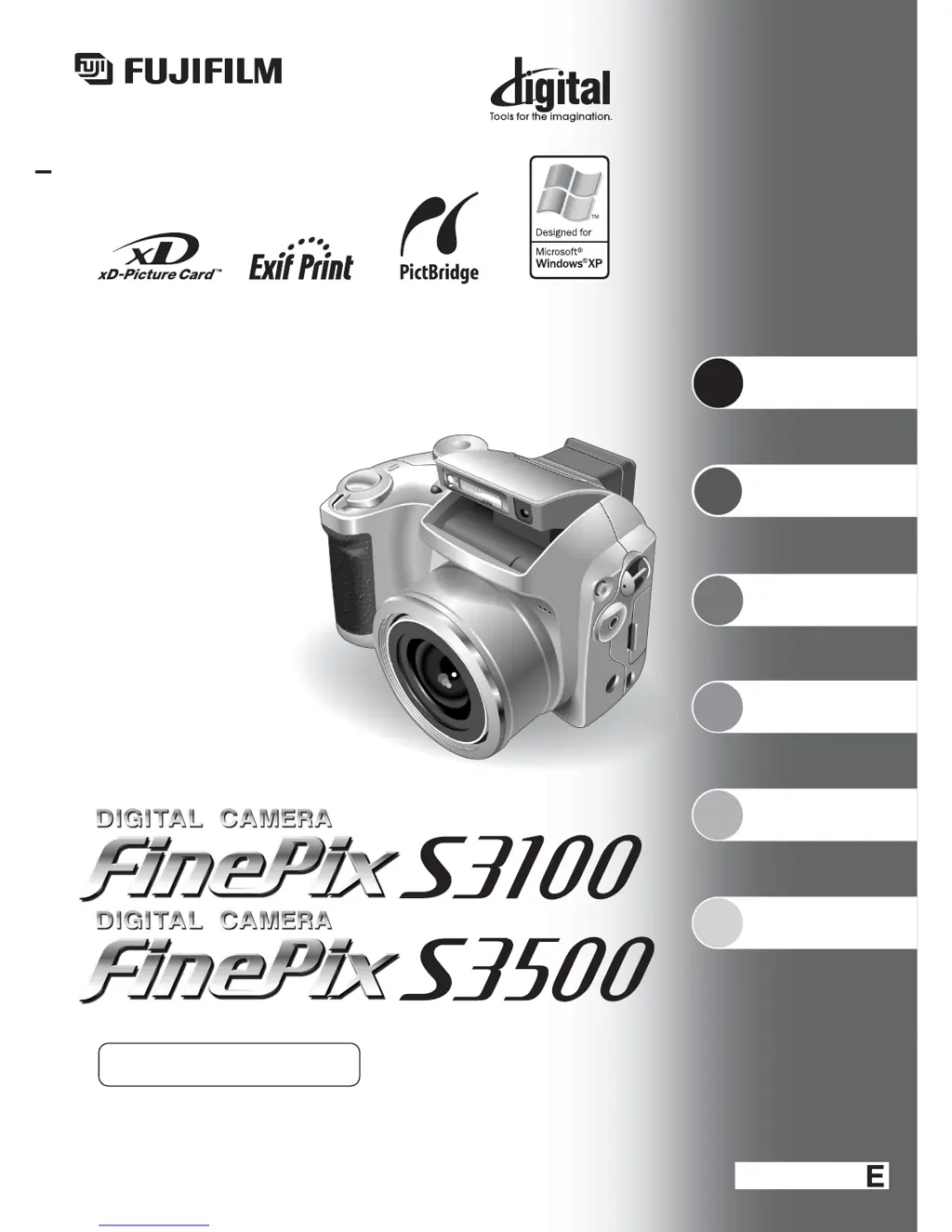
This manual will show you how to use your
FUJIFILM DIGITAL CAMERA FinePix S3100/FinePix S3500 correctly.
Please follow the instructions carefully.
OWNER’S MANUAL

Table of Contents

Questions and Answers

  • S
    shelby38Aug 18, 2025
    How to fix a FujiFilm FinePix S3500 that won't turn on?
    • L
      Lisa MathewsAug 19, 2025
      If your FujiFilm Digital Camera isn't powering on, here are a few things to check: * Ensure the batteries aren't depleted; if they are, load new or fully charged batteries. * Verify the batteries are inserted correctly, not backwards. * Make sure the battery cover is correctly and completely closed. * If using an AC adapter, confirm it's securely plugged into the power outlet.
  • A
    Angela BradleyAug 21, 2025
    What to do if my FujiFilm FinePix S3500 won't take pictures?
    • A
      abrownAug 21, 2025
      If your FujiFilm Digital Camera is not taking pictures when you press the shutter button, consider the following: * Confirm that an xD-Picture Card is inserted. * If a card is inserted, check if it is full. If it is, insert a new card or erase unwanted frames. * Ensure the card is formatted; if not, format it on the camera. * Check the card's contact area and wipe it with a clean, dry cloth if soiled. * The card might be damaged, try inserting a new card. * Make sure the camera is turned on, as the Auto power off function might have activated. * Check that the batteries are not depleted; if they are, load new or fully charged batteries.
  • W
    William WeaverAug 23, 2025
    Why does my FujiFilm FinePix S3500 turn off while I'm using it?
    • V
      Vickie NovakAug 23, 2025
      If your FujiFilm Digital Camera is losing power during operation, the batteries may have run out. Try loading new or fully charged batteries.
  • B
    brownjimmyAug 26, 2025
    Why are my FujiFilm FinePix S3500 Digital Camera photos blurry?
    • B
      bennettkelseyAug 26, 2025
      If your photos are blurry when using your FujiFilm Digital Camera, consider these points: * The lens may be dirty, so try cleaning it. * If the subject was too dark, try standing about 2 meters (6.6 ft) away. * If you photographed scenery with Macro mode selected, cancel Macro mode. * If you took a close-up shot without selecting Macro mode, select Macro mode. * If you are shooting a subject that is not suited to autofocusing, use AF/AE lock to take the picture.
  • J
    John RothAug 28, 2025
    Why are my FujiFilm FinePix S3500 Digital Camera flash photos too dark?
    • L
      lgarciaAug 28, 2025
      If your FujiFilm Digital Camera flash photos are too dark, even when the flash is used, it could be due to these reasons: * The subject might be too far away. Move closer to within the flash's effective range. * Your finger might be covering the flash or flash control sensor; hold the camera correctly. * If Scene position mode is selected, change the Photography mode for a wider range of flash settings.
  • R
    Rebecca AndersonAug 30, 2025
    What does it mean if my FujiFilm Digital Camera no longer works correctly?
    • E
      Elizabeth AlexanderAug 30, 2025
      If your FujiFilm Digital Camera no longer works correctly, the camera may have encountered an unforeseen problem. Briefly remove the batteries or disconnect the AC power adapter. Then reload the batteries or reconnect the AC power adapter and try again. If the message still appears, contact your FUJIFILM dealer.
  • T
    tmaySep 1, 2025
    What to do if the Mode dial on my FujiFilm Digital Camera isn't working?
    • B
      belldanielSep 1, 2025
      If the Mode dial on your FujiFilm Digital Camera isn't working, it could be due to a camera malfunction. Briefly remove the batteries or disconnect the AC power adapter. Then reload the batteries or reconnect the AC power adapter and try again. Also, check if the batteries have run out and load new or fully charged batteries.
  • T
    Teresa MendozaSep 4, 2025
    Why won't the flash work on my FujiFilm FinePix S3500?
    • R
      Rachel PorterSep 4, 2025
      If the flash on your FujiFilm Digital Camera isn't working, check if the flash is popped up and pop it up if it is not. Also, if the camera is set to Landscape in Scene position mode, select another Scene position or change the Photography mode.
  • C
    Christopher MosesSep 6, 2025
    How do I enable Macro mode on my FujiFilm FinePix S3500?
    • P
      Patrick WoodSep 6, 2025
      If you can’t set your FujiFilm Digital Camera to Macro (close-up) mode, it might be because the camera is set to Scene position (m) mode or to Movie mode (r). Change the Photography mode to “B” or “s.”
  • G
    Gabriel BarberSep 8, 2025
    Why is the FujiFilm Digital Camera image black and white on my TV?
    • A
      Allison RobertsSep 8, 2025
      If the TV image from your FujiFilm Digital Camera is black and white, the video output setting is likely incorrect. Change the setting to “NTSC” or “PAL.”

Summary

Getting Ready

Attaching Lens Cap, Strap, and Adapter Ring

Instructions for attaching the lens cap, strap, and adapter ring to the camera.

Loading Batteries

Guidance on inserting AA-size alkaline or Ni-MH batteries correctly.

Inserting the Media (xD-Picture Card)

Steps for inserting the xD-Picture Card into the camera's slot.

Setting Date and Time

How to turn the camera on and off, and set the initial date and time.

Selecting Camera Language

How to change the camera's menu and display language settings.

Checking Battery Charge Level

Understanding the battery level indicators and power save functions.

Using the Camera

Using the Flash Pop-Up Button

How to extend and use the camera's built-in flash.

Selecting Photography Modes

Guide to choosing between AUTO, Scene Position, and Manual photography modes.

Switching Between Viewfinder and LCD Monitor

How to toggle the display between the electronic viewfinder (EVF) and the LCD screen.

Operating Camera Menus

Step-by-step guide to accessing and changing camera settings via menus.

Taking Pictures in AUTO Mode

Detailed steps for taking photos using the automatic shooting mode.

Understanding Indicator Lamp Signals

Meaning of different indicator lamp lights and their status.

Using AF;AE Lock for Optimal Shots

How to lock focus and exposure settings before composing a shot.

Using Optical and Digital Zoom

Instructions for using the camera's zoom functions, including zoom scales.

Tips for Best Framing and Composition

Guidance on using framing guidelines and positioning subjects.

Viewing Images in Playback Mode

How to view recorded images, including single-frame and multi-frame playback.

Erasing Images (Single and All Frames)

Procedure for deleting individual images or all images from the memory card.

Advanced Features

Selecting Photography Modes

Guide to choosing between AUTO, Scene Position, and Manual photography modes.

Using Scene Position Modes

Choosing preset scene modes like Portrait, Landscape, Sport, and Night.

Using Manual Photography Mode

Manual control over exposure, white balance, flash, aperture, and sharpness.

Taking Close-Up Macro Shots

Instructions for using the Macro mode for close-up photography.

Understanding and Using Flash Modes

Guide to the six available flash modes and their applications.

Using Red-Eye Reduction Flash

Minimizing red-eye effect in low-light portraits with a pre-flash.

Using Slow Synchro Flash Mode

Combining slow shutter speeds with flash for night shots.

Adjusting Monitor Brightness for Low Light

Temporarily increasing screen brightness for better visibility in dim conditions.

Navigating the Photography Menu

How to access and change settings within the photography menu.

Setting Image Quality

Choosing image resolution and compression for optimal results.

Using the Self-Timer

How to use the self-timer for group shots or when the photographer is in the picture.

Adjusting Flash Brightness

Fine-tuning the flash output for desired lighting effects.

Using Exposure Compensation (EV)

Adjusting overall brightness to compensate for scene lighting conditions.

Setting White Balance

Adjusting color balance based on the ambient light source for accurate colors.

Using Aperture-Priority Mode

Controlling depth of field by manually setting aperture.

Adjusting Image Sharpness

Softening or emphasizing outlines to adjust image quality.

Erasing Images (Single and All Frames)

Procedure for deleting individual images or all images from the memory card.

Specifying Print Options (DPOF)

Setting print preferences for images using the Digital Print Order Format.

Protecting Images from Accidental Deletion

Methods to protect individual images or all images from accidental erasure.

Recording Movies

Instructions for recording video clips, including specifications and quality settings.

Playing Back Recorded Movies

How to play back video files, including playback controls and troubleshooting.

Settings

Adjusting EVF;LCD Monitor Brightness

How to adjust the brightness of the electronic viewfinder and LCD screen.

Using the Camera Set-Up Screen

Navigating the main set-up menu to configure various camera options.

Formatting the xD-Picture Card

How to initialize the xD-Picture Card for optimal camera use.

Setting World Time and Time Difference

Adjusting camera time for different time zones when traveling.

Managing Frame Numbering

Specifying how frame numbers are assigned consecutively or reset.

Software Installation

Software Pre-installation Checklist

System requirements for installing the camera software on a Windows PC.

Launching the Software Installer

Steps to manually start the FinePixViewer software installation process.

Installing Software on Mac OS 9.2

Guide for installing camera software on older Macintosh operating systems.

Installing Software on Mac OS X

Instructions for installing camera software on Mac OS X systems.

Viewing Images

Connecting the Camera to External Devices

How to connect the camera to a TV or PC for viewing images.

Using the AC Power Adapter

Guidance on using the AC adapter for uninterrupted power during use.

Connecting the Camera to a TV

Steps for viewing images and movies on a television screen.

Direct Printing via PictBridge

How to print images directly from the camera to a PictBridge-compatible printer.

Connecting the Camera to a PC

Instructions for connecting the camera to a PC for image transfer.

Using DSC (Mass Storage) Mode

Transferring images from xD-Picture Card to PC via USB connection.

Safely Disconnecting the Camera from PC

Proper procedure to disconnect the camera from a PC to prevent data loss.

Using FinePixViewer Software

Guide to mastering the FinePixViewer application for image management.

FujiFilm FinePix S3500 Specifications

General IconGeneral
Image Sensor1/2.7-inch CCD
Optical Zoom6x
LCD Screen1.5-inch TFT
Storage MediaxD-Picture Card
Battery Type4x AA batteries
Screen size1.5 inches
Video Recording320 x 240 pixels at 10 fps
ISO Sensitivity100, 200
Shutter Speed1/2000 sec - 4 sec

Related product manuals