EasyManua.ls Logo

FujiFilm FINEPIX XP130 Series - User Manual

FujiFilm FINEPIX XP130 Series
150 pages
Print Icon
To Next Page IconTo Next Page
Loading...
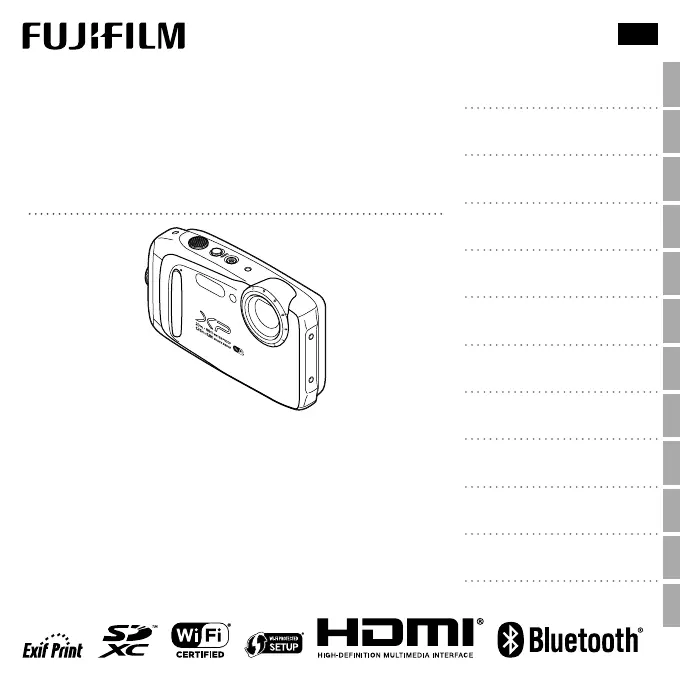
FINEPIX XP130 Series
DIGITAL CAMERA
Owner’s Manual
For information on related products, visit our website at
http://www.fujifilm.com/products/digital_cameras/index.html
EN
Before You Begin
First Steps
Basic Photography and Playback
More on Photography
More on Playback
Wireless Communication
Connections
Menus
Technical Notes
Troubleshooting
Appendix
BL00004931-201
Movies

Table of Contents

Questions and Answers

  • C
    cummingsjustinJul 28, 2025
    Why my FujiFilm Digital Camera does not turn on?
    • M
      michelle02Jul 28, 2025
      If your FujiFilm Digital Camera won't turn on, there are several potential reasons: * The battery may be exhausted: Charge the battery or insert a fully-charged spare. * The battery may be inserted incorrectly: Reinsert it in the correct orientation. * The battery-chamber cover may not be latched: Latch the cover. * The battery may be cold: Warm it in a pocket and reinsert it just before taking a picture. * There may be dirt on the battery terminals: Clean them with a soft, dry cloth. * Q might be selected for shooting mode: Select B mode to reduce battery drain. * x TRACKING might be selected for F AF MODE: Select a different AF mode. * The battery may have reached the end of its charging life: Purchase a new one. * The battery needs to be charged at room temperature.
  • J
    Jacqueline TerrellAug 7, 2025
    What to do if my FujiFilm FINEPIX XP130 battery does not charge?
    • R
      rhurleyAug 8, 2025
      If the battery of your FujiFilm Digital Camera isn't charging, consider these possibilities: 1. The battery might be inserted incorrectly: Reinsert it correctly, ensuring a proper power connection. 2. The battery terminals may be dirty: Clean them with a soft, dry cloth. 3. The battery may have reached the end of its charging life: Purchase a new battery; if it still won't charge, contact your FUJIFILM dealer. 4. The battery might be too hot or cold: Allow the battery temperature to stabilize.
  • D
    David McdonaldAug 18, 2025
    What to do if there is water in my FujiFilm FINEPIX XP130 Digital Camera?
    • J
      Jennifer LynchAug 18, 2025
      If water has entered your FujiFilm Digital Camera, the battery-chamber cover was likely not fully closed before immersion or was opened underwater. The suggested solution is to take the camera to a FUJIFILM-authorized service technician for repairs, and do not attempt to turn it on.

Summary

Before You Begin

Symbols and Conventions

Explains symbols and text conventions used in the manual.

Supplied Accessories

Lists and illustrates items included with the camera.

Parts of the Camera

Identifies and locates camera controls and components.

First Steps

Inserting the Battery and a Memory Card

Step-by-step guide for installing essential camera components.

Charging the Battery

Instructions for charging the camera's rechargeable battery.

Turning the Camera on and Off

Procedures for powering the camera on, off, and switching modes.

Basic Photography and Playback

Taking Pictures in SR (Scene Recognition) Mode

How to use automatic scene recognition for optimal shooting.

Viewing Pictures

How to review images on the camera's LCD monitor.

More on Photography

Shooting Mode

Explains how to choose different shooting modes for various scenes.

Face;eye detection setting

How to enable and use face and eye detection for focus.

Focus Lock

Technique for locking focus and exposure on a subject.

Using the Flash (Intelligent Flash)

Explains different flash modes and intelligent flash system.

More on Playback

Playback Options

General options for reviewing images.

Deleting Pictures

Methods for deleting single, selected, or all pictures.

Image Search

Finding specific pictures using criteria like date or scene.

Movies

Recording Movies

How to start, stop, and manage movie recording.

Viewing Movies

Playing back recorded movies and controlling playback.

Wireless Communication

Wireless Communication with Smartphone or tablet (FUJIFILM Camera Remote)

Connecting the camera to smartphones/tablets via Bluetooth or Wi-Fi.

Wireless Communication with Computer (FUJIFILM PC AutoSave)

Connecting the camera to a computer for automatic image saving.

Connections

Viewing Pictures on High-Definition TVs

Connecting the camera to a TV via HDMI for display.

Creating a DPOF Print Order

Setting up a print order for DPOF-compatible printers.

Viewing Pictures on a Computer (MyFinePix Studio)

Using MyFinePix Studio software to manage images on a computer.

Menus

Shooting Menu Options

Settings for shooting modes, ISO, image quality, and white balance.

Playback Menu Options

Options for reviewing, managing, and editing images in playback mode.

The Setup Menu

Camera setup options including date, time, language, and system settings.

Technical Notes

Optional Accessories

Information on compatible accessories for the camera.

Caring for the Camera

Guidelines for storing, using, and maintaining the camera.

Troubleshooting

Problems and Solutions

Common issues and their resolutions for the camera.

Warning Messages and Displays

Explains various warning messages and display indicators.

Appendix

Memory Card Capacity

Table showing storage capacity for photos and movies on memory cards.

Specifications

Technical details about the camera's hardware and features.

FujiFilm FINEPIX XP130 Series Specifications

General IconGeneral
Sensor1/2.3-inch CMOS
LensFujinon 5x Optical Zoom Lens
ApertureF3.9 (Wide) - F4.9 (Telephoto)
DustproofYes
VideoFull HD 1080p at 60 fps
Display3.0-inch LCD
LCD Screen Resolution920, 000 dots
ConnectivityWi-Fi, Bluetooth
BatteryNP-45S Li-ion Battery
Storage MediaSD/SDHC/SDXC memory card
ISO RangeISO 100-6400
Shutter Speed1/4 sec. to 1/2000 sec.
ShockproofUp to 1.75 meters (5.8 feet)
FreezeproofDown to -10°C (14°F)
Battery LifeApprox. 240 shots
Weight207g (including battery and memory card)
WaterproofUp to 20 meters (65 feet)
Dimensions110.0mm x 71.0mm x 27.8mm

Related product manuals