This document describes the FUJIFILM Digital Photo Printer II (with Battery), a device designed for printing digital photos. The manual provides instructions for setup, operation, and maintenance, and includes both Chinese and English sections.
Function Description
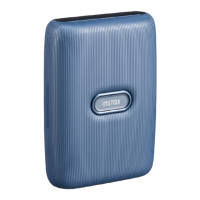
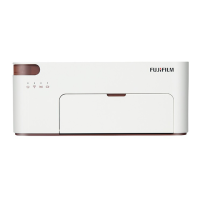
The FUJIFILM Digital Photo Printer II is a compact digital photo printer with a built-in battery, allowing for portable use. It utilizes dye-sublimation printing technology to produce high-quality photo prints. The printer supports Wi-Fi connectivity, enabling users to print directly from their smartphones (Android and Apple devices) via the FUJIFILM Print APP, or from Windows PCs. It offers various printing modes, including fast printing, common printing (with photo editing features), ID photo printing (automatic layout), and template printing.
Important Technical Specifications
- Model: PSC2D
- Input: 24V=1.6A
- Dimensions: 206.5 × 135.6 × 86.5 mm
- Net Weight: Approximately 1.3 kg
- Operating Temperature: 10°C ~ 35°C
- Wireless Connectivity: Wi-Fi IEEE 802.11b/g/n 2.4GHz
- Standards: GB4943.1-2011, GB/T 9254-2008, GB 17625.1-2012
- Photo Paper Capacity: The paper tray can hold up to 20 sheets of photo paper.
- Battery: Built-in lithium battery.
Usage Features
The printer offers flexible connectivity options:
- Router Connected Wi-Fi (Recommended): For family sharing and printing while surfing the internet. Users connect via the FUJIFILM Print APP, inputting router account and password.
- Direct Connection (Wi-Fi): For fast and convenient printing without a router. Users activate this mode by pressing the direct connection button on the printer. The default connection password is 12345678, which can be changed in the APP. It supports simultaneous connection of up to 5 devices.
- APP Printing: The FUJIFILM Print APP allows users to select various printing modes, including fast printing, common printing (with photo editing), ID photo printing, and template printing.
- Android/Apple Device Printing: Supports printing from photo albums on Android devices (via Mopria Print Service if needed) and AirPrint for Apple devices.
- Windows PC Printing: Requires downloading and installing a driver from the FUJIFILM official website. Connection can be established via router or direct Wi-Fi.
The printer features several indicator lights and buttons for easy operation:
- Indicator Lights:
- On/Off: Indicates power status.
- Router Connected to Wi-Fi: Indicates connection to a router.
- Direct Connection (Wi-Fi): Indicates direct Wi-Fi connection status.
- Battery Level: Shows battery charge status (full, low, almost empty, charging, error).
- Buttons:
- Power Button: Short press to turn on/off, long press (1 second) to turn on, long press (5 seconds) to restore factory settings.
- Direct Connection (Wi-Fi) Button: Short press to turn on/off direct Wi-Fi, long press (5 seconds) to reset the network.
- Paper Tray Door: Front-loading for paper.
- Ribbon Door: Side-loading for ribbon cartridge.
- Reset Hole: For restarting the printer with a needle in case of malfunction.
Maintenance Features
- Optimal Operating Conditions: The recommended printing temperature is 10°C to 35°C, with relative humidity between 40% and 60%. Deviations may affect print quality.
- Ribbon and Paper Handling:
- Only use official ribbons and photographic paper to ensure print quality.
- Avoid touching the glossy side of photo paper and the plastic film of the ink cartridge to prevent fingerprints.
- Ensure photo paper is loaded with the glossy side up and the FUJIFILM logo side down, correctly placed in the paper tray.
- Do not block the paper output slot.
- During printing, the paper moves back and forth four times. Wait for the printer to automatically eject the paper after printing is complete; do not pull it out forcefully.
- Print Head Care: The print head heats up during printing and remains hot for a while afterward. Avoid touching it to prevent burns.
- Storage:
- When not in use, the paper tray can be stored in the designated slot on top of the printer to save space and prevent dust.
- For long-term storage, remove the paper tray, close the paper tray door, and cover the paper tray to prevent dust.
- Unused photo paper stored inside the machine should be kept away from high temperature and humidity.
- Battery Maintenance: The built-in lithium battery should be charged at least once every 3 months if not connected to power. Avoid storing the printer in high temperature or high humidity environments. The battery is forbidden to use after being immersed in water.
- Adapter Usage: Only use the original power adapter. Using other adapters may cause printing failures or damage to the printer or other devices.
- Firmware Upgrades: It is recommended to plug in the power adapter during firmware upgrades to prevent damage from unexpected power loss due to low battery.
- Troubleshooting: In case of malfunction, try turning the printer off and on. If it cannot be turned off, use a needle to press the reset hole on the back of the printer. The printer will attempt to self-repair.

 Need help?


 To Next Page
 General