EasyManua.ls Logo

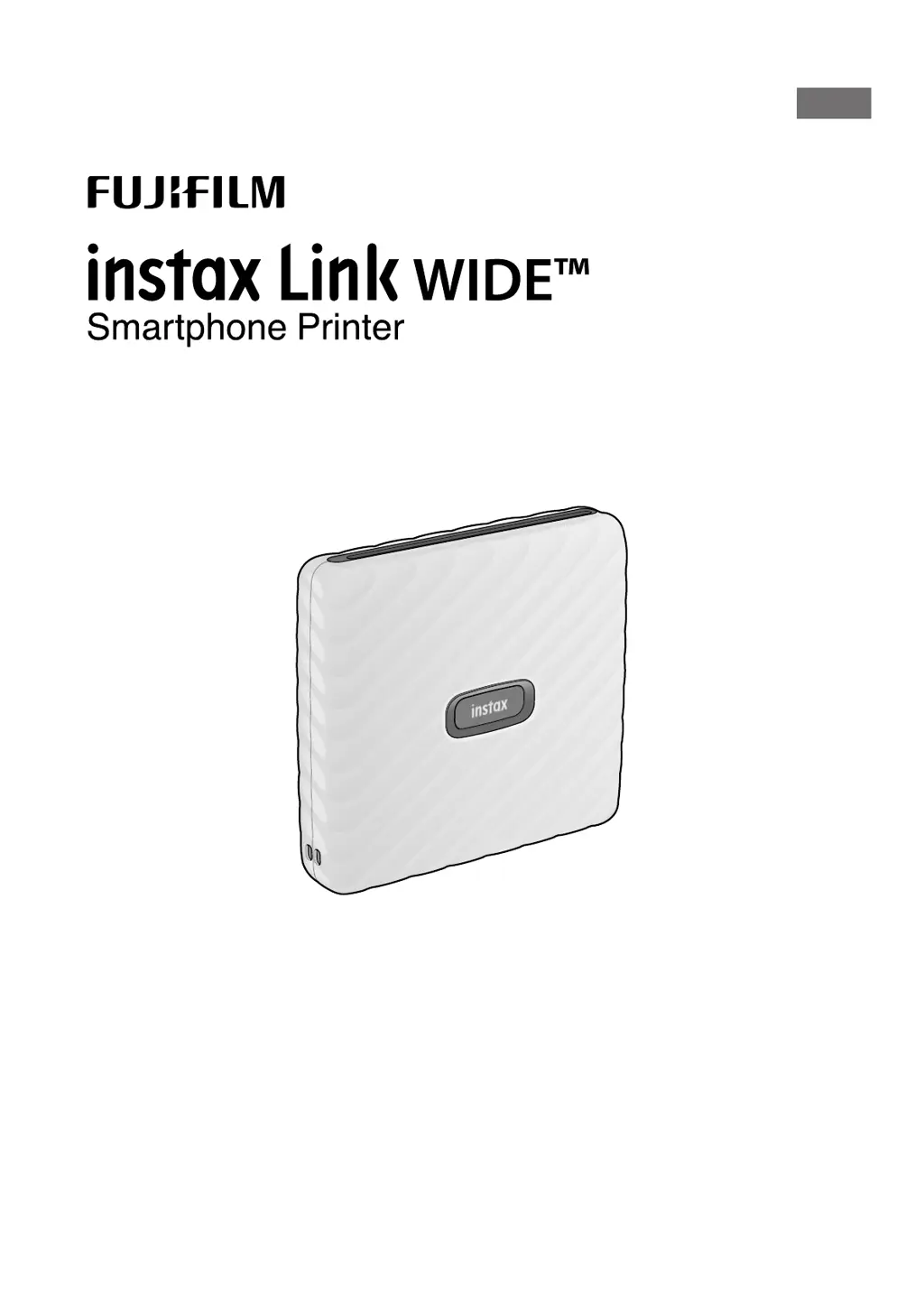
FujiFilm Instax Link Wide - User Manual

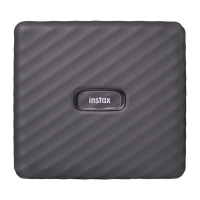
FujiFilm Instax Link Wide
14 pages
Print Icon
To Next Page IconTo Next Page
Loading...
User's Guide (Full version)
NA_EN
model number: FI022W

Questions and Answers

  • J
    John DurhamAug 17, 2025
    How to turn on FujiFilm Cell Phone Accessories printer?
    • T
      Theresa FergusonAug 17, 2025
      If your FujiFilm Cell Phone Accessory printer isn't turning on, first, ensure that it is adequately charged. If charging doesn't solve the issue, press and hold the power button for about one second to see if it activates.
  • J
    justin15Aug 19, 2025
    What to do if FujiFilm Cell Phone Accessories printer does not work properly?
    • A
      Anna BeckerAug 20, 2025
      If your FujiFilm Cell Phone Accessory printer isn't working as expected, it might be due to a temporary malfunction. Try pressing the reset button to resolve this. Also, ensure that the printer is adequately charged, as a low battery can cause operational issues.
  • B
    brianwellsAug 22, 2025
    Why does FujiFilm Cell Phone Accessories printer power off during use?
    • T
      Thomas RichardsonAug 23, 2025
      If your FujiFilm Cell Phone Accessory printer shuts off unexpectedly during use, it's likely due to a low battery. Please charge the printer to continue using it.
  • A
    Adam BassAug 26, 2025
    Why does FujiFilm Cell Phone Accessories battery lose charge quickly?
    • K
      Kyle MartinAug 26, 2025
      If the battery of your FujiFilm Cell Phone Accessory printer drains quickly, especially when using it in a cold environment, try to keep the printer warm before starting your print job.
  • M
    Mr. Todd GalvanAug 28, 2025
    What to do if FujiFilm Cell Phone Accessories printer charging does not start?
    • H
      hwrightAug 28, 2025
      If your FujiFilm Cell Phone Accessory printer isn't charging, make sure that the USB power adapter plug is correctly and securely connected to the power outlet.
  • A
    Allen WolfeAug 30, 2025
    How to load film in FujiFilm Cell Phone Accessories printer?
    • G
      Glenda MillerAug 31, 2025
      To ensure proper loading of film into your FujiFilm Cell Phone Accessory printer: * Use only FUJIFILM INSTAX WIDE instant print film (INSTAX SQUARE or INSTAX MINI film types are not compatible). * Align the yellow mark on the film pack with the corresponding yellow alignment mark on the printer when loading.
  • X
    xvalenzuelaSep 3, 2025
    Why does FujiFilm Cell Phone Accessories printer stop charging?
    • D
      danielmartinezSep 3, 2025
      If your FujiFilm Cell Phone Accessory printer stops charging unexpectedly, ensure that you are charging the battery within a temperature range of 5°C to 40°C (41°F to 104°F). If charging issues persist within this temperature range, contact your FUJIFILM dealer or support center.
  • J
    James PattersonSep 5, 2025
    What to do if FujiFilm Cell Phone Accessories film does not unload?
    • H
      howardcaseySep 5, 2025
      If the film in your FujiFilm Cell Phone Accessory printer won't unload, it might be misaligned due to shock, such as vibration or dropping. Try loading a new film pack. If the film is jammed, turn the printer off and then on again. If the problem continues, carefully remove the jammed film and then load a new film pack.
  • R
    Roberta HowardSep 8, 2025
    How to fix uneven prints on FujiFilm Cell Phone Accessories?
    • L
      Lorraine Sanchez DVMSep 8, 2025
      To prevent uneven prints from your FujiFilm Cell Phone Accessory printer: * Avoid shaking, bending, folding, or holding the print immediately after it ejects. * Make sure that you are not obstructing the film ejection slot during printing.
  • S
    stephanie17Sep 12, 2025
    Why does FujiFilm Cell Phone Accessories take too long to charge?
    • A
      amyhicksSep 12, 2025
      The charging process for your FujiFilm Cell Phone Accessory printer may take longer when the ambient temperature is low.

Summary

Attaching the Strap

Placing on the Stand

Installing the INSTAX LINK WIDE Smartphone App

Charging the Battery

Charging status indication with the LED

Explains LED indicators for battery charging status.

Loading;Unloading the INSTAX WIDE Instant Film Pack

Loading the Film Pack

Step-by-step guide to insert a new film pack.

Unloading a Used Film Pack

Instructions for removing used film.

Turning on;off the Printer

Checking the Printer Status with the LED

When Establishing Connection for the First Time

When the Printer and Your Smartphone Are Already Connected

Troubleshooting

IMPORTANT SAFETY NOTICE

Common Sense Printer Care

Bluetooth Devices: Cautions

FujiFilm Instax Link Wide Specifications

General IconGeneral
Color nameAsh White
Product colorWhite
Printing colorsBlack, Cyan, Magenta, Yellow
Built-in displayNo
Grayscale levels256
Market positioningHome & office
Print technology-
Maximum resolution318 x 318 DPI
Time to first page (color, normal)12 s
USB portYes
USB connectorMicro-USB Type-A
USB 2.0 ports quantity1
Power sourceBattery
Charging time2 h
Power consumption (printing)3 W
Operating temperature (T-T)5 - 40 °C
Operating relative humidity (H-H)20 - 80 %
Weight and Dimensions IconWeight and Dimensions
Depth33.7 mm
Width39 mm
Height127.5 mm
Weight340 g

Related product manuals