EasyManua.ls Logo

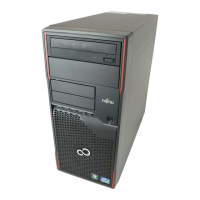
Fujitsu CELSIUS W380 - User Manual

Fujitsu CELSIUS W380
67 pages
Print Icon
To Next Page IconTo Next Page
Loading...
Operating Manual System
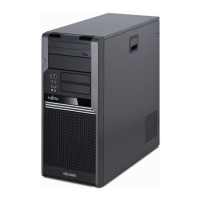
CELSIUS W380
CELSIUS W480

Table of Contents

Other manuals for Fujitsu CELSIUS W380

Questions and Answers

  • J
    Joseph WashingtonAug 2, 2025
    What to do if Fujitsu CELSIUS W380 Computer Hardware monitor remains blank?
    • J
      Jill JonesAug 2, 2025
      If your Fujitsu Computer Hardware monitor remains blank, several factors could be at play. First, ensure your monitor is switched on. If power saving mode is active, press any key or deactivate the screen saver, entering your password if prompted. Check the brightness settings, adjusting them if they're too low. Verify that the power and monitor cables are securely connected to both the monitor, the device, and grounded mains outlets. If any of these cables are loose, switch off the monitor and the device before reconnecting them.
  • D
    daniel27Aug 8, 2025
    What to do if no mouse pointer is displayed on Fujitsu Computer Hardware screen?
    • C
      Craig McdowellAug 8, 2025
      If you don't see a mouse pointer on your Fujitsu Computer Hardware screen, the mouse may not be correctly connected. Properly shut down the operating system, then switch off the device. Check the mouse cable connection to the system unit, including any adapters or extension leads. Ensure only one mouse is connected before switching the device back on. Also, if using a PS/2 mouse, verify in the BIOS Setup that the mouse controller is enabled and that the mouse driver is correctly installed.
  • J
    Jesus AndersonAug 16, 2025
    How to fix Fujitsu CELSIUS W380 Computer Hardware device not switching off with the ON/OFF switch?
    • R
      Ronald SandersAug 16, 2025
      If your Fujitsu Computer Hardware device does not switch off using the ON/OFF switch, ensure the device was initially switched on using the same switch; try pressing it again. If the system has crashed, press and hold the ON/OFF switch for at least 4 seconds to force a shutdown. Note that this may result in error messages upon the next boot.
  • P
    peggysinghAug 23, 2025
    Why Fujitsu Computer Hardware floppy disk cannot be read or written?
    • V
      Vincent HarrisAug 23, 2025
      If your Fujitsu Computer Hardware floppy disk cannot be read or written, the write protection of the floppy disk or the floppy disk drive might be enabled. Also, verify in the BIOS Setup that the floppy disk drive controller is enabled. Ensure the cables of the floppy disk drive are properly connected.

Summary

Your CELSIUS

Notational Conventions

Explains symbols and fonts used in the manual for clarity.

Important Notes and Safety

Safety, Transport, and Cleaning Guidelines

Key safety precautions, transport guidelines, and cleaning instructions.

Regulatory Compliance

Information on compliance with CE and FCC regulations.

Preparing for Use and Initial Setup

Initial Setup and Device Preparation

Steps for unpacking, initial setup, and physically preparing the device.

Peripheral Connectivity and Configuration

Connecting peripherals, ports, power, and initial software setup.

Device Operation

Basic Operation and Indicators

Powering on/off, status indicators, and keyboard functions.

System Settings and Security

Configuring BIOS, data protection, and access control for system security.

Troubleshooting and Tips

Problem Diagnosis and Common Issues

Steps for diagnosing problems and solutions for common hardware/system issues.

Software and Data Management Issues

Resolving software errors and managing data restoration.

General Tips

General advice for optimizing system performance and usage.

System Upgrades and Hardware Expansion

Hardware Upgrade Preparations and Casing Access

Precautions for hardware upgrades and procedures for casing access.

Internal Component Installation and Removal

Procedures for installing/removing boards, drives, and managing internal components.

Mainboard Upgrades and Battery Replacement

Upgrading main memory, replacing the processor, and the lithium battery.

Technical Specifications

Electrical, Physical, and Environmental Data

Specifications for electrical, physical, and environmental conditions.

Index

Fujitsu CELSIUS W380 Specifications

General IconGeneral
Form FactorTower
RAMUp to 16 GB DDR3 SDRAM
StorageSATA hard drive, SSD options available
GraphicsNVIDIA Quadro or ATI FirePro
Operating SystemWindows 7
Optical DriveDVD+/-RW
Expansion Slots1x PCIe x16, 2x PCI
PortsUSB 2.0

Related product manuals