EasyManua.ls Logo

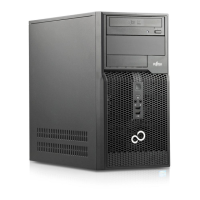
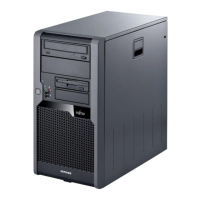
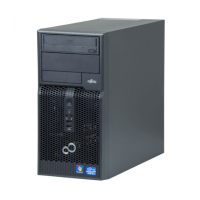
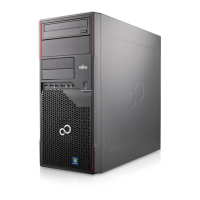
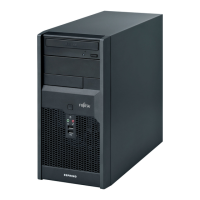
Fujitsu ESPRIMO P2560 - User Manual

Fujitsu ESPRIMO P2560
52 pages
Print Icon
To Next Page IconTo Next Page
Loading...
System
Operating Manual
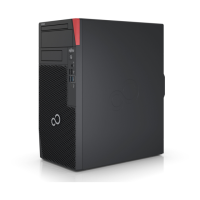
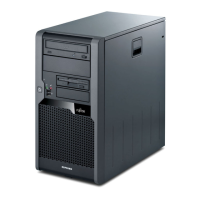
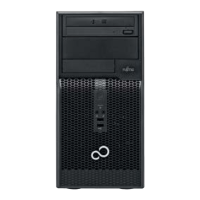
ESPRIMO P15xx / P2440 / P2540
ESPRIMO P2550 / P2560
ESPRIMO P2760 / P352x

Table of Contents

Other manuals for Fujitsu ESPRIMO P2560

Questions and Answers

  • T
    torresrobertAug 15, 2025
    Why does my Fujitsu ESPRIMO P2560 monitor remain blank?
    • C
      Christine WeissAug 15, 2025
      If the Fujitsu Desktop monitor remains blank, several factors could be at play. First, ensure the monitor is powered on. If power saving mode is active, press any key or deactivate the screen saver, entering your password if prompted. Check the brightness setting and adjust if it's too low. Verify that the power and monitor cables are securely connected to both the device and a grounded mains outlet.
  • A
    Angela RamosAug 18, 2025
    How to fix a Fujitsu ESPRIMO P2560 Desktop with power indicator off?
    • C
      caitlinhendersonAug 18, 2025
      If the power indicator on your Fujitsu Desktop remains off after switching it on, it could be due to a faulty mains voltage supply. Ensure the power cable is correctly plugged into the device and a grounded mains outlet, and that the main switch at the rear is set to the "I" position. If the internal power supply is overloaded, pull the power plug out, wait a moment, plug it back in, and try switching the device on again.
  • G
    glenn45Aug 21, 2025
    What to do if no mouse pointer is displayed on Fujitsu Desktop?
    • G
      Gene HancockAug 22, 2025
      If there's no mouse pointer displayed on the screen of your Fujitsu Desktop, it's possible the mouse isn't correctly connected. Properly shut down the operating system and switch off the device. Check the mouse cable connection to the system unit, including any adapters or extension leads. Ensure only one mouse is connected before switching the device back on.
  • R
    Ryan CoxAug 25, 2025
    What to do if Fujitsu ESPRIMO P2560 cannot be switched off?
    • V
      Vanessa CharlesAug 25, 2025
      If your Fujitsu Desktop cannot be switched off with the ON/OFF switch, first, try pressing the ON/OFF switch again. If that doesn't work, the system may have crashed. In this case, keep the on/off switch pressed for at least 4 seconds until the machine switches off. Be aware that this can lead to data loss and potential error messages upon the next system start.
  • N
    Nathan NelsonAug 28, 2025
    How to correct the time and date on a Fujitsu ESPRIMO P2560 Desktop?
    • M
      Michael BurnsAug 28, 2025
      If the time and/or date is not correct on your Fujitsu Desktop, set the correct time and date within the operating system. Alternatively, set the correct time and/or date in the BIOS Setup. If the time and date are repeatedly wrong when you switch on your device, the lithium battery may be discharged and needs replacement.
  • K
    Kevin LoweAug 31, 2025
    Why the floppy disk cannot be read or written on Fujitsu Desktop?
    • S
      schwartzarthurAug 31, 2025
      If the floppy disk cannot be read or written on your Fujitsu Desktop, check whether the write protection of the floppy disk or the floppy disk drive is activated. Also, verify in the BIOS Setup that the floppy disk drive controller is enabled. Finally, ensure that the cables of the floppy disk drive are properly connected.
  • R
    Ray VargasSep 3, 2025
    How to fix wrong monitor settings on Fujitsu ESPRIMO P2560 Desktop with Windows XP?
    • J
      Jose JohnsonSep 4, 2025
      Restart the Fujitsu Desktop. Press F8 while the system is booting. Either the Windows Advanced Start Options menu or the menu for selecting the operating system appears. If the menu for selecting the operating system appears, press F8. Select Safe Mode or Safe Mode with Network. Go to Start – Settings – Control Panel – Display and the tabs Appearance, Themes, Settings to set the correct values for the connected monitor as described in the operating manual of the monitor.
  • J
    Joseph WarrenSep 7, 2025
    How to correct incorrect monitor settings in Windows Vista on Fujitsu Desktop?
    • Y
      Yvette JohnsonSep 7, 2025
      Restart the Fujitsu Desktop. Press F8 while the system is booting. Either the Windows Advanced Start Options menu or the menu for selecting the operating system will appear. If the menu for selecting the operating system appears, press the F8 key. Select Safe Mode or Safe Mode with Network. Go to Start symbol – (Settings) – Control Panel – Appearance and Personalization – Personalization and enter the correct values for the connected monitor as described in the operating manual of the monitor.
  • N
    Nicholas BerrySep 12, 2025
    How to configure the correct monitor settings on a Fujitsu Desktop running Windows 7?
    • J
      jeffreybeckerSep 12, 2025
      Restart the Fujitsu Desktop. Press F8 while the system is booting. Either the Windows Advanced Start Options menu or the menu for selecting the operating system appears. If the menu for selecting the operating system appears, press F8. Select Safe Mode or Safe Mode with Network. Go to Start – Control Panel – Appearance and Personalization – Display to enter the correct values for the connected monitor as described in the operating manual of the monitor.

Summary

Important notes

Safety information

Provides crucial safety information for installation and operation, including environmental conditions and handling precautions.

Getting started

Connecting external devices

General guidance on connecting external devices to the computer, with safety precautions.

Switching on for the first time: installing the software

Procedure for the initial power-on, which includes automatic software installation and configuration.

Operation

Settings in BIOS Setup

Guidance on how to access and customize system functions and hardware configuration via BIOS Setup.

BIOS setup security functions

Details various security options available in the BIOS Setup menu for protecting personal data.

Troubleshooting and tips

Troubleshooting

General section for identifying and resolving common device issues.

Power indicator remains off after you have switched on your device

Troubleshooting steps for when the power indicator does not light up after turning on the device.

The device cannot be switched off with the ON;OFF switch.

Solutions for issues where the device fails to switch off using the standard ON/OFF button.

Monitor remains blank

Troubleshooting steps for a blank monitor screen, covering power, cables, and brightness settings.

No mouse pointer displayed on the screen

Troubleshooting steps for a missing mouse pointer, including checking connections and system shutdown.

The floppy disk cannot be read or written

Solutions for floppy disk read/write errors, checking write protection, controller settings, and connections.

Time and;or date is not correct

Steps to correct the system's time and date, including checking the lithium battery.

System expansions

Opening the casing

Detailed instructions on how to safely open the computer casing for component access.

Closing the casing

Procedure for securely closing the computer casing after performing internal component installations or removals.

Board installation and removal

Guidance on installing and removing expansion boards, including securing slot covers and checking BIOS settings.

Drive installation and removal

Instructions for installing and removing accessible drives such as DVD or diskette drives.

Hard disk drive installation and removal

Steps for installing and removing the internal hard disk drive, including cable connections and BIOS setup.

Replacing the lithium battery

Procedure for replacing the CMOS lithium battery, emphasizing correct polarity and safety precautions.

Fujitsu ESPRIMO P2560 Specifications

General IconGeneral
StorageUp to 1 TB HDD
NetworkGigabit Ethernet
RAM8 GB DDR4
LANGigabit Ethernet
Optical DriveDVD-ROM or DVD Super Multi
Dimensions175 x 419 x 353 mm

Related product manuals