EasyManua.ls Logo

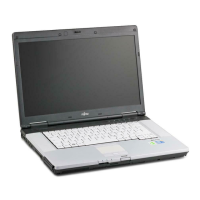
Fujitsu lifebook e756 - User Manual

Fujitsu lifebook e756
110 pages
Print Icon
To Next Page IconTo Next Page
Loading...
System
Operating Manual
FUJITSU LIFEBOOK E736
FUJITSU LIFEBOOK E746
FUJITSU LIFEBOOK E756

Table of Contents

Other manuals for Fujitsu lifebook e756

Questions and Answers

  • D
    Devon OlsenSep 3, 2025
    What does 'Previous boot incomplete - Default configuration used' mean on Fujitsu lifebook e756 Laptop?
    • S
      stacygarciaSep 3, 2025
      If you see the message 'Previous boot incomplete - Default configuration used' on your Fujitsu Laptop, it means that due to an error during the previous system boot, default values were used for certain settings. Press the F1 function key when prompted to do so.
  • T
    Thomas MorrisSep 2, 2025
    How to correct the date and time on a Fujitsu lifebook e756 Laptop?
    • P
      Peter RamosSep 2, 2025
      You can set the date and time on your Fujitsu Laptop using the BIOS-Setup-Utility in the main menu.
  • E
    Elizabeth HoffmanSep 1, 2025
    How to fix printer that doesn't print from Fujitsu lifebook e756 Laptop?
    • R
      Ryan BradshawSep 1, 2025
      If your printer is not printing from your Fujitsu Laptop, make sure that the printer is switched on and ready for operation. Check that the data cable connecting the notebook to the printer is properly connected. Ensure that the correct printer driver is loaded.
  • R
    rachel74Aug 31, 2025
    Why is the LCD screen difficult to read on my Fujitsu lifebook e756?
    • A
      abrennanSep 1, 2025
      If the LCD screen on your Fujitsu Laptop is difficult to read, it may be due to reflected glare. Try turning the notebook or adjusting the tilt of the LCD screen. Alternatively, increase the brightness of the screen.
  • J
    Jonathan MorganAug 30, 2025
    How to fix error messages on the Fujitsu lifebook e756 screen?
    • E
      ericburnsAug 31, 2025
      If you are receiving error messages on the screen of your Fujitsu Laptop, switch the notebook off, then switch it back on. If using an external keyboard, check its connection and reboot the notebook, ensuring no key is pressed during startup. Check the additional memory module is correctly inserted. If the error message persists, check the hard disk settings in the BIOS Setup. If testing the extended memory results in an error, check whether the additional memory module has been inserted correctly. If the settings of the hard disk drive are incorrect, start the BIOS Setup (Primary Master submenu) and select the correct settings. Also, make sure that the operating system is installed on the corresponding drive.
  • C
    cmooreAug 30, 2025
    What to do if Fujitsu Laptop stops working?
    • J
      Joan WebbAug 30, 2025
      If your Fujitsu Laptop stops working, try these steps. If the notebook is in energy saving mode, exit that mode. If an application program has caused the malfunction, close the program or restart the notebook. If the battery is dead, charge it or insert a charged battery. You can also connect the AC adapter to the notebook.
  • D
    Denise ManningAug 29, 2025
    What to do if Operating system not found on Fujitsu lifebook e756?
    • B
      Brenda WarnerAug 29, 2025
      If your Fujitsu Laptop displays the message 'Operating system not found', check in the BIOS Setup whether your hard disk has been set correctly and ensure that the operating system is installed on the corresponding drive.
  • W
    William JohnsonAug 28, 2025
    What to do if Fujitsu lifebook e756 LCD screen remains blank?
    • W
      Willie BakerAug 28, 2025
      If your Fujitsu Laptop screen remains blank, try pressing a key or touching the touchpad. If you have an external monitor or television connected, press the key combination to switch the screen output.
  • M
    Matthew PorterAug 27, 2025
    What to do if the notebook’s LCD screen remains blank on Fujitsu lifebook e756?
    • A
      ana24Aug 27, 2025
      If the LCD screen of your Fujitsu Laptop remains blank, press a key or touch the touchpad to see if the monitor is switched off. If you have an external monitor or television set connected, press the key combination to switch the screen output.
  • S
    Sarah WaltersAug 26, 2025
    What to do if external monitor is blank or the image is unstable on Fujitsu lifebook e756 Laptop?
    • T
      Timothy SandersAug 27, 2025
      If the external monitor is blank or the image is unstable on your Fujitsu Laptop, terminate the application program in Windows by pressing Alt + F4. Set the screen resolution as described in the documentation for your operating system. Select monitor 1 or 2 as described in the documentation for your operating system.

Summary

Ports and controls

Important notes

Safety notes

Essential safety information for notebook operation and handling.

First-time setup of your device

Unpacking and checking the device

Steps to unpack and inspect the notebook for damage upon arrival.

Selecting a location

Guidelines for choosing a suitable and safe place to set up the device.

AC adapter connecting

Instructions on how to connect the AC adapter and power cable to the notebook.

Switching on the device for the first time

Procedure for the initial power-on and system setup.

Working with the notebook

Rechargeable battery

Information about the notebook's battery, including life and care.

Using the power-management features

How to optimize power usage for battery life.

Your Port Replicator (optional)

Security functions

Configuring password protection in BIOS Setup Utility

Setting up passwords for BIOS access and system security.

Trusted Platform Module (TPM) (device-dependent)

Enabling and disabling the TPM hardware security module.

Connecting external devices

Removing and installing components during servicing

Settings in BIOS Setup Utility

Starting the BIOS Setup Utility

How to access and launch the BIOS Setup Utility.

Operating BIOS Setup Utility

Navigation and interaction within the BIOS Setup Utility interface.

Troubleshooting and tips

Help if problems occur

General advice and contact information for resolving issues.

Recovering your Factory Image

Steps to restore the system to its original state.

Error messages on the screen

Interpretation and resolution of BIOS and system error messages.

Technical data

Appendix

Troubleshooting the WLAN

Solutions for common wireless LAN connection problems.

Image Backup and Recovery Procedures

RECOVER YOUR SYSTEM WHEN THE HARD DRIVE IS NOT BOOTABLE FOR WINDOWS 7

Critical recovery steps for unbootable systems with Windows 7.

Create a Recovery Drive

Steps to create a bootable recovery drive for Windows 10.

Recovery options in Windows 10

Overview of available recovery methods for Windows 10.

Downloading Driver Updates

Fujitsu lifebook e756 Specifications

General IconGeneral
GraphicsIntel HD Graphics 520
ProcessorIntel Core i5-6200U
Display15.6-inch, 1920 x 1080 pixels
RAM8 GB DDR4
Storage256 GB SSD
Operating SystemWindows 7 Professional
Weight1.9 kg
Battery6-cell, 72 Wh
PortsUSB 3.0, VGA, Ethernet, SD card reader
WirelessWi-Fi 802.11ac, Bluetooth 4.0

Related product manuals