EasyManua.ls Logo

Fujitsu Lifebook T4410 - User Manual

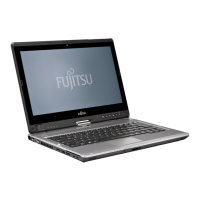
Fujitsu Lifebook T4410
201 pages
Print Icon
To Next Page IconTo Next Page
Loading...
User’s Guide
Learn how to use
your Fujitsu LifeBook
T4410 Tablet PC
Chaldea Comm T4410.book Page 1 Wednesday, September 16, 2009 9:36 AM

Table of Contents

Other manuals for Fujitsu Lifebook T4410

Questions and Answers

  • M
    melissa03Aug 20, 2025
    What to do if my Fujitsu Lifebook T4410 won't turn on?
    • J
      Jennifer JonesAug 20, 2025
      If your Fujitsu Tablet PC doesn't seem to turn on, check the Status Indicator Panel for the battery's condition. Install a charged battery or power adapter. Ensure the power adapter is properly connected to both the Tablet and the power outlet. Try a different power outlet or adapter. Press any button on the keyboard, or move the mouse. If that fails, push the Power/Suspend/Resume button. Adjust timeout values in the Power Options menu.
  • S
    Sarah EdwardsAug 22, 2025
    Why won't my Fujitsu Lifebook T4410 work on battery power?
    • S
      Sophia WallaceAug 22, 2025
      If your Fujitsu Tablet won't work on battery alone, ensure a charged battery is installed correctly. If the battery is dead or faulty, replace it. Also, check the Power Options menu settings and adjust them according to your needs. Using applications that require frequent hard drive or optical drive access, or devices like modems or Wireless LAN, can drain the battery quickly, so use a power adapter if possible. Reducing screen brightness can also extend battery life.
  • T
    Taylor GillespieAug 25, 2025
    How to fix Fujitsu Lifebook T4410 Tablet not recognizing DVD/CD-RW/CD-ROM?
    • M
      Matthew ShawAug 25, 2025
      If your Fujitsu LifeBook Tablet PC isn't recognizing DVD/CD-RW/CD-ROMs, ensure the optical drive tray is latched shut. Re-insert the drive until it latches. Install DVD Player software. Verify the drive designator used by the application matches the one used by the operating system. Clean the disc with a non-abrasive CD cleaning cloth and reinsert. If it still won't work try another DVD/CD-RW/CD-ROM in the drive.
  • J
    John BrownAug 26, 2025
    What to do if Fujitsu Lifebook T4410 Tablet doesn't recognize USB device?
    • D
      David FrazierAug 27, 2025
      If your Fujitsu LifeBook Tablet PC doesn't recognize a USB device, remove and reinstall the device. Restart your Tablet PC. Ensure the correct software driver is active.
  • M
    Michael WilliamsAug 28, 2025
    How to fix no sound on my Fujitsu Lifebook T4410 Tablet?
    • R
      Ryan YoungAug 28, 2025
      If there's no sound from your Fujitsu Tablet's built-in speaker, first, ensure the volume isn't too low by adjusting the volume control on your Tablet and operating system, using the [Fn+F9] key combination. Also, check that headphones aren't plugged in, as this disables the built-in speakers. Make sure that the speakers have not been muted using the Volume icon in the system tray. If the Mute box has a red circle on it, click on it to unselect it. You can also use the [Fn+F3] key combination to toggle the volume on and off. Finally, the audio driver may need reinstalling using the Drivers and Applications CD.
  • B
    Bradley KellyAug 30, 2025
    Why does my Fujitsu Tablet change setup parameters on startup?
    • S
      Sheri LiuAug 30, 2025
      If your Fujitsu Tablet PC changes setup parameters when you start it, make sure you select Save Changes And Exit when exiting the BIOS setup utility.
  • M
    Michael ThompsonSep 1, 2025
    How to fix no sound on my Fujitsu Tablet PC?
    • K
      Kevin MartinezSep 1, 2025
      If there's no sound from your Fujitsu Tablet PC's built-in speaker, first ensure the volume isn't too low by adjusting the volume control on your Tablet PC and operating system, using the [Fn+F9] key combination. Also, manually adjust the volume in your software or application. Check if headphones are plugged in, as this disables the built-in speakers. Make sure that the speakers haven't been muted using the Volume icon in the system tray (use [Fn+F3] to toggle). Finally, the audio driver may need to be reinstalled using the Drivers and Applications CD.
  • R
    Richard PotterSep 3, 2025
    What to do if my Fujitsu Lifebook T4410 Tablet PC won't turn on?
    • P
      Patricia BurnettSep 3, 2025
      If your Fujitsu LifeBook Tablet PC doesn't seem to turn on, check the Status Indicator Panel for the battery's condition. Install a charged battery or power adapter. Ensure the power adapter is correctly plugged into both the Tablet PC and a working power outlet. If using an auto/airline adapter, make sure the ignition is in the On or Accessories position. Try a different power adapter if possible. Press any button on the keyboard, or move the mouse to restore operation. If that fails, push the Power/Suspend/Resume button. If the power management parameters are set for auto timeouts which are too short adjust the timeout values in the Power Options located in the Control Panel.
  • M
    Michelle HuynhSep 5, 2025
    Why won't my Fujitsu Tablet PC work on battery?
    • K
      Kimberly MillerSep 5, 2025
      If your Fujitsu LifeBook Tablet PC won't work on battery, replace the battery with a charged one or install a power adapter. Ensure the battery is properly installed. Verify the battery's condition using the Status Indicator panel. Check the Power Options menu settings and adjust them according to your needs. Be aware that running power-intensive applications or having high brightness settings can drain the battery quickly. Replace the battery if it is very old.
  • K
    Kevin CurrySep 7, 2025
    How to fix a blank screen on a Fujitsu Lifebook T4410 Tablet PC?
    • S
      susanrossSep 7, 2025
      If the built-in display on your Fujitsu LifeBook Tablet PC is blank, press [F10] while holding down the [Fn] key to cycle through display options (built-in display only, external monitor only, both). Adjust the display angle and brightness using the [Fn+F6] or [Fn+F7] keys. Press a keyboard button or move the mouse to restore operation. If that fails, push the Power/Suspend/Resume button. The display may be shut off by Sleep mode, Auto Suspend or Video Timeout.

Summary

Getting to Know Your LifeBook

Locating the Controls and Connectors

Identifies and describes ports and interfaces on the tablet PC.

Top Components

Details the components located on the top surface of the tablet PC.

Getting Started with Your LifeBook

Power Sources

Identifies the primary power sources for the Fujitsu LifeBook Tablet PC.

Starting Your LifeBook Tablet PC

Provides instructions on powering on and starting the LifeBook Tablet PC.

Power Management

Details options and features for conserving battery power on the Fujitsu LifeBook Tablet PC.

User-Installable Features

Explains features that users can install, such as batteries and memory.

User-Installable Features

Lithium ion Battery

Details the features and care of the Lithium ion battery.

Troubleshooting Your LifeBook

Identifying the Problem

Outlines a procedure to follow before pursuing complex troubleshooting steps.

Specific Problems

Lists specific issues and their potential causes and solutions.

Restoring Your Pre-installed Software

Re-installing Individual Drivers and Applications

Guides on reinstalling drivers and applications using the DAR CD.

Restoring the Operating System for Windows

Explains how to restore the operating system using the Recovery and Utility disc.

Care and Maintenance

Caring for your LifeBook Tablet PC

Provides tips for maintaining the LifeBook Tablet PC and its devices.

Cleaning your LifeBook Tablet PC

Offers guidelines for cleaning the computer exterior, keyboard, and screen.

System Specifications

Device Ports

Lists and describes the various ports on the LifeBook Tablet PC and its port replicator.

Appendix A: WLAN User’s Guide

Troubleshooting the WLAN

Addresses common problems and countermeasures for wireless LAN usage.

Fujitsu Lifebook T4410 Specifications

General IconGeneral
Tjunction100 °C
Processor cache2 MB
Processor cores2
Processor modelT6570
System bus rate- GT/s
Processor familyIntel® Core™2 Duo
Processor socketSocket 478
Processor codenamePenryn
Processing Die size107 mm²
Processor frequency2.1 GHz
Processor cache typeL2
Processor lithography45 nm
Processor manufacturerIntel
Processor front side bus- MHz
Processor operating modes32-bit, 64-bit
ECC supported by processorNo
Thermal Design Power (TDP)35 W
Number of Processing Die Transistors410 M
Memory slots2x SO-DIMM
Internal memory4 GB
Memory clock speed1066 MHz
Maximum internal memory8 GB
HDD speed5400 RPM
HDD capacity320 GB
HDD interfaceSATA
Optical drive typeDVD Super Multi DL
Card reader integratedYes
Compatible memory cardsMMC, SD, xD
Display diagonal12.1 \
Display resolution1280 x 800 pixels
Native aspect ratio16:10
Graphics cardGMA 4500MHD
Dimensions (WxDxH)297 x 233 x 36.4 mm
Wireless technologyIEEE 802.11 b/g/n
Compatible operating systemsWindows Vista/XP
Main camera resolution (numeric)1.3 MP
Audio systemRealtek ALC269
Bluetooth version2.1+EDR
Cabling technology10/100/1000Base-T(X)
Networking featuresGigabit Ethernet, WLAN
Charging port typeDC-in jack
USB 2.0 ports quantity3
Firewire (IEEE 1394) ports1
Battery life (max)6 h
Number of battery cells6
Trial softwareSymantec Norton Internet Security
Operating system installedWindows 7 Professional
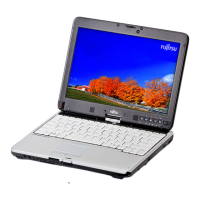
Form factorConvertible (Swivel)
Product typeHybrid (2-in-1)
Product colorBlack, Silver
Pointing deviceTouchpad
Keyboard key pitch19 mm
Keyboard keystroke2.7 mm
Keyboard number of keys85
Operating temperature (T-T)5 - 35 °C
Operating relative humidity (H-H)20 - 85 %
AC adapter frequency50 - 60 Hz
AC adapter input voltage120 - 230 V
Battery life with optional 2nd battery9 h
CertificationCE, CB, cUL, FCC, HCT/HCL, RoHS, ENERGY STAR 5.0, WEEE, EPEAT
External video modes refresh rate (max)85 Hz
Maximum resolution1920 x 1200 pixels
Processor ARK ID42841
Weight and Dimensions IconWeight and Dimensions
Weight1790 g

Related product manuals