
 To Next Page


W
woodsmelissaSep 23, 2025
What does acoustic warning mean on Fujitsu Tablet?
- TTodd BoydSep 23, 2025
If you hear a beep every few seconds on your Fujitsu Tablet, it means the battery is almost flat. Charge the battery.

What does acoustic warning mean on Fujitsu Tablet?
If you hear a beep every few seconds on your Fujitsu Tablet, it means the battery is almost flat. Charge the battery.
What to do if my Fujitsu LIFEBOOK Tablet PC doesn’t turn on?
If your Fujitsu LIFEBOOK Tablet PC doesn't turn on, start by checking the Status Indicator Panel for the battery's condition. Install a charged battery or power adapter if needed. If the battery is faulty, remove it and try another power source. Ensure the power adapter is correctly plugged in and the outlet has power. If using an auto/airline adapter, make sure the ignition switch is in the On or Accessories position. If the adapter is faulty, try a different one.
What to do if suspend/resume slide does not work on Fujitsu LifeBook T902?
If the suspend/resume slide on your Fujitsu Tablet PC doesn't work, ensure it is enabled by going to Control Panel -> Power Options Properties and clicking the Advanced tab. In the Power buttons area, select “Change what the power button does”. If the issue persists, close all applications and try the button again, as there may be application software conflict.
What to do if Fujitsu Tablet PC doesn't turn on in Port Replicator?
If your Fujitsu Tablet PC does not turn on when installed in the optional Port Replicator, ensure the Port Replicator AC adapter is plugged in and providing power. Also, remove and re-dock your LIFEBOOK Tablet PC to ensure it is properly seated in the Port Replicator.
Why battery indicator does not illuminate on my Fujitsu LifeBook T902 Tablet?
If the battery indicator on your Fujitsu Tablet isn't lighting up, it could be due to a couple of reasons. First, the battery might not be correctly installed. Turn off the tablet, check the battery's placement in its compartment, and then turn the tablet back on. Second, the battery could be fully discharged. In this case, charge the battery, install a charged one, or connect the tablet to a power outlet using the mains adapter.
What to do if my Fujitsu LifeBook T902 keyboard types only numerals?
If your Fujitsu Tablet keyboard is only typing numerals when you enter certain characters, the virtual numeric keypad is likely activated. Press the Num key to deactivate it.
How to improve LCD screen readability on Fujitsu Tablet?
If the LCD screen on your Fujitsu Tablet is difficult to read, it might be due to reflected glare. Try turning the tablet or adjusting the tilt of the screen. You can also increase the screen brightness.
Why is the external monitor blank or the image unstable when connected to my Fujitsu LifeBook T902?
If the external monitor is blank or the image is unstable when connected to your Fujitsu Tablet, it could be due to the wrong external monitor being selected or an incorrect screen resolution being set for the application program. Terminate the application program in Windows by pressing Alt + F4. If the problem continues, switch to the tablet's LCD screen using the key combination for switching the screen output. Then, change the screen resolution and monitor settings as described in your operating system's documentation, selecting monitor 1 or 2 as appropriate.
Why my Fujitsu LIFEBOOK Tablet PC doesn't recognize DVD/CD-RW/CD-ROM’s?
If your Fujitsu Tablet PC fails to recognize DVD/CD-RW/CD-ROM’s, first, ensure the disc is properly installed on the raised center circle of the drive. Check that the optical drive tray is latched shut. If not, pull out the modular drive latch and re-insert the drive. Ensure the correct DVD Player software is installed. Wipe the disc with a non-abrasive CD cleaning cloth. Verify the drive designator used by the application matches the one used by the operating system.
What to do if Fujitsu LIFEBOOK doesn’t recognize USB device?
If your Fujitsu LIFEBOOK doesn’t recognize a USB device, first remove and reinstall the device. Then, check your software documentation and activate the correct driver. If the device was installed while an application was running, close the application and restart your Tablet PC.
Introduces the tablet's components, covering top, side, back, and bottom panels for identification.
Details available power sources (battery, AC adapter) and how to connect them.
Guides on powering on the device, understanding the boot process, and initial setup.
Information on accessing and configuring system settings via the BIOS Setup Utility.
General steps for problem identification and a table of specific issues with their causes and solutions.
Troubleshooting common problems related to power, system startup, and display issues.
Addresses general system errors, miscellaneous problems, and Power On Self Test (POST) messages.
Explains WLAN modes, network setup, and offers solutions for common connection issues.
 General
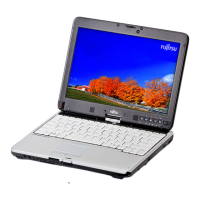
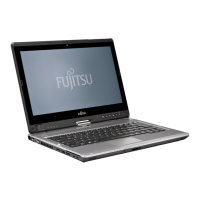
| Form factor | Convertible (Swivel) |
|---|---|
| Product type | Hybrid (2-in-1) |
| Product color | Black, Silver |
| Bus type | DMI |
| Stepping | L1 |
| Tjunction | 105 °C |
| Processor cache | 4 MB |
| Processor cores | 2 |
| Processor model | i7-3520M |
| System bus rate | 5 GT/s |
| Processor family | Intel® Core™ i7 |
| Processor series | Intel Core i7-3500 Mobile series |
| Processor socket | BGA 1023 |
| Processor threads | 4 |
| Processor codename | Ivy Bridge |
| Processor frequency | 2.9 GHz |
| Processor cache type | Smart Cache |
| Processor lithography | 22 nm |
| Processor manufacturer | Intel |
| Processor front side bus | - MHz |
| PCI Express slots version | 3.0 |
| Processor boost frequency | 3.6 GHz |
| Processor operating modes | 64-bit |
| ECC supported by processor | No |
| PCI Express configurations | 1x8, 1x16, 2x4, 2x8 |
| Thermal Design Power (TDP) | 35 W |
| CPU multiplier (bus/core ratio) | 29 |
| Maximum number of PCI Express lanes | 16 |
| Motherboard chipset | Intel® QM77 Express |
| Ambient light sensor | Yes |
| Memory slots | 2x SO-DIMM |
| Internal memory | 4 GB |
| Memory clock speed | 1600 MHz |
| Memory form factor | SO-DIMM |
| Internal memory type | DDR3-SDRAM |
| Maximum internal memory | 16 GB |
| Storage media | - |
| Total storage capacity | - GB |
| Compatible memory cards | SD, SDHC, SDXC |
| Display surface | Matt |
| Display diagonal | 13.3 \ |
| Display brightness | 300 cd/m² |
| Display resolution | 1600 x 900 pixels |
| Native aspect ratio | 16:9 |
| Contrast ratio (typical) | 500:1 |
| On-board graphics card ID | 0x166 |
| On-board graphics card model | Intel® HD Graphics 4000 |
| On-board graphics card family | Intel® HD Graphics |
| On-board graphics card base frequency | 650 MHz |
| On-board graphics card dynamic frequency (max) | 1250 MHz |
| Power adapter depth | 56 mm |
| Power adapter width | 148 mm |
| Power adapter height | 32 mm |
| Power adapter weight | 250 g |
| Wi-Fi standards | 802.11a, 802.11b, 802.11g |
| Ethernet LAN data rates | 10, 100, 1000 Mbit/s |
| Charging port type | DC-in jack |
| USB 2.0 ports quantity | USB 2.0 ports have a data transmission speed of 480 Mbps, and are backwards compatible with USB 1.1 ports. You can connect all kinds of peripheral devices to them. |
| eSATA/USB 2.0 ports quantity | 0 |
| Pointing device | Touchpad |
| Keyboard number of keys | 85 |
| Bundled software | Adobe Reader |
| Processor code | SR0MU |
| Processor ARK ID | 64893 |
| Processor package size | 37.5 x 37.5 (rPGA988B); 31.0 x 24.0 (BGA1023) mm |
| Supported instruction sets | AVX |
| Intel Identity Protection Technology version | 1.00 |
| Battery capacity | 6700 mAh |
| Battery life (max) | 7.7 h |
| Battery recharge time | 3 h |
| Number of battery cells | 6 |
| AC adapter power | 100 W |
| AC adapter frequency | 50 - 60 Hz |
| AC adapter input voltage | 100 - 240 V |
| AC adapter output current | 5.27 A |
| AC adapter output voltage | 19 V |
| Cable lock slot type | Kensington |
| Operating temperature (T-T) | 5 - 35 °C |
| Operating relative humidity (H-H) | 20 - 85 % |
| Sustainability certificates | RoHS, ENERGY STAR |
 Weight and Dimensions
| Depth | 244 mm |
|---|---|
| Width | 326 mm |
| Weight | 1890 g |
| Height (rear) | 31 mm |
| Height (front) | 27.1 mm |