EasyManua.ls Logo

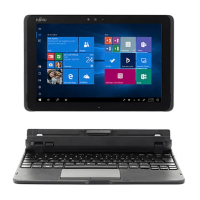
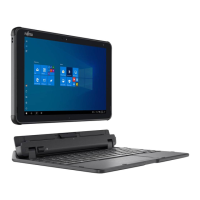
Fujitsu STYLISTIC Q508 - User Manual

Fujitsu STYLISTIC Q508
112 pages
Print Icon
To Next Page IconTo Next Page
Loading...
System
Operating Manual
FUJITSU Tablet STYLISTIC Q508

Table of Contents

Questions and Answers

  • J
    John HartAug 16, 2025
    What to do if the battery charging indicator is not lit on my Fujitsu STYLISTIC Q508 Tablet?
    • Y
      ymorganAug 16, 2025
      If the battery charging indicator is not lit, it means the battery is not being charged. Connect your Fujitsu Tablet PC to a power outlet using the AC adapter. Note that the battery will only begin charging if its capacity is less than 90%.
  • M
    Molly ShepherdAug 19, 2025
    What to do if my Fujitsu Tablet PC does not start after switching it on?
    • S
      Spencer MccarthySep 12, 2025
      If your Fujitsu Tablet PC does not start after you switch it on, it could be due to a dead battery. Try charging the battery, or connecting the AC adapter to the Tablet PC. Also, make sure the AC adapter is properly connected to the Tablet PC before switching it on.
  • M
    Matthew SmithAug 22, 2025
    What to do if stylus input is not working on my Fujitsu Tablet?
    • J
      Jason ScottAug 22, 2025
      If the stylus input is not working on your Fujitsu Tablet, it could be due to an incorrect driver installation. Reinstall the driver for the "dual digitizer".
  • R
    richardcuevasAug 25, 2025
    Why does the external monitor remain blank when connected to my Fujitsu STYLISTIC Q508?
    • D
      David WhiteAug 25, 2025
      If the external monitor remains blank, first ensure that the monitor is switched on. If it is on, check if power saving has been activated; if so, press a key or tap the touchscreen. Also, verify that the brightness isn't set too low and that the screen output is correctly configured, checking the graphics driver settings for external monitor detection. Finally, ensure that both the AC cable and data cable are properly connected to both the Fujitsu Tablet PC and the external monitor, switching both devices off and on again during the check.
  • T
    Tammy BrownAug 27, 2025
    What to do if my Fujitsu STYLISTIC Q508 Tablet PC stops working?
    • L
      Lauren BullockAug 28, 2025
      If the Fujitsu Tablet PC stops working, it might be in energy-saving mode, so try ending that mode. If that doesn't work, an application program may have caused the malfunction; try closing the application or restarting the Tablet PC. Also, check if the battery is dead, and if so, charge it or connect the AC adapter.
  • M
    Mike SalazarAug 30, 2025
    Why does the battery discharge too quickly on my Fujitsu Tablet?
    • V
      Valerie GrayAug 30, 2025
      If the battery discharges too quickly on your Fujitsu Tablet, it may be too hot or too cold, indicated by a flashing battery indicator; in this case, bring the Tablet PC to a normal operating temperature. If the battery life is still extremely short, the battery may be too old and need replacement. Also, an application might be consuming excessive power due to frequent hard disk or optical drive access; use the AC adapter whenever possible. Lastly, reducing the screen brightness via Control Panel – Hardware and Sounds – Windows Mobility Center can also help.
  • V
    Vincent BoyerSep 3, 2025
    Why is the image unstable on the external monitor connected to my Fujitsu Tablet?
    • G
      Gerald CrawfordSep 3, 2025
      If the external monitor displays a blank or unstable image, the wrong external monitor may have been selected, or the screen resolution may be incorrectly set for the application. Close the application program in Windows. If the issue continues, use the key combination to switch the screen output to the Tablet PC's touchscreen. Adjust the screen resolution and select the correct monitor (1 or 2) as described in your operating system's documentation.
  • B
    Blake KingSep 6, 2025
    What to do if the touchscreen remains dark on my Fujitsu Tablet PC?
    • J
      Julia DanielSep 6, 2025
      If your Fujitsu Tablet PC’s touchscreen remains dark, it may be switched off. Press a key on an external keyboard or tap the touchscreen to turn it on. Alternatively, an external monitor or television set may be connected. Check whether the graphics driver settings are correct or whether an external monitor has been detected in "Intel Graphics Media Accelerator Driver for mobile".
  • C
    Cindy OrozcoSep 9, 2025
    Why is my printer not printing from my Fujitsu STYLISTIC Q508 Tablet?
    • M
      Michael RhodesSep 9, 2025
      If the printer does not print, ensure that the printer is switched on and ready for operation, referring to the printer's documentation. Check that the data cable between the Fujitsu Tablet PC and the printer is properly connected. Also, verify that the correct printer driver is loaded, consulting the printer documentation if needed.
  • M
    Mrs. Julie Stokes PhDSep 12, 2025
    How to fix the cursor if it doesn't follow stylus movements on Fujitsu Tablet?
    • T
      Tanner WrightSep 12, 2025
      If the cursor does not correctly follow the stylus movements on your Fujitsu Tablet, the stylus may be incorrectly calibrated. Calibrate the stylus as described in the chapters "Adjusting the stylus", Page 29 and "Calibrating the stylus", Page 30.

Summary

Ports and Controls

Important Notes

Safety Instructions

Essential safety information for working with the Tablet PC.

First-Time Device Setup

Unpacking and Initial Connection

Steps for unpacking and connecting the AC adapter.

Device Power-On and Software Installation

Guide to switching on the device and installing bonus applications.

Working with the Tablet PC

Display and Touchscreen Operations

Details on touchscreen use, lighting, sensors, and display synchronization.

Stylus Usage and Calibration

How to use, adjust, and calibrate the stylus for optimal performance.

Card Insertion and Removal

Step-by-step instructions for inserting and removing SD memory and SIM cards.

Wireless and Network Connectivity

Managing wireless components, configuring WLAN, and Ethernet/LAN connections.

Security Functions

Fingerprint Sensor and Security Lock

Configuring the fingerprint sensor and using the security lock.

BIOS and System Password Protection

Managing BIOS passwords and enabling system/hard disk password protection.

Connecting External Devices

Monitor Connections (HDMI and VGA)

How to connect external monitors using HDMI and VGA ports.

USB Device Management

Connecting and safely removing USB devices, including Type-C port.

Settings in BIOS Setup Utility

Starting and Navigating BIOS Setup

How to start and navigate the BIOS Setup Utility.

Exiting and Saving BIOS Settings

Options for exiting the BIOS, saving changes, and loading defaults.

Troubleshooting and Tips

Technical Data

FCC and IC Regulatory Information

Fujitsu STYLISTIC Q508 Specifications

General IconGeneral
BrandFujitsu
ModelSTYLISTIC Q508
CategoryTablet
LanguageEnglish

Related product manuals