EasyManua.ls Logo

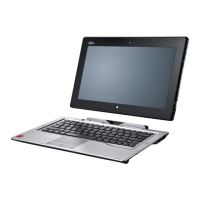
Fujitsu Stylistic Q702 - User Manual

Fujitsu Stylistic Q702
268 pages
Print Icon
To Next Page IconTo Next Page
Loading...
User’s Guide
Learn how to use your Fujitsu
STYLISTIC® Q702 Hybrid Tablet
Guide
d’utilisation
Découvrez comment utiliser
votre tablette Hybride
Fujitsu STYLISTIC® Q702

Table of Contents

Other manuals for Fujitsu Stylistic Q702

Questions and Answers

  • D
    Daniel SosaSep 23, 2025
    Why can't I access my hard drive on my Fujitsu Stylistic Q702?
    • D
      Dana WardSep 23, 2025
      If you cannot access your hard drive on your Fujitsu Hybrid Tablet, it might be because the wrong drive designator was used by an application when a bootable disc was used to start the Hybrid Tablet. Verify the drive designator used by the application is in use by the operating system. When the operating system is booted from a CD, drive designations are automatically adjusted. Another reason could be that security is set so your operating system cannot be started without a password. Verify your password and security settings.
  • S
    Sara Wilkinson MDAug 25, 2025
    How to fix 'Operating system not found' error on Fujitsu Tablet?
    • K
      kedwardsAug 25, 2025
      If your Fujitsu Tablet PC displays the error message 'Operating system not found', verify in the BIOS Setup that your hard disk is correctly configured and ensure the operating system is installed on the appropriate drive.
  • J
    Jesse CooperAug 25, 2025
    Why does my Fujitsu Stylistic Q702 Tablet battery drain so fast?
    • S
      sabrinagarrisonAug 26, 2025
      If your Fujitsu Tablet PC's battery discharges too quickly, try these steps: * Ensure the Tablet PC is at a normal temperature; extreme temperatures can cause rapid battery drain. If the battery life is consistently short, consider replacing the battery. * Minimize the use of applications that heavily access the hard disk or external devices. Use the mains adapter whenever possible. * Reduce screen brightness via Control Panel – Hardware and Sounds – Windows Mobility Center.
  • J
    Joshua FergusonAug 27, 2025
    What to do if Fujitsu Stylistic Q702 Tablet PC does not start?
    • N
      Nicole MitchellAug 27, 2025
      If your Fujitsu Tablet PC does not start after being switched on, check the following: * Ensure the battery is correctly installed in its compartment. * Charge the battery, insert a charged battery, or connect the mains adapter to the Tablet PC. * Verify the mains adapter is correctly connected to the Tablet PC. If the Tablet PC is connected to the Keyboard Docking, connect the mains adapter directly to the Tablet PC.
  • J
    jeffrey58Aug 27, 2025
    Why is my Fujitsu Tablet not displaying on external monitor?
    • T
      Terri RogersAug 27, 2025
      If the external monitor connected to your Fujitsu Tablet remains blank, try the following steps: 1. Ensure the external monitor is switched on. 2. Press a key or tap the touchscreen to exit power saving mode. 3. Adjust the brightness of the monitor. 4. Check the graphics driver settings to ensure the external monitor is detected in "Intel Graphics Media Accelerator Driver for mobile". 5. Verify that the power and data cables are properly connected to both the Tablet PC and the external monitor. Power cycle both devices after checking connections.
  • J
    Jessica AguirreSep 13, 2025
    What to do if I get a 'Stuck key' error on Fujitsu Stylistic Q702?
    • W
      waterskennethSep 13, 2025
      If your Fujitsu Tablet PC displays the error message 'Stuck key', ensure that no key is currently pressed down on the keyboard.
  • S
    Sara GarrettSep 12, 2025
    How to resolve 'Failure Fixed Disk n' error on Fujitsu Tablet?
    • R
      Robert GentrySep 12, 2025
      If your Fujitsu Tablet PC displays the error message 'Failure Fixed Disk n', start the BIOS Setup (Primary Master submenu) and select the correct settings for the hard disk drive.
  • E
    Eric TurnerSep 12, 2025
    How to fix Keyboard error on Fujitsu Tablet?
    • A
      albert78Sep 12, 2025
      If you are using an external keyboard with your Fujitsu Tablet and encounter a keyboard error, check the connection and reboot the Tablet PC.
  • E
    Erica WilliamsSep 4, 2025
    How to resolve unstable image on Fujitsu Tablet peripheral monitor?
    • G
      Gabriella SmithSep 4, 2025
      If the peripheral monitor connected to your Fujitsu Tablet is blank or the image is unstable, terminate the application program in Windows. If the error persists, use the key combination for switching the screen output to switch to the touchscreen of the Tablet PC. Adjust the screen resolution and select the correct monitor (1 or 2) as described in your operating system's documentation.
  • V
    vquinnSep 2, 2025
    Why is my Fujitsu Stylistic Q702 display hard to read?
    • R
      Roger YoungSep 2, 2025
      If the display on your Fujitsu Tablet is difficult to read, try moving the Tablet PC to a different position to avoid reflected glare. You can also increase the screen brightness.

Summary

Important Safety Instructions

General Safety Precautions

Lists essential safety guidelines for using the tablet and its components.

Chapter 1 Getting to Know Your Hybrid Tablet

Chapter 2 Getting Started with Your Hybrid Tablet

Powering and Starting the Tablet

Details power sources, connecting adapters, and initial power-on procedures.

Chapter 3 User-Installable Features

Chapter 4 Troubleshooting Your Hybrid Tablet

Problem Identification and Resolution

Outlines steps for identifying and resolving common issues.

Troubleshooting Specific Problems

Details common problems, causes, and solutions in a table format.

Restoring System Image and Software

Windows 7 System Recovery Procedures

Guides on saving, creating backups, and restoring system images for Windows 7.

Chapter 5 Care and Maintenance

Appendix C Fingerprint Sensor Device

Fujitsu Stylistic Q702 Specifications

General IconGeneral
Form factorConvertible (Detachable)
Product typeHybrid (2-in-1)
Product colorSilver
Bus typeDMI
SteppingL1
Tjunction105 °C
Processor cache3 MB
Processor cores2
Processor modeli3-3227U
System bus rate5 GT/s
Processor familyIntel® Core™ i3
Processor seriesIntel Core i3-3200 Mobile Series
Processor socketBGA 1023
Processor threads4
Processor codenameIvy Bridge
Processor frequency1.9 GHz
Processor cache typeSmart Cache
Processor lithography22 nm
Processor manufacturerIntel
Processor front side bus- MHz
PCI Express slots version2.0
Processor operating modes64-bit
ECC supported by processorNo
PCI Express configurations1x16, 2x8, 1x8+2x4
Thermal Design Power (TDP)17 W
CPU multiplier (bus/core ratio)19
Maximum number of PCI Express lanes16
GPS (satellite)Yes
Motherboard chipsetIntel® QM77 Express
Internal memory4 GB
Memory clock speed1600 MHz
Internal memory typeDDR3-SDRAM
Maximum internal memory- GB
Memory layout (slots x size)1 x 4 GB
SSD capacityThe Solid State Drive's storage capacity in Gigabytes.
Storage mediaSSD
Total storage capacity128 GB
Compatible memory cardsSD, SDHC, SDXC
Number of SSDs installed1
Display diagonal11.6 \
Touch technologyMulti-touch
Touchscreen typeCapacitive
Display brightness400 cd/m²
Display resolution1366 x 768 pixels
Native aspect ratio16:9
Maximum resolution1920 x 1200 pixels
On-board graphics card ID0x166
Discrete graphics card modelNot available
On-board graphics card modelIntel® HD Graphics 4000
On-board graphics card familyIntel® HD Graphics
On-board graphics card base frequency350 MHz
On-board graphics card dynamic frequency (max)1100 MHz
Audio systemRealtek ALC269
Rear camera resolution (numeric)5 MP
3G standardsHSDPA, HSUPA, UMTS
Wi-Fi standards802.11a, 802.11b, 802.11g
Bluetooth version4.0
Ethernet LAN data rates10, 100, 1000 Mbit/s
Mobile network generation3G
Charging port typeDC-in jack
USB 2.0 ports quantityUSB 2.0 ports have a data transmission speed of 480 Mbps, and are backwards compatible with USB 1.1 ports. You can connect all kinds of peripheral devices to them.
eSATA/USB 2.0 ports quantity0
Keyboard layout-
Trial softwareMcAfee Internet Security
Pre-installed softwareAdobe Reader
Operating system installedWindows 8 Pro
Processor codeSR0XF
Processor ARK ID72057
Processor package size31 x 24 (BGA1023) mm
Supported instruction setsAVX
Intel Identity Protection Technology version1.00
Battery capacity3150 mAh
Battery life (max)4.12 h
Battery recharge time4.2 h
Number of battery cells3
AC adapter power60 W
AC adapter frequency50 - 60 Hz
AC adapter input voltage100 - 240 V
AC adapter output current3.16 A
Operating temperature (T-T)5 - 35 °C
Operating relative humidity (H-H)20 - 85 %
Weight and Dimensions IconWeight and Dimensions
Depth195 mm
Width302 mm
Height12.7 mm
Weight850 g

Related product manuals