EasyManua.ls Logo

Fujitsu STYLISTIC Q507 - User Manual

Fujitsu STYLISTIC Q507
104 pages
Print Icon
To Next Page IconTo Next Page
Loading...
System
Operating Manual
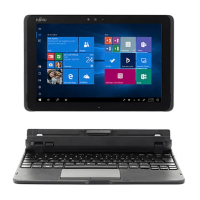
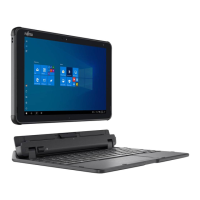
FUJITSU Tablet STYLISTIC Q507

Table of Contents

Questions and Answers

  • D
    Donald CruzAug 17, 2025
    What to do if my Fujitsu STYLISTIC Q507 PC stops working?
    • B
      Brent RiggsAug 17, 2025
      Your Fujitsu Tablet PC might stop working if it's in energy-saving mode. To resolve this, end the energy-saving mode. Another reason could be an application malfunction. Try closing the application or restarting the Tablet PC. Also, check if the battery is dead; if so, charge the battery or connect the AC adapter.
  • G
    Gregory MuellerAug 20, 2025
    Why my Fujitsu Tablet doesn't start after switching it on?
    • J
      Jacob FinleyAug 20, 2025
      If your Fujitsu Tablet PC won't start, the battery may be dead. Charge the battery or connect the AC adapter. Also, ensure the AC adapter is properly connected to the Tablet PC and then switch the Tablet PC on.
  • M
    Michelle MuellerAug 22, 2025
    How to fix a blank external monitor connected to a Fujitsu STYLISTIC Q507?
    • C
      Cynthia FloresAug 23, 2025
      If the external monitor connected to your Fujitsu Tablet remains blank, first ensure the monitor is switched on. If power saving mode is activated, press a key or tap the touchscreen. Check the brightness settings and adjust if necessary. Verify the graphics driver settings or check for external monitor detection in 'Intel Graphics Media Accelerator Driver for mobile'. Also, ensure both the AC and data cables are properly connected to both the Tablet PC and the external monitor; switch off and on both devices to ensure proper connection.
  • M
    Mary DiazAug 25, 2025
    Why does the battery on my Fujitsu Tablet discharge so quickly?
    • T
      Timothy HuffmanAug 26, 2025
      If your Fujitsu Tablet battery discharges too quickly, it could be due to the battery being too hot or too cold. Bring the Tablet PC to a normal operating temperature. If the battery life is extremely short, consider replacing the battery. Also, an application might be consuming excessive power; use the AC adapter when possible. Reducing the screen brightness via Control Panel – Hardware and Sounds – Windows Mobility Center can also help.
  • K
    kevin83Aug 27, 2025
    What to do about error messages on my Fujitsu STYLISTIC Q507 screen?
    • M
      Michelle RubioAug 27, 2025
      If you see error messages on your Fujitsu Tablet screen, and you are using an external keyboard, check the connection and reboot the Tablet PC. If the error is 'Bootable device was not found', check in the BIOS Setup whether your hard disk has been set correctly and that the operating system is installed on the correct drive. If you see 'Press to resume, to SETUP', press F1/Windows button to continue or F2/Decrease volume button to enter BIOS Setup. For a 'Real time clock error', check the date and time settings.
  • G
    Grace CarpenterAug 30, 2025
    Why is the touchscreen on my Fujitsu STYLISTIC Q507 PC dark?
    • A
      Anna StrongAug 30, 2025
      If your Fujitsu Tablet PC’s touchscreen remains dark, it may be switched off. Press a key (on an external keyboard) or tap the touchscreen. Also, if an external monitor or television is connected, check the graphics driver settings or whether the external monitor has been detected in 'Intel Graphics Media Accelerator Driver for mobile'.
  • C
    Candice BenjaminSep 1, 2025
    Why won't my printer print from my Fujitsu STYLISTIC Q507 Tablet?
    • L
      Linda CharlesSep 1, 2025
      If your printer isn't printing from your Fujitsu Tablet, first ensure the printer is switched on and ready. Next, check that the data cable between the Tablet PC and the printer is properly connected. Finally, verify that the correct printer driver is loaded.
  • K
    Kimberly MartinSep 4, 2025
    Why is my Fujitsu STYLISTIC Q507 Tablet's external monitor blank or unstable?
    • D
      Daniel LambSep 4, 2025
      If the external monitor connected to your Fujitsu Tablet is blank or the image is unstable, the wrong external monitor may have been selected, or the screen resolution may be incorrectly set. Shut down the application program in Windows. If the problem persists, switch to the Tablet PC's touchscreen using the key combination for screen output switching. Adjust the screen resolution and select the correct monitor (1 or 2) as described in your operating system's documentation.
  • S
    schneiderjoshuaSep 6, 2025
    Why doesn't the wireless connection work on my Fujitsu Tablet?
    • W
      William SimonSep 6, 2025
      If the wireless connection on your Fujitsu Tablet isn't working, first ensure the wireless component is switched on. If it is on but the connection still fails, check whether the wireless connection is enabled by the software.
  • D
    David GarciaSep 9, 2025
    Why doesn't the battery charging indicator light up on my Fujitsu STYLISTIC Q507?
    • E
      ericksonjamesSep 9, 2025
      If the battery charging indicator on your Fujitsu Tablet does not illuminate, the battery may be discharged. Connect the Tablet PC to a power outlet using the AC adapter. Note that the battery will only charge if its capacity is less than 90%.

Summary

Declarations of Conformity

Fujitsu Contact Information

Notational Conventions

Ports and Controls

Front Ports and Indicators

Details on the front-facing ports and status indicators of the Tablet PC.

Side Ports and Indicators

Describes ports on the left and right sides of the Tablet PC.

Rear Ports and Indicators

Details on the rear-facing ports and indicators of the Tablet PC.

Important Notes

Safety Instructions

Essential safety information and precautions for operating the Tablet PC.

Device Handling and Care

Guidelines for protecting the screen, energy saving, and traveling with the device.

Cleaning Procedures

Instructions and precautions for cleaning the Tablet PC and its touchscreen.

First-Time Setup

Initial Device Setup

Steps for unpacking, choosing a location, and connecting the AC adapter for first use.

First Power On and App Installation

Instructions for turning on the device for the first time and installing bonus applications.

Working with the Tablet PC

Status Indicators

Explains the meaning of various status lights for power, battery, and webcam.

Power Management

Covers switching the tablet on, programming the power button, and shutting it down.

Touchscreen and Stylus Usage

Details on touchscreen operation, display orientation, touch commands, and using the stylus.

Battery and Memory Management

Information on rechargeable battery, charging, and using memory cards.

Wireless and Network Connectivity

Guides on wireless components, WLAN/Bluetooth configuration, and Ethernet.

Optional Accessories

Docking Cradle

Details on the docking cradle's features, components, setup, and connection.

Keyboard Cover

Information on the keyboard cover, its components, and connecting it to the tablet.

TPU Cover and Folio Cover

Instructions for using the TPU cover with shoulder strap and the folio cover.

Adapter Cables

Overview of available adapter cables like microHDMI to VGA and USB to LAN.

Security Functions

BIOS Password Protection

How to set up and manage supervisor and user passwords in the BIOS Setup Utility.

System and Hard Disk Protection

Securing the system boot and the hard disk with passwords.

Security Lock

Using a Kensington Lock Cable with the docking cradle for anti-theft protection.

Connecting External Devices

Monitor Connections

How to connect external monitors using micro HDMI, HDMI, and VGA ports.

USB Device Connection

Information on connecting USB devices and how to remove them safely.

Audio Device Connection

Instructions for connecting headphones, speakers, and microphones.

BIOS Setup Utility

Starting and Navigating BIOS

Procedures for starting, operating, and exiting the BIOS Setup Utility.

Troubleshooting and Tips

General Troubleshooting

Advice on how to approach faults, gather information, and contact support.

System Start-up and Display Issues

Solutions for problems like forced shutdown, blank screens, and unreadable displays.

Connectivity and Performance Issues

Troubleshooting for printers, wireless networks, and battery discharge problems.

Error Messages

Explains common error messages and their resolutions.

Technical Data

Tablet PC Specifications

Detailed specifications for the Tablet PC including processor, memory, display, and dimensions.

Connectivity and Environmental Data

Information on screen resolutions, ambient conditions, and WLAN specifications.

Accessory Specifications

Technical details for optional accessories like batteries, AC adapters, and cradles.

Manufacturer’s Notes

Disposal and Recycling

Guidelines on proper disposal and recycling of batteries and the device.

Safety and Regulatory Notices

Important safety instructions, UL notice, and regulatory compliance information.

FCC and Industry Canada Compliance

Detailed regulatory statements for FCC and Industry Canada regarding RF exposure and interference.

Appendix

Wireless LAN Setup and Usage

Information on setting up and using the optional wireless LAN device.

Windows 10 Recovery Options

Guides on creating recovery drives, system restore, and resetting the PC.

Downloading Driver Updates

Instructions on how to download and install the latest system drivers.

Fujitsu STYLISTIC Q507 Specifications

General IconGeneral
Display Size10.1 inches
Display Resolution1920 x 1200 pixels
ProcessorIntel Atom x5-Z8550
RAM4 GB
Camera (Front)2 MP
Storage64 GB
Operating SystemWindows 10
Wireless802.11 a/b/g/n/ac

Related product manuals