EasyManua.ls Logo

Fujitsu Lifebook T731 - User Manual

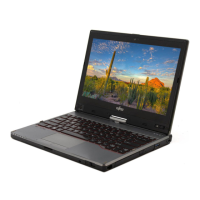
Fujitsu Lifebook T731
418 pages
Print Icon
To Next Page IconTo Next Page
Loading...
Users Guide
Learn how to use your Fujitsu
LIFEBOOK T731 Tablet PC
Guide d’utilisation
Découvrez comment utiliser
votre PC Tablette
LIFEBOOK Fujitsu T731

Table of Contents

Other manuals for Fujitsu Lifebook T731

Questions and Answers

  • O
    opaulSep 9, 2025
    Why won't my Fujitsu Laptop print to the printer?
    • J
      Jeffery EllisSep 9, 2025
      If your Fujitsu Laptop is not printing, here are some things to check: Make sure the printer is switched on and ready for operation. Check that the data cable connecting the laptop to the printer is properly connected. Verify that the correct printer driver is loaded.
  • S
    Susan PerryAug 23, 2025
    Why does my Fujitsu Lifebook T731 battery drain so fast?
    • J
      Jordan WalkerAug 23, 2025
      There are several reasons why your Fujitsu Laptop battery might be discharging quickly. The battery could be too hot or too cold (the battery indicator will flash in this case); bring the laptop to a normal temperature. An application might be consuming a lot of power by frequently accessing the hard disk or optical drive; use the mains adapter as frequently as possible. The screen brightness may be set too high; decrease the screen brightness using the key combination to reduce power consumption. If the operating time of the battery life is extremely short, the battery is probably too old and needs to be replaced.
  • A
    Anthony BrooksAug 25, 2025
    What to do if my Fujitsu Lifebook T731 suddenly stops working?
    • A
      Aaron RiveraAug 26, 2025
      If your Fujitsu Laptop stops working, it could be due to a few reasons. It might be in energy-saving mode, so leave energy-saving mode. An application program might have caused the malfunction; close the application program or restart the laptop. The battery might be dead; charge the battery, insert a charged battery, or connect the mains adapter to the laptop.
  • A
    Ashley PerryAug 26, 2025
    How do I fix a blank external monitor connected to my Fujitsu Lifebook T731 Laptop?
    • J
      Jason VillaAug 27, 2025
      If your external monitor remains blank when connected to your Fujitsu Laptop, check the following: Ensure the monitor is switched on. Press any key to continue in case power saving has been activated. Adjust the brightness of the monitor if it is set too low. Check if the screen output is set to the notebook’s LCD screen. Ensure the power cable and data cable are properly connected to both the monitor and the laptop. To do this, switch off the external monitor and the laptop, check the cable connections, and then switch them back on.
  • G
    gpinedaAug 27, 2025
    What to do if my Fujitsu Lifebook T731 Laptop screen is blank?
    • J
      Joshua ChanAug 27, 2025
      If your Fujitsu Laptop's LCD screen remains blank, try the following: Press a key or touch the touchpad in case the monitor is switched off. If you have an external monitor or television set connected, press the key combination to switch the screen output.
  • S
    Sean MartinezAug 29, 2025
    Why is my Fujitsu Laptop not connecting to Wi-Fi?
    • R
      rachelstevensonAug 29, 2025
      If the wireless connection on your Fujitsu Laptop is not working, it could be because the wireless component is disabled. Switch the radio component on. If the wireless component is enabled but the connection still doesn't work, check whether the radio connection is switched on via the software. Further information on using the radio component can be found in the help files.
  • D
    Diana HarperSep 18, 2025
    What to do if my Fujitsu system does not recognize a USB device?
    • S
      Sydney GibbsSep 18, 2025
      If your system isn't recognizing a USB device, try removing and reinstalling the device. If the device was installed while an application was running, close the application and restart your Tablet PC. Also, ensure your device has the correct software driver active by checking your software documentation.
  • A
    Anthony MunozSep 23, 2025
    What to do if my Fujitsu system fails to load the operating system?
    • M
      Maxwell FlowersSep 23, 2025
      If your system powers up but fails to load the operating system, make sure you have the right password, if you have a secured system requiring a password to load your operating system. Enter the setup utility and verify the Security settings and modify them as accordingly. Set the operating source by pressing the [ESC] key while the Fujitsu logo is on screen or use the [F2] key and enter the setup utility and adjust the source settings from the Boot menu, if the boot sequence settings of the setup utility are not compatible with your configuration.
  • C
    Christopher GraySep 8, 2025
    Why is the battery indicator light off on my Fujitsu Laptop?
    • D
      Darrell JimenezSep 8, 2025
      If the battery indicator on your Fujitsu Laptop does not illuminate, it could be due to these reasons: The battery may not be installed correctly; switch the notebook off, check the battery installation, and switch it back on. The battery may be fully discharged; charge the battery, install a charged battery, or connect the notebook to a mains outlet using the mains adapter.
  • R
    Richard NguyenSep 3, 2025
    How to fix a dark display on battery power on Fujitsu Tablet PC?
    • D
      David RiveraSep 4, 2025
      If the display is dark when on battery power, it may be because the Power Management utility is set to low brightness to conserve power. Press [Fn] + [F7] to increase brightness or click the battery gauge, click on More power options, and select Adjust the display brightness.

Summary

Preface

About This Guide

Provides an overview of the LIFEBOOK T731 Tablet PC and its software.

Conventions Used in the Guide

Explains formatting conventions used in the manual for clarity.

Fujitsu Contact Information

Provides contact details for Fujitsu Service and Support.

Chapter 1 Getting to Know Your LIFEBOOK

Overview

Describes the components of the Fujitsu LIFEBOOK T731 Tablet PC.

Locating the Controls and Connectors

Details the location and purpose of various ports and controls on the device.

Status Indicator Panel

Explains the status indicators and their meanings for system operation.

Display Panel

Covers the LED display panel, its features, and usage.

Keyboard

Describes the integrated keyboard and its functionality.

Touchpad;Active Digitizer;Touchscreen

Details the touchpad, active digitizer, and touchscreen functionalities.

Volume Control

Explains how to control the audio volume on the Tablet PC.

Modular Bay Devices

Describes the devices that can be housed in the modular bay.

LIFEBOOK Security;Tablet PC Buttons

Explains the security and tablet PC buttons and their functions.

Chapter 2 Getting Started with Your LIFEBOOK

Power Sources

Details the available power sources for the Tablet PC.

Starting Your LIFEBOOK Tablet PC

Provides instructions on powering on and starting the system.

Power Management

Explains features for conserving battery power and managing system power.

Chapter 3 User-Installable Features

Lithium ion Battery

Covers the Lithium ion battery, its care, and replacement.

Memory Stick;Secure Digital Cards

Explains the use and installation of memory and SD cards.

ExpressCards

Details the installation and removal of ExpressCards.

Memory Upgrade Module

Guides on installing, removing, and checking memory modules.

Optical Drive

Covers the optical drive, media loading, and player software.

Device Ports

Describes various ports like USB, LAN, HDMI, and audio jacks.

Chapter 4 Troubleshooting Your LIFEBOOK

Troubleshooting

Provides guidance on resolving setup and operating problems.

Specific Problems

Details common issues and their solutions in a table format.

Chapter 5 Restoring Your Pre-installed Software

Saving your Factory Image

Instructions on creating backup copies of the system's Factory Image.

Creating Backup Images of Factory Image, DAR, and Discs

Steps for creating backup images of various system components.

Recovering Your Factory Image

Procedures for restoring the original Factory Image.

Backing Up a System Image

Guide on creating user-configured system backups.

Using the Recovery and Utility Tools

Details on accessing and using recovery and utility tools.

Recovering your Factory Image using Recovery and Utility (new or non-bootable hard drive)

Steps for recovering the Factory Image with a new or non-bootable hard drive.

Automatically Downloading Driver Updates

Information on using the Fujitsu Driver Update utility.

Chapter 6 System Specifications

Specifications

Provides hardware and environmental specifications for the Tablet PC.

Configuration Label

Explains the information found on the system's configuration label.

Microprocessor

Details the processor specifications.

Memory

Specifies the system memory details, including capacity and type.

Video

Provides specifications for the display panel and video capabilities.

Device Ports

Lists and describes the various ports available on the system.

Keyboard

Details the specifications of the built-in keyboard.

Power

Covers battery and AC adapter specifications.

Pre-Installed Software

Lists the software pre-installed on the Tablet PC.

Appendix A: WLAN User’s Guide

FCC Regulatory Information

Provides regulatory information related to wireless LAN devices.

How to Handle This Device

Guidance on the proper handling and operation of the WLAN device.

Deactivating;Disconnecting the WLAN Device

Instructions for disabling or disconnecting the WLAN device.

Configuring the Wireless LAN

Steps to configure wireless network connectivity using Windows software.

Troubleshooting the WLAN

Describes causes and solutions for common wireless LAN connection issues.

WLAN Specifications

Lists the technical specifications for the wireless LAN device.

Appendix B: Fingerprint Sensor Device

Introducing the Fingerprint Sensor Device

Provides an introduction to the system's fingerprint sensor.

Installing OmniPass

Instructions for installing the OmniPass fingerprint recognition application.

User Enrollment

Guides the user through the process of enrolling a user into OmniPass.

Enrolling a Fingerprint

Details the procedure for capturing and enrolling a fingerprint.

Using OmniPass

Explains how to use OmniPass for authentication and password management.

OmniPass Control Center

Overview of functions within the OmniPass Control Center.

Troubleshooting

Addresses common issues encountered with OmniPass and user creation.

Fujitsu Lifebook T731 Specifications

General IconGeneral
Display Size12.1 inches
Storage500 GB HDD
Display Resolution1366 x 768 pixels
GraphicsIntel HD Graphics
Operating SystemWindows 8 Pro
Battery LifeUp to 8 hours
ConnectivityWi-Fi, Bluetooth
PortsUSB 3.0, USB 2.0, VGA, HDMI, Ethernet

Related product manuals