EasyManua.ls Logo

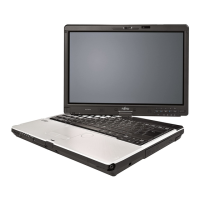
Fujitsu lifebook t726 - User Manual

Fujitsu lifebook t726
138 pages
Print Icon
To Next Page IconTo Next Page
Loading...
System
Operating Manual
FUJITSU LIFEBOOK T726

Table of Contents

Other manuals for Fujitsu lifebook t726

Questions and Answers

  • N
    Nancy DrakeSep 23, 2025
    How to fix System CMOS checksum bad error on Fujitsu Laptop?
    • M
      Michele AllenSep 23, 2025
      Switch the notebook off, then switch it back on. Press the function key F2 to access the BIOS Setup. In the BIOS Setup, select the Exit menu, then select the entry Load Setup Defaults. Select OK and press the Enter key.
  • A
    Andrea SmithAug 25, 2025
    Why does Fujitsu lifebook t726 battery drain fast?
    • K
      kmooreAug 25, 2025
      If your Fujitsu Laptop battery is discharging too quickly, it could be due to a few reasons. The battery might be too hot or too cold. Move the notebook to a location where the temperature is within the normal range. If the battery life is still short, it might be old and need replacing. Another cause might be an application using a lot of power by frequently accessing the hard disk or optical drive, so use the AC adapter whenever possible. The screen brightness might also be set too high. Dim the screen using the key combination to decrease screen brightness to save power.
  • R
    robertsonkathleenAug 25, 2025
    How to fix blank external monitor on Fujitsu Laptop?
    • D
      david51Aug 26, 2025
      If your external monitor remains blank when connected to your Fujitsu Laptop, try these steps: First, make sure the external monitor is switched on. If it is, check if power saving mode has been activated by pressing any key. Adjust the brightness of the monitor if it's set too low. Ensure the screen output is correctly set and if not, change it using the appropriate key combination. Finally, verify that the AC cable and data cable are properly connected to both the notebook and the external monitor.
  • K
    Kristin TaylorAug 27, 2025
    What to do if Fujitsu lifebook t726 stops working?
    • R
      Robert MoralesAug 27, 2025
      If your Fujitsu Laptop stops working, it could be in energy-saving mode, so end energy-saving mode. Alternatively, an application program might have caused the malfunction. Close the application or restart the notebook by restarting the operating system or switching it off and on again. If the battery is dead, charge it, insert a charged battery, or connect the AC adapter.
  • D
    Devon MayerAug 27, 2025
    How to fix blank LCD screen on Fujitsu Laptop?
    • J
      James RitterAug 27, 2025
      If the LCD screen on your Fujitsu Laptop remains blank, first ensure the screen isn't simply switched off by pressing a key or touching the touchpad. If you have an external monitor or television connected, press the key combination to change the screen output.
  • M
    Marcia KimSep 13, 2025
    Why is Smart Card reader not recognized on Fujitsu lifebook t726?
    • S
      Susan LeSep 14, 2025
      If the Smart Card reader is not recognized on your Fujitsu Laptop, make sure you have inserted your Smart Card into the Smart Card reader with the chip facing upwards / downwards (device-dependent). Check whether the Smart Card you are using is supported and complies with the ISO standard 7816-1, -2, -3 and -4.
  • R
    raymondtapiaSep 12, 2025
    What to do if lost Smart Card of Fujitsu lifebook t726 Laptop?
    • K
      Keith JohnsonSep 12, 2025
      If you have lost your user Smart Card, you can continue working with the Supervisor Smart Card and initialize a new user Smart Card. If you have lost the Supervisor Smart Card, you can also continue working, but you no longer have all rights and cannot initialize another Supervisor Smart Card. If you have lost both Smart Cards, you cannot boot your system.
  • D
    David RamseySep 12, 2025
    What does acoustic warning mean on Fujitsu lifebook t726 Laptop?
    • L
      laura57Sep 12, 2025
      If your Fujitsu Laptop is beeping every few seconds, the battery is almost dead. Charge the battery.
  • S
    Steven CrawfordSep 4, 2025
    How to resolve unstable image on external monitor connected to Fujitsu lifebook t726 Laptop?
    • T
      terrihawkinsSep 4, 2025
      If the external monitor connected to your Fujitsu Laptop is blank or the image is unstable, terminate the application program under Windows by pressing Alt + F4. If the error persists, use the key combination for switching the screen output to switch to the LCD screen of the notebook. Change the screen resolution and select the correct monitor in your operating system settings.
  • S
    Steven SimsSep 2, 2025
    What to do if Fujitsu lifebook t726 shows Stuck key error?
    • L
      Lauren WilsonSep 2, 2025
      Make sure that no key is pressed.

Summary

Ports and controls

Important notes

Safety instructions

Essential safety information that must be followed when operating the notebook.

Additional safety notes for devices with radio components

Specific safety guidelines for using wireless features like WLAN and Bluetooth.

First-time setup of your device

Unpacking and checking the device

Steps for unpacking the device and checking for any damage incurred during transit.

Connecting the AC adapter

Detailed instructions on how to connect the AC adapter to power the device.

Switching on the device for the first time

Procedures for powering on the notebook for the initial setup and operation.

Working with the notebook

Switching off the notebook

Procedures for properly shutting down the notebook's operating system and powering it off.

Using the device as a Tablet PC

Instructions on how to use the notebook's touch capabilities with a stylus or finger.

Using the stylus (only devices with Dual Digitizer)

Guidance on using the stylus for navigation, input, and drawing on the touchscreen.

Charging, caring for and maintaining the battery

Detailed instructions on charging, proper care, and maintenance of the notebook's battery.

Disconnecting the notebook from the port replicator

Instructions for safely undocking the notebook from the port replicator.

Security functions

Brief overview of the security functions

A summary table outlining various security functions, their protection type, and preparation steps.

Configuring the fingerprint sensor

Instructions on how to set up and use the fingerprint sensor for biometric authentication.

Configuring password protection in BIOS Setup Utility

Guidance on setting up password protection within the BIOS Setup Utility for enhanced security.

Trusted Platform Module - TPM (device dependent)

Explanation and management of the Trusted Platform Module (TPM) for enhanced security.

Connecting external devices

Connecting an external monitor

Instructions for connecting analog (VGA) and digital (DisplayPort/DVI-D) monitors to the notebook or port replicator.

Connecting USB devices

Instructions for connecting various external devices via USB ports, including transfer speeds.

Safe removal of eSATA and USB devices

Procedures for safely disconnecting eSATA and USB devices to prevent data loss.

Removing and installing components during servicing

Notes on installing and removing boards and components

General precautions and safety notes, including handling ESD-sensitive components.

Settings in BIOS Setup Utility

Troubleshooting and tips

FCC Regulatory Information

Canada, Industry Canada (IC)

Fujitsu lifebook t726 Specifications

General IconGeneral
Bus typeQPI
SteppingD1
Tjunction100 °C
Processor cache3 MB
Processor cores2
Processor modeli5-6200U
System bus rate4 GT/s
Processor familyIntel® Core™ i5
Processor seriesIntel Core i5-6200 series
Processor socketLGA 1356 (Socket B2)
Processor threads4
Processor codenameSkylake
Configurable TDP-up25 W
Processor frequency2.3 GHz
Processor cache typeSmart Cache
Configurable TDP-down7.5 W
Processor lithography14 nm
Processor manufacturerIntel
Processor front side bus- MHz
PCI Express slots version3.0
Processor boost frequency2.8 GHz
Processor operating modes64-bit
ECC supported by processorNo
PCI Express configurations1x4, 4x1
Thermal Design Power (TDP)15 W
Configurable TDP-up frequency2.4 GHz
Configurable TDP-down frequency0.8 GHz
Maximum number of PCI Express lanes12
On-board graphics cardYes
On-board graphics card ID1916
Discrete graphics card modelNot available
On-board graphics card modelIntel® HD Graphics 520
On-board graphics card familyIntel® HD Graphics
Maximum on-board graphics card memory1.74 GB
On-board graphics card OpenGL version4.4
On-board graphics card base frequency300 MHz
On-board graphics card DirectX version12.0
On-board graphics card dynamic frequency (max)1000 MHz
Form factorConvertible (Swivel)
Product typeHybrid (2-in-1)
Product colorBlack, Grey
Memory slots1x SO-DIMM
Internal memory4 GB
Memory clock speed2133 MHz
Memory form factorOn-board
Internal memory typeDDR4-SDRAM
Maximum internal memory20 GB
Memory layout (slots x size)1 x 4 GB
Intel segment taggingHome Office, Small Business
HDD size2.5 \
HDD speed5400 RPM
HDD interfaceSATA III
Storage mediaHDD
Optical drive typeDVD Super Multi
Total storage capacity500 GB
Compatible memory cardsSD, SDHC, SDXC
Number of HDDs installed1
Display surfaceMatt
Display diagonal12.5 \
Touch technologyMulti-touch
Touchscreen typeCapacitive
Display brightness300 cd/m²
Display resolution1366 x 768 pixels
Native aspect ratio16:9
Contrast ratio (typical)500:1
Audio chipRealtek ALC255
Front camera HD typeFull HD
Front camera resolution1920 x 1080 pixels
Front camera signal format1080p
Front camera resolution (numeric)2 MP
WWANInstalled
MIMO typeMulti User MIMO
4G standardLTE
3G standardsUMTS
Antenna type2x2
Wi-Fi standards802.11a, Wi-Fi 5 (802.11ac), 802.11b, 802.11g, Wi-Fi 4 (802.11n)
Bluetooth version4.1
WLAN controller modelIntel Dual Band Wireless-AC 8260
Wi-Fi data rate (max)867 Mbit/s
Ethernet LAN data rates10, 100, 1000 Mbit/s
Mobile network generation4G
Charging port typeDC-in jack
USB 2.0 ports quantity0
USB 3.2 Gen 1 (3.1 Gen 1) Type-A ports quantity3
Pointing deviceTouchpad
Keyboard backlit colorWhite
Keyboard number of keys85
Trial softwareMcAfee Multi Access Security
Pre-installed softwareFujitsu LIFEBOOK Application Panel, Fujitsu Display Manager, ShockSensor Utility, Power Saving Utility, Fujitsu Plugfree Network, Win7: Fujitsu Recovery, Microsoft Office
Recovery operating systemWindows 7 Professional
Battery voltage11.25 V
Battery capacity6400 mAh
Battery life (max)11 h
Number of battery cells6
AC adapter frequency50 - 60 Hz
AC adapter input voltage100 - 240 V
AC adapter output voltage19 V
Cable lock slot typeKensington
Password protection typeBIOS, HDD, Supervisor, User
Operating temperature (T-T)5 - 35 °C
Storage relative humidity (H-H)8 - 85 %
Operating relative humidity (H-H)20 - 85 %
Sustainability certificatesRoHS, EPEAT Gold, ENERGY STAR
CertificationCE!, EN 60950, IT-Eco-Declaration, WEEE, Microsoft Operating Systems (HCT / HCL entry / WHQL), GOST
Processor codeSR2EY
Processor ARK ID88193
Processor package size42 X 24 mm
Supported instruction setsSSE4.1, SSE4.2, AVX 2.0
Intel Smart Response Technology version1.00
Intel Stable Image Platform Program (SIPP) version0.00
Weight and Dimensions IconWeight and Dimensions
Depth233 mm
Width316 mm
Weight1810 g
Height (rear)31.3 mm
Height (front)25.4 mm

Related product manuals