14
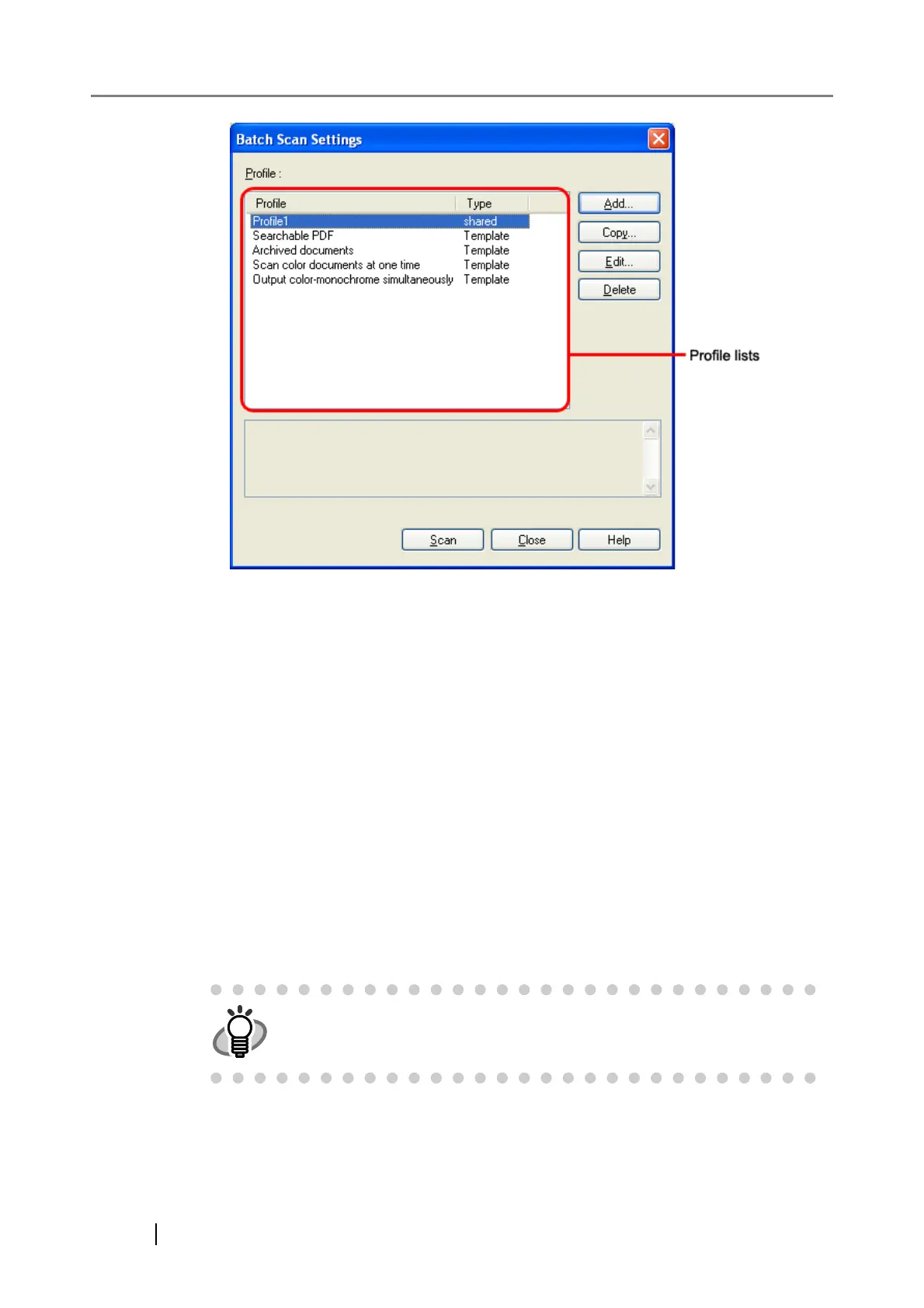
2. Do the following as necessary:
• To create a new profile:
Click the [Add] button.
⇒ A new profile appears in the [Profile Editor] dialog box. (Go to step 3.)
• To create a new profile based on an existing profile:
Select a profile you want to use as the basis from the profile list, and then click the [Copy]
button.
⇒ A new profile based on the selected profile appears in the [Profile Editor] dialog box.
(Go to step 3.)
• To change the settings of an existing profile:
Select a profile you want to change settings from the profile list, and click the [Edit] button.
⇒ The selected profile appears in the [Profile Editor] dialog box. (Go to step 3.)
• To delete an existing profile from the profile list.
Select a profile you want to delete, and then click the [Delete] button. When you see a con-
firmation message, click the [Yes] button.
⇒ The selected profile is deleted.
3. In the [Profile Editor] dialog box, configure settings for scanning and saving scanned
document images.
HINT
If the [Type] of a profile in the profile list is [Template], it is a sample profile.
It cannot be used for scanning documents. Use sample profiles as the
basis for you to create new profiles.



 To Next Page