ScanSnap fi-5110EOXM for Macintosh Getting Started | 9
3.3. Scanning Office Documents
1. Select “Adobe Acrobat” at [Application:] under the
[Application] tab of “Scan and Save Settings”.
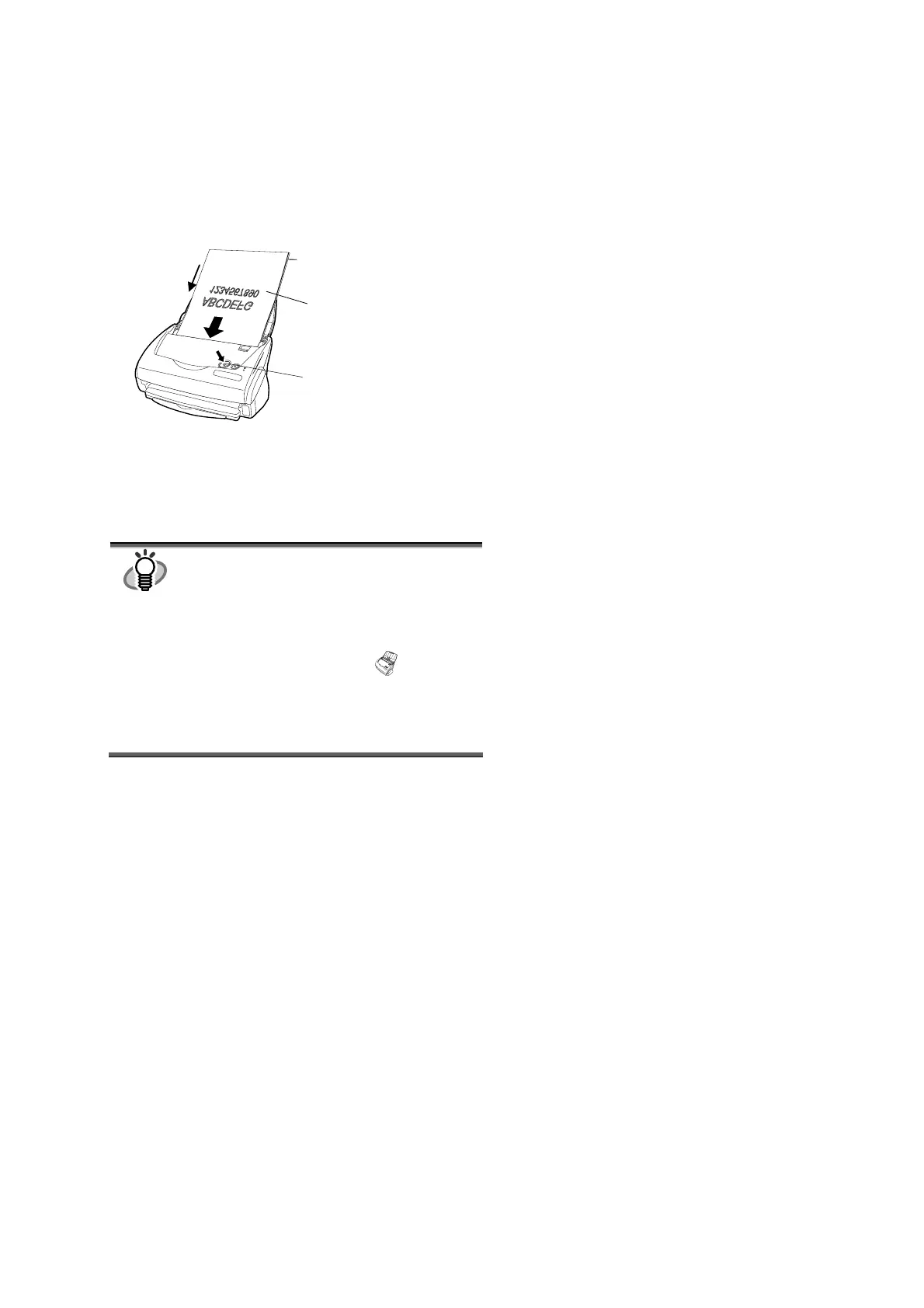
2. Load the documents onto the scanner.
3. Press the [SCAN] button.
Ö Scanning starts.
Ö When the scanning is completed, Adobe Acrobat starts
and displays the scanned images.
HINT
● You can also use another application to display
scanned images.
● Pressing [SCAN] button, the documents are
scanned in the “Duplex” (both-sides scanning)
mode.
To scan the document in the “Simplex”
(single-side scanning) mode, change this setting
using the ScanSnap Manager
.
● The ScanSnap scanner is able to scan various
sizes of documents. Refer to the “ScanSnap
Operator’s Guide” (manual.pdf) on the
“ScanSnap Setup CD-ROM” to learn more
about scanning the documents.
[SCAN] button
Set the paper face-down
on the Paper chute cover.
Set the backside of the
paper to the front.
Scanning
direction


 To Next Page
 Loading...