EasyManua.ls Logo

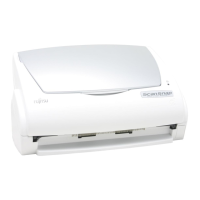
Fujitsu ScanSnap fi-5110EOX - User Manual

Fujitsu ScanSnap fi-5110EOX
137 pages
Print Icon
To Next Page IconTo Next Page
Loading...
P3PC-E817-03EN
SCAN
POWER
D
U
P
LE
X
C
OLO
R
Color Image Scanner
fi-5110EOX
Operators Guide
TM

Table of Contents

Other manuals for Fujitsu ScanSnap fi-5110EOX

Questions and Answers

  • L
    lauren10Sep 23, 2025
    Why are my Fujitsu ScanSnap fi-5110EOX Scanner scanned images skewed?
    • N
      Noah RobertsonSep 23, 2025
      If your Fujitsu Scanner's scanned images are skewed when 'Allow automatic image rotation' is enabled, ensure the document skew does not exceed +-5 degrees when loading it onto the scanner.
  • S
    Sarah RoweAug 23, 2025
    What to do if my Fujitsu ScanSnap fi-5110EOX is not turning on?
    • J
      Jamie SmithAug 23, 2025
      If your Fujitsu Scanner is not turning on, ensure the AC/USB cable and AC adapter are correctly connected. Try disconnecting and reconnecting them. Also, make sure the Paper chute cover is open, that Windows has completely started up, and that you have pressed the [POWER] button on the scanner.
  • L
    Logan WatsonAug 25, 2025
    What to do if scanning does not start on my Fujitsu ScanSnap fi-5110EOX Scanner?
    • S
      schultzdonnaAug 26, 2025
      If scanning doesn't start on your Fujitsu Scanner, ensure the USB cable is correctly connected, especially if using a hub (check the hub's power). If the "ScanSnap Manager" icon isn't visible, start it from the [Start] menu under [Programs] - [ScanSnap Manager]. You can also try disconnecting and reconnecting the AC cable and adapter. If using a USB hub, connect the scanner directly to your PC. Restarting your PC or reinstalling ScanSnap Manager may also help. Ensure that the "Scan and Save Settings" window is closed before scanning.
  • J
    jonathon23Aug 27, 2025
    How to fix Fujitsu Scanner if it cannot be turned on?
    • D
      Donald CampbellAug 27, 2025
      If your Fujitsu Scanner won't turn on, check that the AC/USB cable and AC adapter are correctly connected. Try disconnecting and reconnecting them. Ensure the Paper chute cover is open. Wait for Windows to fully start, as the LED might turn off during startup or in low power mode. Finally, press the [POWER] button on the scanner.
  • B
    Brooke BakerAug 27, 2025
    Why is my Fujitsu ScanSnap fi-5110EOX Scanner scanning so slow?
    • N
      nancy80Aug 27, 2025
      If your Fujitsu Scanner's scanning speed is slow, first check if your computer meets the system requirements in section 2.1, “Before Installing”, of the Operator’s Manual. If not, uncheck "Allow automatic image deskew" and "Allow automatic image rotation" under [Scanning] - [Option...] in the "Scan and Save Settings" window to improve speed. Also, connect the scanner to a USB 2.0 port on your PC (and ensure any USB hub also supports USB 2.0).
  • S
    Shannon DunnSep 14, 2025
    Why does the Fujitsu ScanSnap fi-5110EOX print image shifts or is distorted?
    • R
      Rebecca HarveySep 14, 2025
      If the printed image from your Fujitsu Scanner is shifted or distorted, ensure that you load the document correctly.
  • W
    William MaynardSep 12, 2025
    Why does double-feed frequently occur on my Fujitsu ScanSnap fi-5110EOX?
    • B
      Brooke CarrollSep 12, 2025
      Frequent double-feeding on your Fujitsu Scanner may occur due to a dirty Pad ASSY or too many sheets in the document stack. Try cleaning the Pad ASSY, reduce the document stack to 5 mm thickness or less.
  • G
    Gary Maldonado MDSep 13, 2025
    Why does the Fujitsu Scanner print images white or dark?
    • G
      Gabriel GutierrezSep 13, 2025
      If your Fujitsu Scanner is printing images too white or too dark, adjust the 'Brightness' settings under [Scanning] - [Option...] in the 'Scan and Save Settings' window.
  • A
    Andrea PetersonSep 4, 2025
    Why are scanned images skewed with Fujitsu ScanSnap fi-5110EOX?
    • J
      Jamie CarpenterSep 5, 2025
      If scanned images are skewed when “Allow automatic image rotation” is enabled on your Fujitsu Scanner, load the document so that skews do not exceed +-5 degrees, as the function corrects images within this limit.
  • F
    fblackSep 2, 2025
    Why is the printed image shifted or distorted on my Fujitsu ScanSnap fi-5110EOX?
    • T
      Tammy Sparks DDSSep 2, 2025
      If the printed image from your Fujitsu Scanner shifts or is distorted, ensure you load the document correctly.

Summary

Introduction

Regulatory Information

FCC Declaration

Regulatory compliance statement for radio frequency emissions.

Canadian DOC Regulations

Radio noise emissions compliance for Canadian digital apparatus.

Safety Precautions

Warning Indications Used In This Manual

Explains warning symbols for safe operation and hazard prevention.

Electrical and Handling Safety

Covers AC cable safety, wet hands, and physical handling precautions.

Environmental and Usage Cautions

Details risks like liquids, internal components, and environmental factors.

Installation and Usage Environment Precautions

Outlines precautions for stable surfaces, ventilation, and power.

Operational Environment Precautions

Advises against static electricity, sprays, sunlight, and temperature changes.

Chapter 1 Before You Start Using Your Scanner

1.1 Checking the Contents of the Scanner Package

Verifies all necessary parts are included in the scanner package.

1.2 Names and Functions of Parts

Identifies and explains the purpose of each scanner component.

Chapter 2 Connecting ScanSnap

2.1 Installing ScanSnap

Guides through the process of installing ScanSnap software and drivers.

2.2 Connecting ScanSnap to your PC

Provides steps for physically connecting the scanner to a computer.

Chapter 3 Basic Scanner Operations

3.1 Flow of Operations

Outlines the sequence from scanning to saving images.

3.2 Scanning Different Document Types

Summarizes supported document media and sizes.

3.3 Loading Documents

Provides instructions on how to properly load documents into the scanner.

3.4 Changing Scan Settings

Covers configuration of scanning parameters via ScanSnap Manager.

3.5 Various settings according to your needs

Describes specific scanning scenarios and image editing.

3.6 Scanning Business Cards

Guides on scanning and managing business cards with CardMinder.

3.7 Viewing PDF File Thumbnails

Enables and uses the PDF thumbnail view feature in Explorer.

Chapter 4 Uninstalling ScanSnap

4.1 Uninstalling Supplied Programs

Step-by-step guide to remove ScanSnap software from the system.

Chapter 5 Troubleshooting

5.1 Clearing Document Jams

Instructions for safely removing jammed documents from the scanner.

5.2 Troubleshooting Checklist

A guide to diagnose and resolve common scanner issues.

Chapter 6 Daily Care

6.1 Cleaning Materials

Lists recommended materials for cleaning the scanner.

6.2 Cleaning the Scanner Exterior

Provides instructions for cleaning the scanner's outer surfaces.

6.3 Cleaning the Inside of the Scanner

Details the procedure for cleaning internal scanner components.

Chapter 7 Replacing Consumables

7.1 Replacing Consumables

Information on consumable parts and their replacement cycles.

7.2 Replacing the Pad ASSY

Step-by-step guide for replacing the Pad ASSY.

7.3 Replacing the Pick Roller

Detailed instructions for replacing the Pick Roller.

Appendix A Installation Specifications

Repairs

Fujitsu ScanSnap fi-5110EOX Specifications

General IconGeneral
BrandFujitsu
ModelScanSnap fi-5110EOX
CategoryScanner
LanguageEnglish

Related product manuals