3.5 Various settings according to your needs
ScanSnap fi-5110EOX Operator's Guide 57
Basic Scanner Operations
3
■ Deleting pages from a PDF file
Unnecessary pages of a document which has been scanned and saved as PDF files can be deleted
with Adobe Acrobat 6.0.
When a blank page could not be skip with [Allow automatic blank page removal] function (page
55), or you want to delete another unnecessary page, please follow the procedure below.
1. With Adobe Acrobat, open the PDF file targeted for this operation.
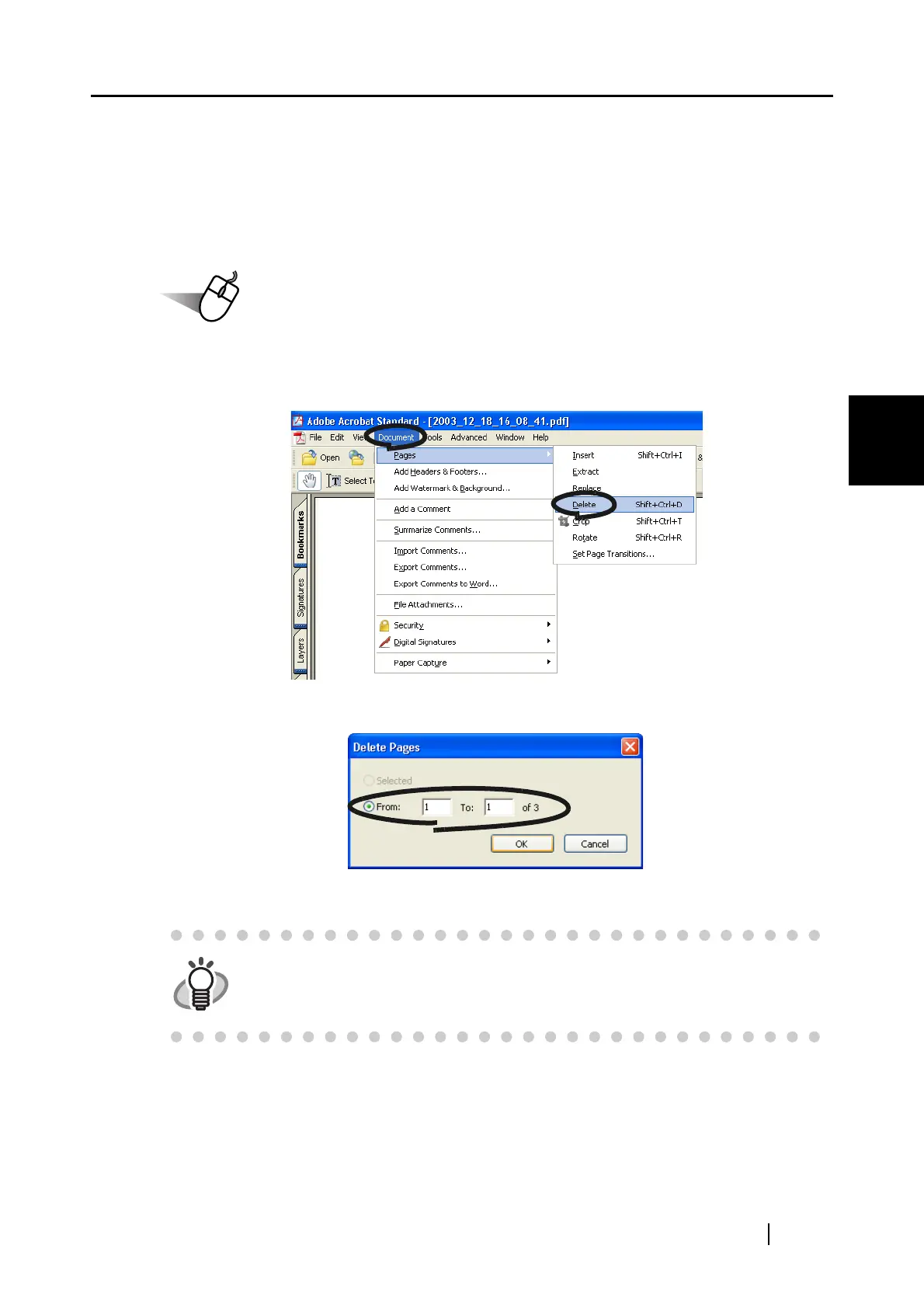
2. From the menu bar, select [Document] - [Pages] - [Delete].
3. Specify the page number of the page(s) you want to delete and click the [OK] button.
⇒ The specified page is deleted.
For details of this function, please refer to "Adobe Acrobat Help".



 To Next Page
 Loading...