80
4.1 Uninstalling Supplied Programs
Follow the procedure below to uninstall programs (ScanSnap Manager, CardMinder and PDF
Thumbnail View) supplied with ScanSnap.
1. Start up your PC.
When using Windows 2000 or Windows XP, log in as a user with "Administrator" privileges
(computer administrator privileges in the case of Microsoft Windows XP Home Edition
operation system).
2. Exit all currently running programs.
3. Select [Control Panel] - [Add or remove Programs] from the [Start] menu.
⇒ This displays the "Add or remove Programs" screen which displays a list of the currently
installed applications.
4. Select the application to uninstall.
(1) When uninstalling ScanSnap Manager
Select "ScanSnap Manager".
(2) When uninstalling CardMinder
Select "CardMinder V2.0".
(3) When uninstalling PDF Thumbnail View
Select "PDF Thumbnail View".
5. Click the [Change/Remove] button.
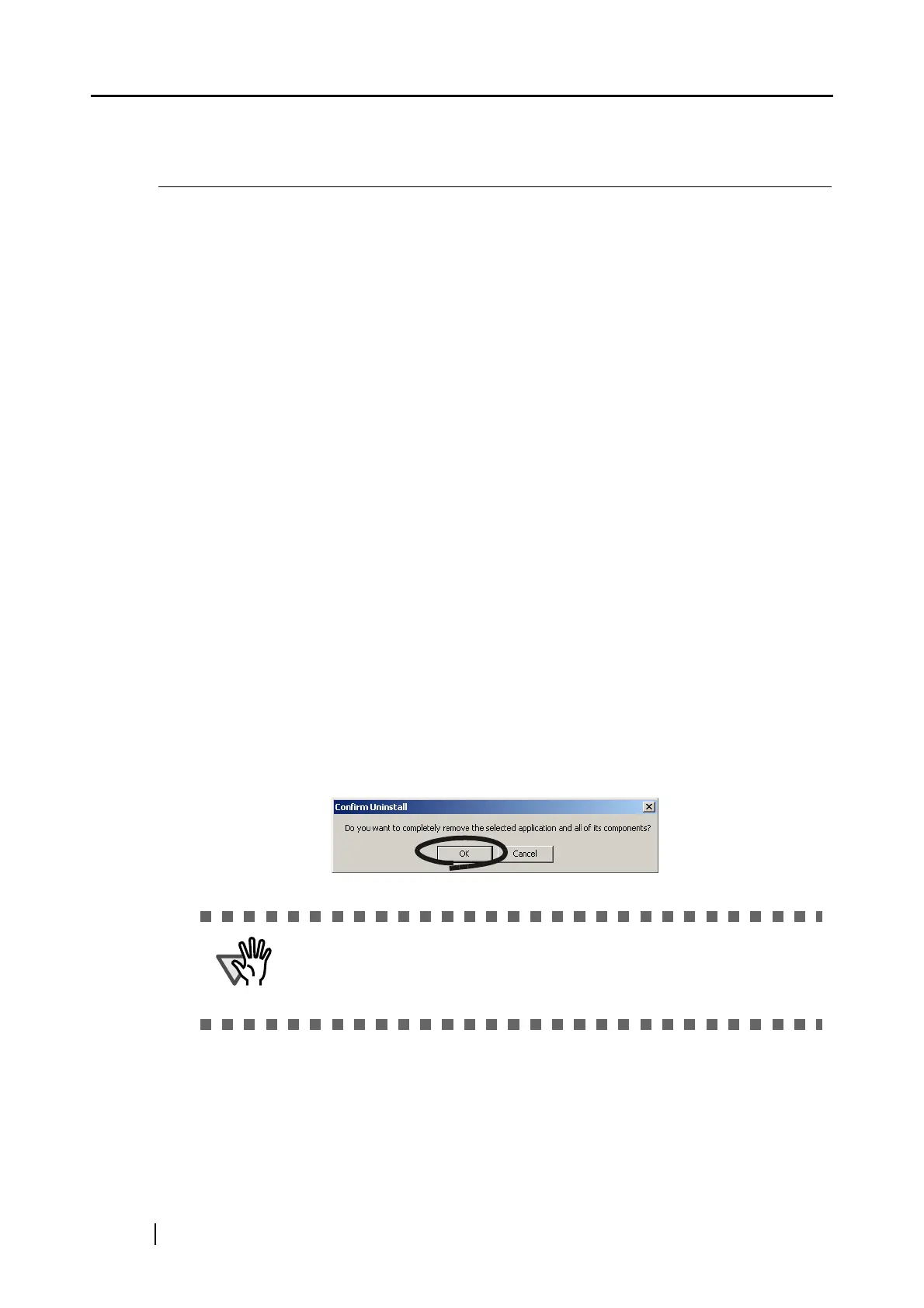
⇒ The "Confirm Uninstall" window appears.
6. Click the [OK] button.
⇒ This executes the uninstallation.
In the case of CardMinder, a screen for confirming whether or not to leave
the data or the execution environment is displayed.
To retain this data, click the [Yes] button. To remove the data, click the [No]
button.


 To Next Page
 Loading...