54
■ Scanning color document in black and white
As the default, ScanSnap automatically recognizes whether a document is black & white or
colored. Accordingly colored documents are scanned in the color mode, while black & white docu-
ments are scanned monochrome.
If you wish to scan colored document in black & white, change the settings following the proce-
dure below.
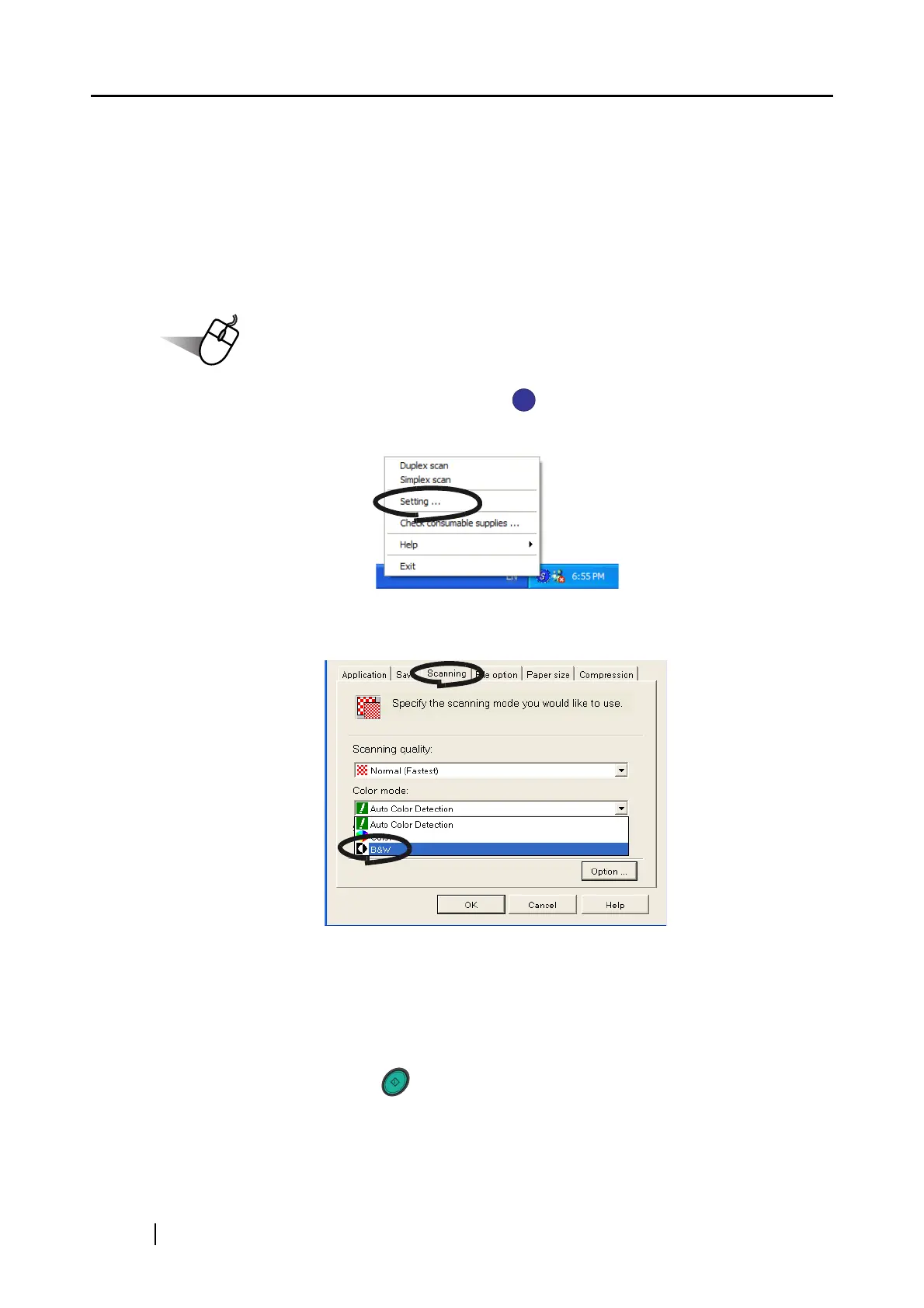
1. Right click the "ScanSnap Manager" icon on the task tray and select "Setting..."
from the menu.
2. Click [Scanning] tab and select "B&W" at "Color mode:".
If you scan color documents in color, select "Color".
3. Click the [OK] button to close the dialog box.
4. Load the document onto the scanner.
5. Press the [SCAN] button .
⇒ Scanned images will be output in black and white.
SCAN



 To Next Page
 Loading...