11/09/2023
Furuno USA, Inc.
3
1.3. Initial Setup
1.3.1. Set a static IP address to the MU Touch Monitors
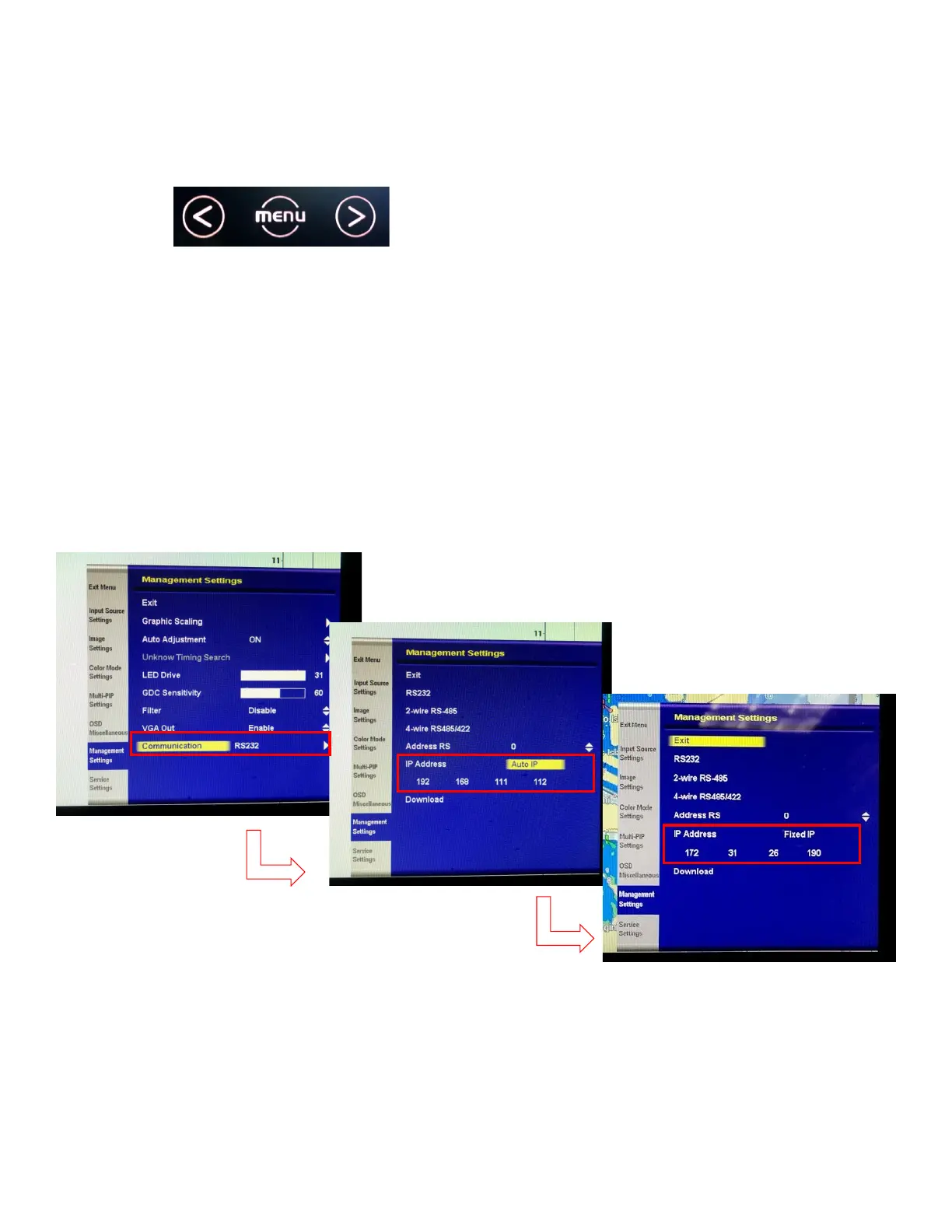
1) Open “Menu” by pressing the Menu button on the monitor.
2) Go down to “Management Settings” by using Navigation buttons, then touch the Menu
button to enter.
3) Select “Communication” and change the setting to “IP address, Fixed IP”.
4) Change the IP address to one of the IP addresses compatible with the TZT2BB.
(IP address Range: 172.31.26.190 – 199)
5) Repeat the same process at the secondary monitor but you must use a different IP
address from primary monitor, continue as needed for additional TZT2BBs with MU
touch monitors.
6) Cycle the power of monitor(s) by shutting off the breaker or unplug the power cable
for monitor(s) to apply the change, then plug back in.
7) Cycle the power of network Switching HUB. If Monitor(s) connect to TZT2BB internal
HUB, Cycle the power of TZT2BB.











 To Next Page