Getting Started
p. 28
To choose additional notification alerts, go to Notifications in the G-RACK 12 Administration Tool.
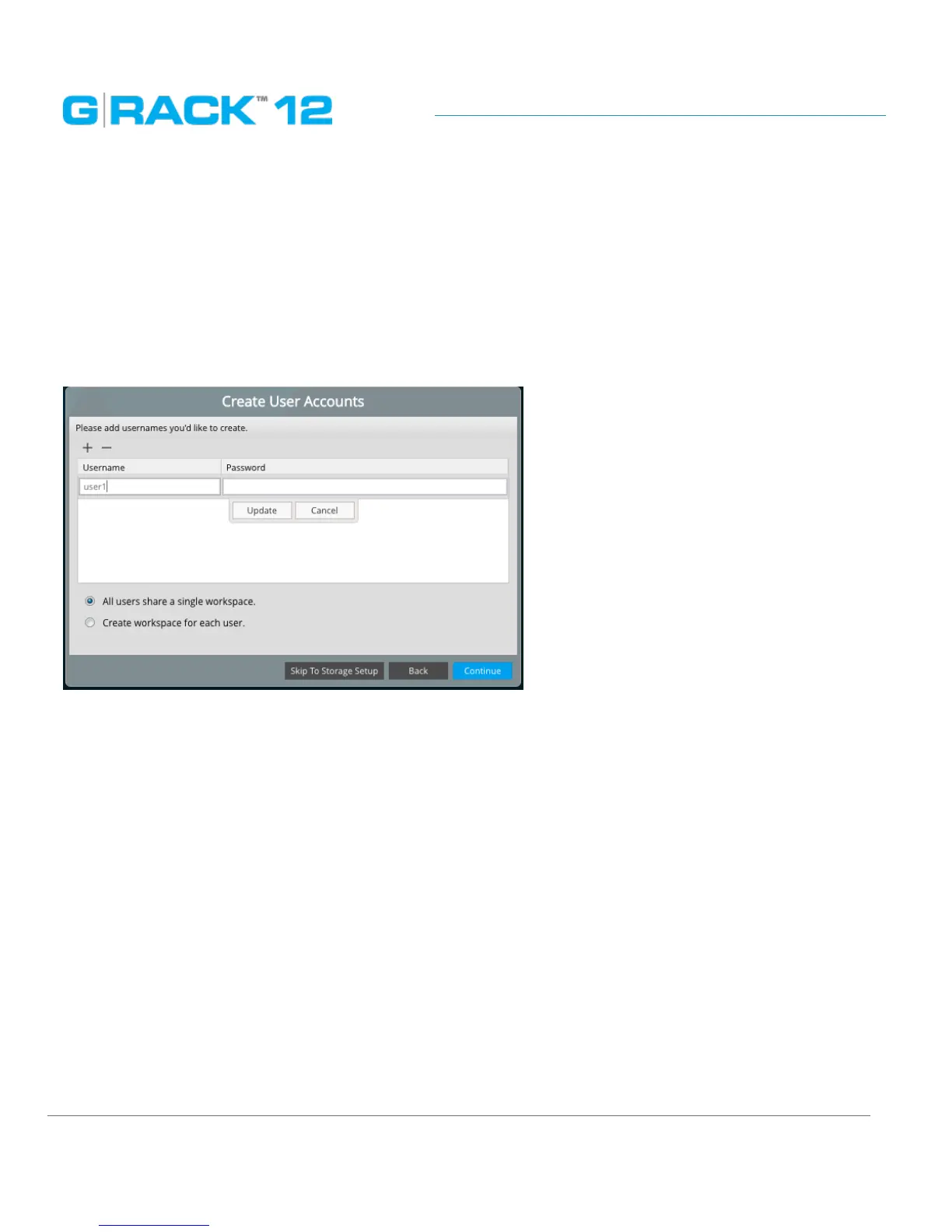
STEP 6. Create User Accounts
Set up at least one user to continue. User names are lower case only without length limits.
Passwords allow both lower and upper cases ( case-sensitive) with the minimal length of 5
characters.
Choose whether all users will share a single workspace or each user will be assigned a separate one.
STEP 7. Customize your G-RACK 12
You will not see this dialog if you have chosen General theme.
Divide space between Project shares and iSCSI Media. Setting a percentage of the space to be used
for iSCSI Media will allocate the space on the default RAID created and this space will be displayed as
occupied in the RAID under the Storage menu once the Wizard is completed.


 To Next Page