Getting Started
p. 27
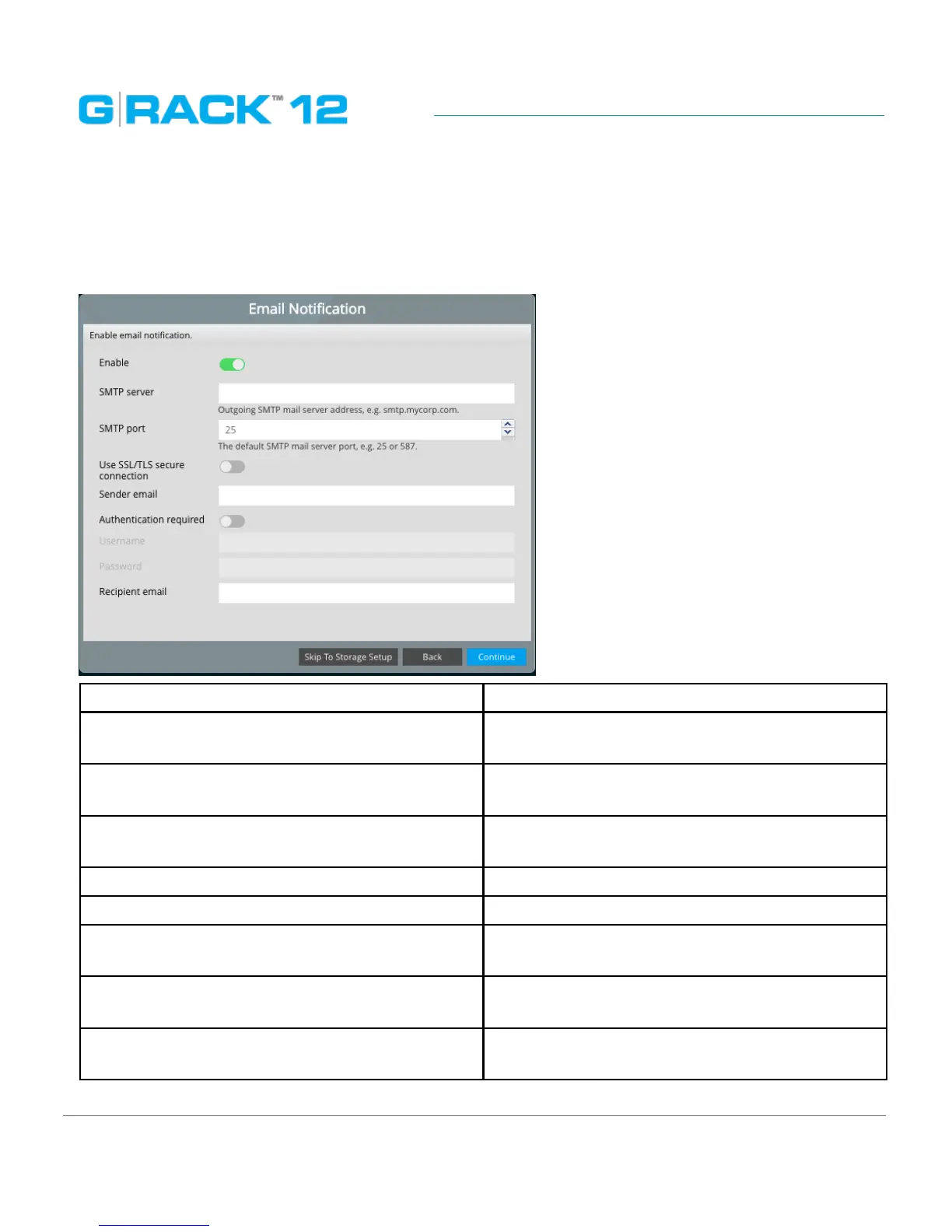
STEP 5. Email Notification
Enable this option to receive notifications from the G-RACK 12 on drives and system health. It is
possible to set email notifications later using Monitoring Settings menu.
An email account for the G-RACK 12 is to be created prior to enabling this option.
Enable Toggle the button to enable the option
SMTP server Specify the SMTP server of the G-RACK 12 email
account
SMTP port Specify the SMTP port of the G-RACK 12 email
account
Use SSL/TLS secure connection Toggle to enable secure connection for of the
G-RACK 12 email account
Sender email Specify the G-RACK 12 email account
Authentication required Toggle to enable authentication
Username Specify Username of the G-RACK 12 email ac-
count
Password Specify Password of the G-RACK 12 email ac-
count
Recipient email Specify who will receive email for the G-RACK 12
to send to emails


 To Next Page