p.25
Using RAID Modes
RAID Conguration Utility for Windows
The RAID Congurator is used to change the RAID level of your G-RAID with
Thunderbolt. You can use any of the two Thunderbolt 2 ports on your G-RAID with
Thunderbolt with the RAID Congurator application. To congure G-RAID with
Thunderbolt, it will need to be the only device connected to your computer.
The RAID Congurator utility is available for download from the G-Technology website
at
www.g-technology.com/support.
Once you have downloaded the RAID Congurator .zip le you need to extract the
folder which contains the RAID conguration .exe le and a .dll le. Click on the .exe le
and follow the simple instructions to install the conguration utility.
Congure the RAID Mode for Windows
You can easily congure G-RAID with Thunderbolt’s RAID mode with the following steps.
Important Note: Changing the RAID level will erase all data on the drive. Be sure all of
the data and les you want to save are backed up to separate media.
1. In the G-RAID with Thunderbolt Conguration Utility, click on the Congure button.
A dialog window will pop up with three options for conguring your disk set, as
shown on the next page. The dialog window also will warn you that when you
congure your RAID set, all data in the drive will be erased.
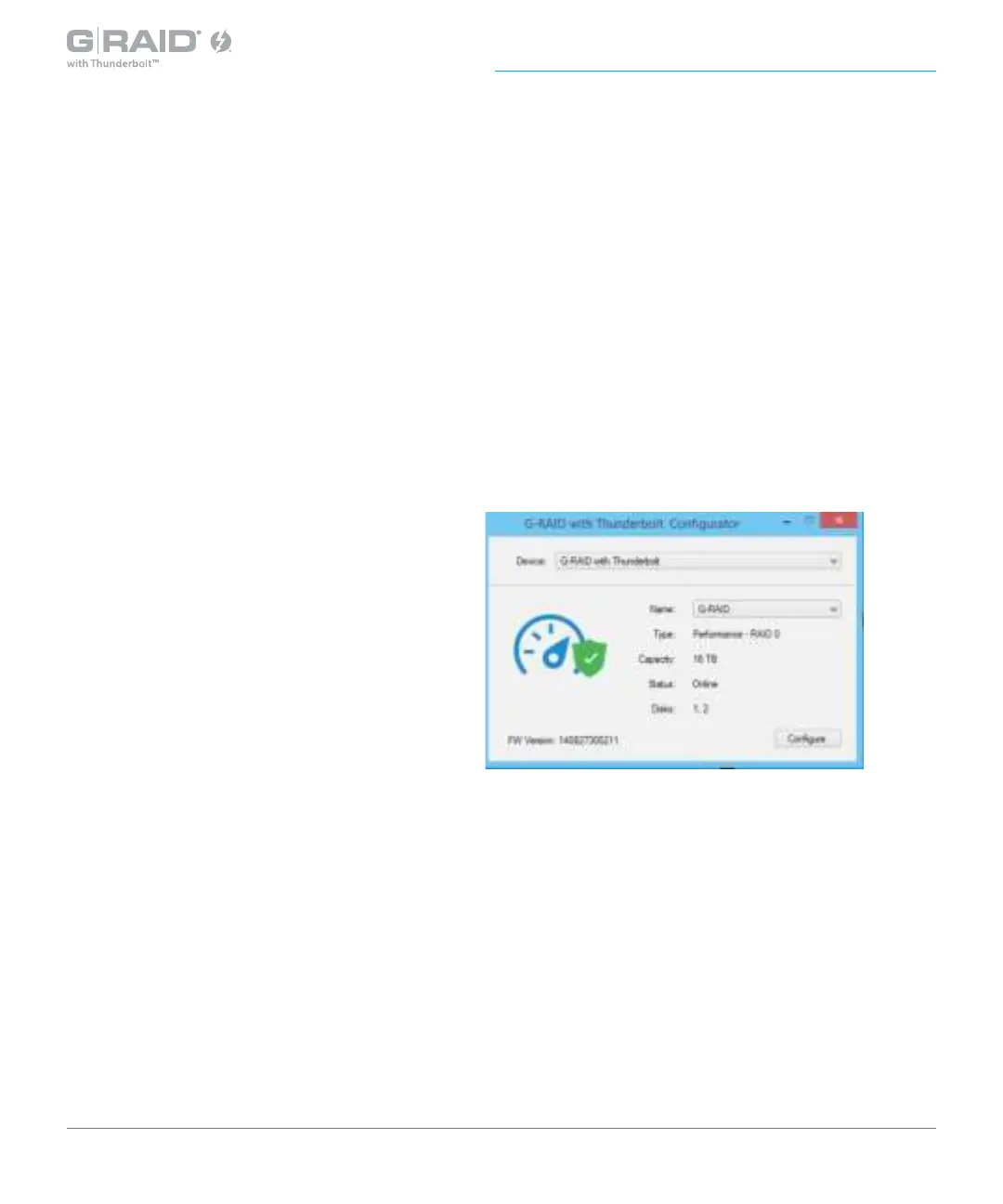
Once the install is complete, launch the
RAID Conguration Utility. The tool shows
the current status and other details of the
drive similar to the image to the right.














 To Next Page