4. Media
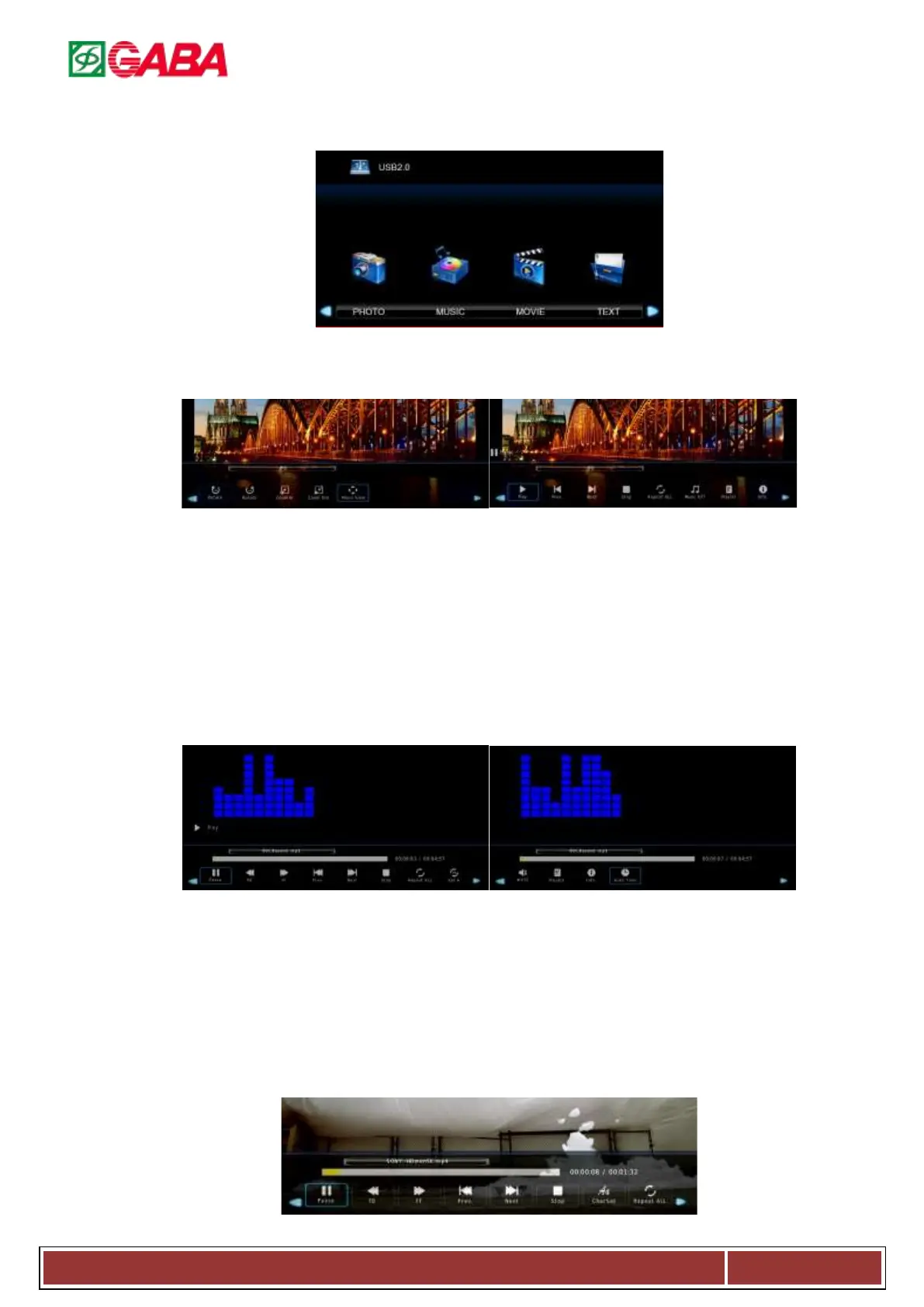
The color of the icon means whether your TV has detected a USB memory or not. Blue: Yes; Gray: No
Press ◄ / ► to select Photo/Music/Movie/Text icon and press ENTER to enter the USB memory. For details:
4.1. Photo
Select a picture file and press ENTER to view, and it will display all the picture in the folder automatically. Press
ENTER to display the following menu.
4.1.1. Play: Press to play/ pause the slideshow.
4.1.2. Next/Prev.: Press “NEXT/PREV.” button to skip to view the photo which are select the photo.
4.1.3. Stop: Press “STOP” button to stop and return.
4.1.4. Repeat ALL : Press ENTER to select the repeat mode: Repeat 1/ALL/None.
4.1.5. Music Off: Press to play or stop the background music.
4.1.6. Playlist: Press to view the list of pictures.
4.1.7. Info: Press to display the information of the current picture (Resolution/ Size/ Date/Time).
4.1.8. Rotate: Rotate the picture.
4.1.9. Zoom In: Zoom the picture in.
4.1.10. Zoom Out: Zoom the picture out.
4.1.11. Move View: Zoom out the picture first, Highlight the icon and press ENTER, then press ▼/▲ & ◄ / ►
to move the picture.
4.2. Music
Press ENTER to display the menu.
4.2.1. Play/Pause: Press to play or stop.
4.2.2. FB: Press to play slower.
4.2.3. FF: Press to play faster.
4.2.4. Prev.: Press to play the previous song.
4.2.5. Next: Press to play the next song.
4.2.6. Stop: Press to stop and return to folder interface.
4.2.7. Repeat ALL: Press to select the repeat mode:
Repeat 1/ALL/None.
4.2.8. Set AB:Set AB mode.
4.2.9. Mute:Turn on or turn off the MUTE.
4.2.10. Playlist:Select “playlist” to display play list.
4.2.11. Info: Select “info” to display the music
information.
4.2.12. Goto Time:select “goto time” to setup play
time.
4.3. Movie



 To Next Page