10
3E3183 Gallagher HR5 Hand Held EID Tag Reader User Manual
English
Mothering in a session
Mothering mode in a session allows the ID of the Dam to be
linked with its off spring automa cally. It is possible to record
trait informa on against both the Dam and off spring, but it is not
possible to sort during a mothering session.
See Reading a Tag with Mothering selected (p. 12) for more
details.
Auto increment VID numbers in a session
The automa c increment of VID numbers in a session is used to
assign sequen al visual ID numbers to animals that are being
scanned for the fi rst me. To use automa c increment, manually
enter the VID of the fi rst animal in the usual manner (ref xxxx).
Provided that this VID ends with a numeric value, the next animal
scanned will be assigned the next free VID value in the sequence.
For example; The fi rst animal is scanned and the tag number is
manually entered “TAG001”. When the next animal is scanned, the
reader will automa cally assign the next tag number, “TAG002”,
without any manual entry.
See Enter a VID manually (p. 12) for more details.
How to start a new session
1. From the Main Menu screen select the Session icon and
press OK.
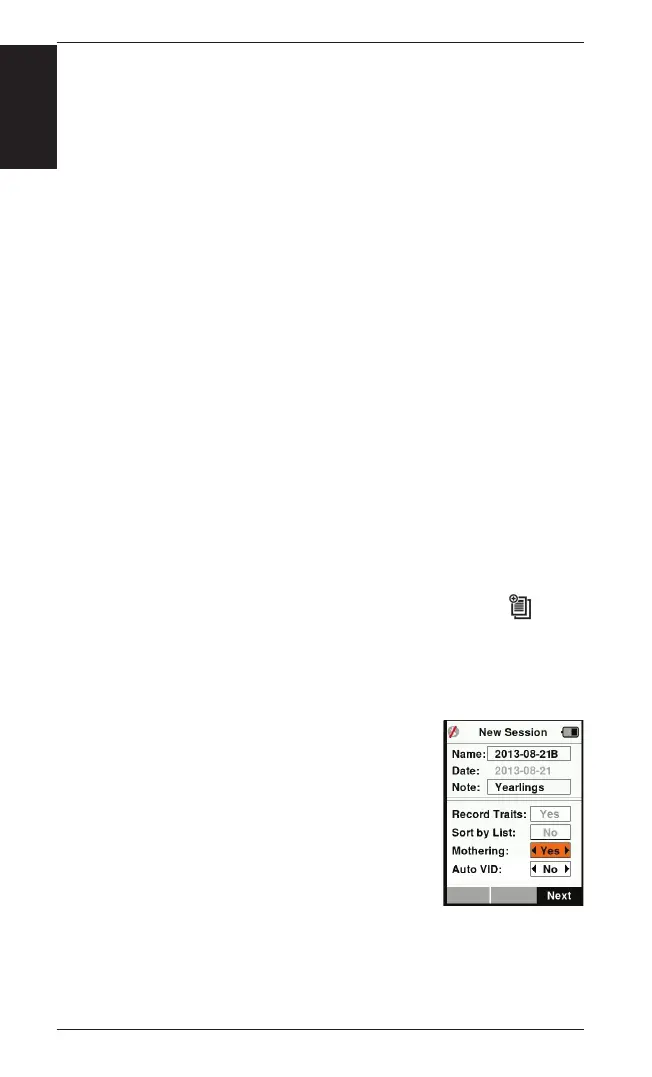
2. On the Session Menu, select
New Session and press OK.
• The session name is automa cally created based on the
current date and an alphanumeric character.
• The session name can be changed. Use
the arrow keys to select fi eld, press
OK. Enter new name using keypad.
3. To add a note to the session, use the arrow
keys to select the
Note fi eld and press
OK.
4. Specify the session op ons for; trait
recording, sor ng or mothering and
automa c incremen ng of VID numbers,
using the arrow keys.
Note: Sort by List and Mothering cannot be used together.
5. Press the
Next so key to proceed to session setup.


 To Next Page