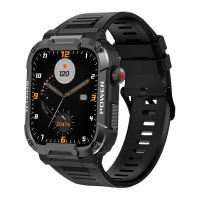
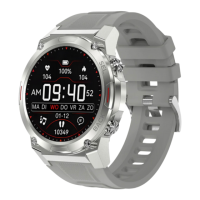
After successfully connecting the paired app - FitCloudPro, the GARD PRO can
control music playback functions such as volume adjustments, pause, and
previous/next song when the phone is playing music.
a. Music playback controls:
ULTRA 2+
PAGE 09
14. MUSIC CONTROL
13. Weather
Switch to the weather interface to view weather and temperature. Weather
conditions are automatically updated 24 hours a day.
a. Weather and temperature conditions:
i.
ii.
iii.
iv.
From the home screen, swipe right.
Select ‘’Weather‘’ to exit to the weather interface.
At the bottom of the FitCloudPro app, go to ‘’Device‘’.
Select ‘’Weather Messages‘’ when the bar turns orange the feature is on.
NOTE: Make sure your ‘’Location facility’’ is on your cell phone for the
FitCloudPro app.
i.
ii.
iii.
From the home screen, swipe right.
Select ‘’Music‘’ to come out to the music interface.
Here you can control the music you have playing on your cell phone.
15. ALARM CLOCK SETTINGS
a. Managing alarm clocks:
Go to the alarm clock interface to add or remove alarm clocks. You
can set up to 8 groups of alarm clocks.
At the bottom of the FitCloudPro app, go to ‘’Device‘’.
Select ‘’Alarm‘’.
Press ‘’+‘’ at the top right to add a new alarm clock.
Now on your GARD PRO under ‘’Alarm Clock‘’ you can turn the alarm on or off.
i.
ii.
iii.
iv.
TIP: You can set multiple alarm clocks that you can control from your GARD PRO.


 To Next Page