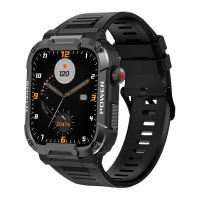
ULTRA 2+
PAGE 11
20. FIND MY DEVICE
a. Find my GARD PRO:
i.
ii.
iii.
At the bottom of the FitCloudPro app, go to ‘’Device‘’.
Select ‘’Find bracelet‘’.
The GARD PRO will start vibrating loudly.
b. Find my GARD PRO:
i.
ii.
iii.
From the home screen, swipe right.
Select ‘’Search for phone‘’.
Your phone will vibrate and give a notification.
21. IMPORTANT INFORMATION
a. Inaccurate measurements:
Sleep monitoring simulates natural sleep and wake times, so wearing it
correctly is important. Errors can occur if you start wearing the GARD PRO
too late at night. No sleep data is monitored during the day. Standard
period for sleep monitoring is from 9:30 p.m. to 12:00 a.m. the next day.
b. Inaccurate sleep data:
Usually, inaccurate readings occur due to poor contact between the GARD
PRO's sensor and the wrist. So make sure there is full contact between the
sensor and the wrist during measurements. Soiled, damp or hair density
can affect the measurements.
c. Bluetooth problems:
Reboot the GARD PRO and reconnect to the FitCloudPro app. Is this not
working?
i.
ii.
iii.
iv.
Close the FitCloudPro app completely.
Turn off your cell phone.
Give your GARD PRO a reset by going to ‘’Settings‘’ and then pressing
‘’System‘’ and then ‘’Reset‘’.
Restart your cell phone and ensure a proper connection between the
FitCloudPro app and your GARD PRO.


 To Next Page