EasyManua.ls Logo

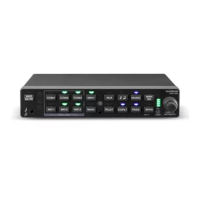
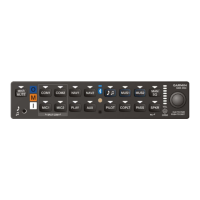
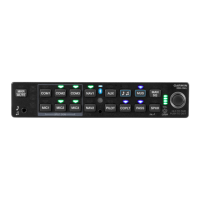
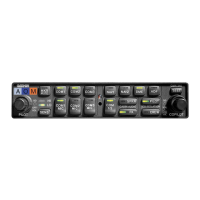
Garmin GMA 350Hc - User Manual

Garmin GMA 350Hc
64 pages
Print Icon
To Next Page IconTo Next Page
Loading...
The following les have been archived under the above ARCHIVE FILENAME.
Filename File Contents
Date:
Drafter:
TITLE:
PART NO:
SIZE
A
Scale:
N/A
REV.
Sheet of
REVISIONS
SPECIFICATION
CONTROL
DRAWING
REV. DATE DESCRIPTION ECO NO.
Garmin Ltd. or its subsidiaries
c/o Garmin International, Inc.
1200 E. 151st Street
Olathe, Kansas 66062 U.S.A.
CONFIDENTIAL
This drawing and the specications contained herein are the property of Garmin
Ltd. or its subsidiaries and may not be reproduced or used in whole or in part as
the basis for manufacture or sale of products
without written permission .
190-01134-11.pdf
190-01134-11
GMA 350/350c/350H/350Hc Installation Manual
J
1 1
JGS 1/20/11
G 8/28/15 Added the GMA 350c, 350Hc, GMA 350Hc 132044
H 10/2/15 Included FCC comments 133098
J 3/22/16 Added European Union and Brazil statements 139773
NOTES:
1. DESCRIPTION: Installation Documentation
2. DISTRIBUTION: This document is intended for electronic distribution.
Portable Document Format, contains Installation Manual and Release Specication
release.indd Adobe InDesign Format, Release Specication
Manual Elements FrameMaker, Formatted Files and Figures
*.* Various supporting illustrations, drawings, and artwork.


Other manuals for Garmin GMA 350Hc

Questions and Answers

  • P
    Pam WalterAug 8, 2025
    Why is the “3D audio left” and “3D audio right” message heard in both ears on my Garmin Avionics Display?
    • S
      Susan ZhangAug 9, 2025
      If you're hearing both the “3D audio left” and “3D audio right” messages in both ears, it could be due to a couple of reasons. First, you might be using a mono headset; in that case, switch to a stereo headset. Second, if you're using a stereo headset, check if the mono/stereo switch is set to ‘mono’; if so, set it to ‘stereo’. Finally, incorrect aircraft wiring (left/right shorted together) can also cause this issue.
  • S
    stevendelgadoAug 15, 2025
    What to do if “3D audio left” message is heard in both ears but “3D audio right” message is not heard on Garmin Avionics Display?
    • R
      Richard RobertsAug 15, 2025
      If you're hearing the “3D audio left” message in both ears but not the “3D audio right” message, the cause may be due to a mono headset being in use. Try using a stereo headset instead. Alternatively, if you are using a stereo headset, the mono/stereo switch may be set to ‘mono’. In that case, set the mono/stereo switch on the headset to ‘stereo’. It could also indicate that the aircraft wiring has left audio wired to both left and right channels of the stereo headset jack.
  • A
    acervantesAug 21, 2025
    Why is “3D audio left” message heard in right ear only followed by “3D audio right” message heard in left ear only on Garmin Avionics Display?
    • P
      Patrick JohnsonAug 21, 2025
      If the “3D audio left” message is heard in the right ear only, followed by the “3D audio right” message in the left ear only, this could be because your stereo headset is on backwards. Check the left/right indication on each side of the headset or the position of the boom mic (usually attached on left side) to ensure correct orientation. It could also be due to incorrect aircraft wiring (left/right channels swapped).
  • J
    Joseph RobinsonAug 27, 2025
    What causes “3D audio right” message heard in right ear only, no audio heard in left ear on Garmin Avionics Display?
    • M
      maryallenAug 27, 2025
      The “3D audio right” message heard only in the right ear, with no audio in the left ear, is caused by incorrect aircraft wiring (right channel used for mono instead of left, or left/ right swapped).
  • U
    unelsonSep 1, 2025
    Why is “3D audio left” message heard in left ear only, no audio heard in right ear on Garmin Avionics Display?
    • K
      kelly07Sep 1, 2025
      The reason you might hear the “3D audio left” message in the left ear only, with no audio in the right ear, is because the aircraft is wired for a mono intercom.

Summary

1 GENERAL DESCRIPTION

1.2 Equipment Description

Details the GMA 350/350H audio controller and marker beacon system's features and functionality.

1.3 Technical Specifications

Details physical and electrical characteristics of the GMA 350/350H unit.

2 INSTALLATION OVERVIEW

2.3 Installation Considerations

Discusses factors to consider for installation, including antenna and electrical noise.

2.4 Cabling & Wiring

Provides guidance on wire gauge and routing precautions for cabling.

2.6 Mounting Requirements

Specifies structural and electrical bond requirements for mounting the unit rack.

3 INSTALLATION PROCEDURE

3.4 Electrical Connections

Describes electrical connections via D-subminiature connectors and associated hardware.

3.6 GMA 350;350 H Unit Installation

Step-by-step process for installing the GMA 350/350H unit into the rack.

3.7 Post Installation Configuration

Details how to configure settings using the GMA 350/350H Configuration Tool.

3.8 Post Installation Checkout

Guides for verifying correct installation and functionality of the unit.

4 SYSTEM INTERCONNECTS

4.5 Audio Inputs and Outputs

Details all audio input and output connections for COM, NAV/TRFC, AUX, TEL, and Pilot/Copilot.

APPENDIX B OUTLINE AND INSTALLATION DRAWINGS

APPENDIX C INTERCONNECT DRAWINGS

Garmin GMA 350Hc Specifications

General IconGeneral
Number of Comms2
BluetoothYes
3-D AudioYes
Display TypeLCD
Marker Beacon ReceiverIntegrated
DisplayLCD
Audio Output3.5 mm audio jack
Music Input3.5 mm audio jack

Related product manuals