EasyManua.ls Logo

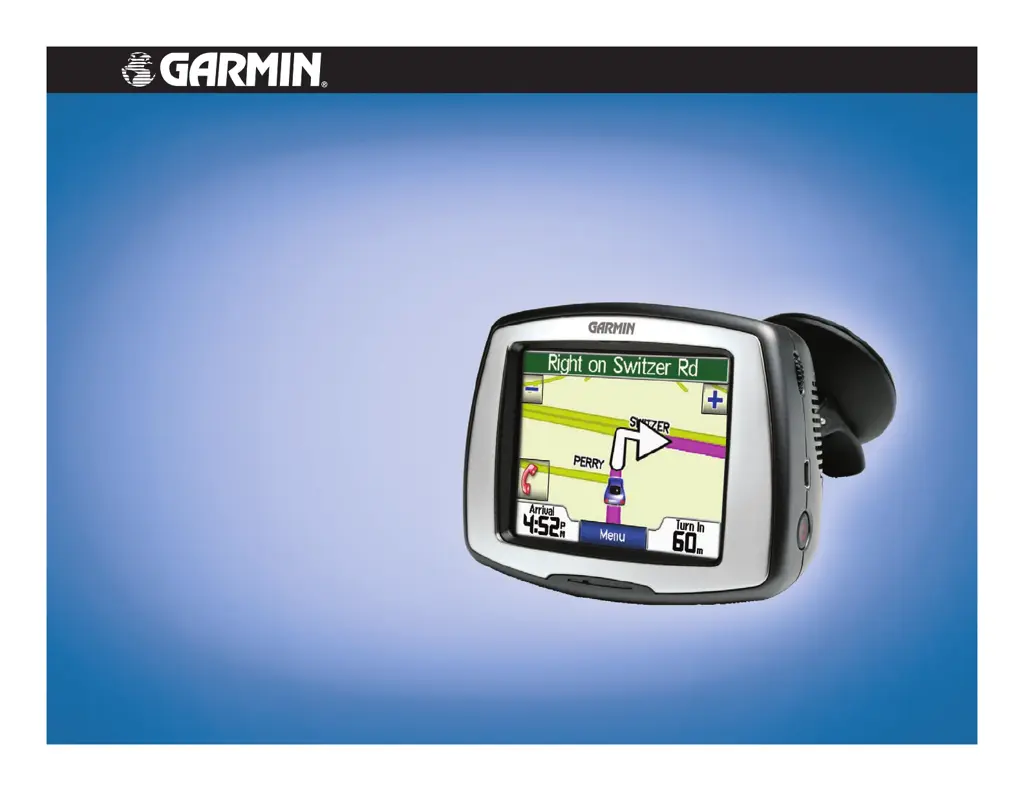
Garmin StreetPilot c550 - User Manual

Garmin StreetPilot c550
62 pages
Print Icon
To Next Page IconTo Next Page
Loading...
StreetPilot
®
c550
owner’s manual

Table of Contents

Questions and Answers

  • S
    Sara BowmanAug 18, 2025
    What to do if my Garmin c550 Car Navigation system never gets satellite signals?
    • J
      Jason SanchezAug 18, 2025
      If your Garmin c550 Car Navigation system is not acquiring satellite signals, go outside, away from tall buildings and trees, and remain stationary for several minutes to allow the device to connect.
  • J
    Jason WalshAug 20, 2025
    What to do if my Garmin StreetPilot c550 Car Navigation system battery gauge does not seem accurate?
    • G
      gbarrettAug 20, 2025
      If the battery gauge on your Garmin Car Navigation system appears inaccurate, allow the unit to fully discharge completely and then fully charge it without interrupting the charging cycle. This may help to recalibrate the battery gauge.
  • D
    Diane AndersonAug 23, 2025
    How to fix Garmin StreetPilot c550 suction cup that will not stay on windshield?
    • T
      Tanya ContrerasAug 23, 2025
      To improve suction, clean both the suction cup and the windshield with rubbing alcohol. Dry them with a clean, dry cloth before mounting the suction cup.
  • C
    christopher13Aug 26, 2025
    What to do if my computer never senses that the Garmin c550 Car Navigation system is connected?
    • J
      Jasmine FoleyAug 26, 2025
      If your computer does not detect your Garmin c550 Car Navigation system, unplug the USB cable from your computer. Turn the c550 off. Then, plug the USB cable back into your computer and your c550. The c550 should automatically turn on and enter USB Mass Storage Mode.
  • T
    Tammy ElliottAug 28, 2025
    What to do if my phone will not connect to the Garmin c550 Car Navigation system?
    • S
      Sarah FreemanAug 28, 2025
      If your phone is not connecting to your Garmin c550 Car Navigation system, verify that the Bluetooth field is set to Enabled. Also, ensure that your phone is turned on and is within 10 meters (approximately 33 feet) of your c550.
  • W
    wendy81Aug 30, 2025
    What to do if I cannot see any new removable drives in my list of drives for Garmin c550 Car Navigation system?
    • S
      Sonya ParkerAug 30, 2025
      If you cannot see new removable drives, it might be because Windows is having trouble assigning drive letters to your c550 drives, especially if you have several network drives mapped on your computer. You can assign (map) your drive letters.
  • B
    brucemariaSep 2, 2025
    How to assign (map) my Garmin c550 Car Navigation system drives in Windows?
    • C
      Chad SantiagoSep 2, 2025
      To assign (map) your Garmin c550 drives in Windows: 1. Turn off your c550. 2. Connect the USB cable to both the c550 and your computer; the c550 will turn on automatically. 3. Go to Start > Settings > Control Panel > Administrative Tools > Computer Management > Storage > Disk Management. 4. Select a c550 removable disk drive (either the internal memory or your SD card drive). Right-click and select Change Drive Letter and Path…. 5. Click Edit…, choose a drive letter from the list, and click OK.
  • L
    Lisa LeeSep 5, 2025
    What to do if Garmin c550 Car Navigation system never gets satellite signals?
    • G
      Gabriel McintoshSep 5, 2025
      If your Garmin c550 is not acquiring satellite signals, take it outside, away from tall buildings and trees.
  • C
    camposhannahSep 7, 2025
    Why my phone will not connect to the Garmin c550 Car Navigation system?
    • S
      Sandra ChavezSep 7, 2025
      If your phone isn't connecting to your Garmin c550, make sure that Bluetooth is enabled. Also, ensure your phone is on and within 10 meters (approximately 33 feet) of your c550.
  • S
    sloanmatthewSep 9, 2025
    Why is the touch screen on my Garmin StreetPilot c550 not responding properly?
    • E
      englishdanielSep 10, 2025
      If the touch screen of your Garmin Car Navigation system is not responding accurately to your taps, calibrate the screen. First, turn the unit off. Then, press and hold the Power button for about one minute until the Calibration screen appears. Finally, follow the on-screen instructions to complete the calibration.

Summary

Find It and Go!

Finding Your Destination

Step-by-step guide to finding and navigating to a destination.

Following Your Route

How the c550 guides you along a route with vocal prompts and turn arrows.

Taking a Better Route

How the c550 offers alternative routes and how to select them.

Adding a Stop to Your Route

How to add a via point to an existing route.

Adding a Detour to a Route

How to request a detour from the current route.

Where To?

Finding an Address

Step-by-step instructions for finding a location by its address.

Go Home

How to set and navigate to your Home location.

Finding Points of Interest

How to search for specific types of places like restaurants or attractions.

Finding a Place by Spelling the Name

Using the on-screen keyboard to find places by name.

Finding Recently Found Places

How to view and delete previously found locations.

Finding a Place Using the Map

How to locate places by browsing the map interface.

Expanding Your Search

Options to refine search results based on current location or route.

Favorites

Saving Places You Find

How to save favorite locations for quick access later.

Finding Saved Places

How to access previously saved favorite locations.

Saving Your Current Location

How to save the current GPS position as a favorite.

Editing Saved Places

How to change the name, map symbol, or phone number of a saved favorite.

Deleting Saved Places

How to remove a saved favorite location from the device.

Viewing the Map and Other Pages

Viewing the Map Page

How to use and interpret the main map display.

Managing Files on Your c550

Step 3: Transfer Files to Your c550

Detailed steps for copying files from a computer to the c550.

Using the Phone Features

Connecting Your Phone to the c550 Using BlueTooth

Steps to pair a Bluetooth-enabled phone with the c550.

FM TMC Traffic Information

Avoiding Traffic

How the c550 can reroute to avoid traffic incidents.

Customizing the c550

Appendix

Mounting Your c550

Instructions for mounting the c550 on a windshield.

Resetting Your c550

How to perform a hard reset if the unit freezes.

Updating the c550 Software

Steps to update the unit's software and register the product.

Bluetooth Wireless Technology Troubleshooting

Common problems and solutions for Bluetooth connectivity.

USB Interface Troubleshooting

Solutions for issues related to connecting the c550 to a computer via USB.

Garmin StreetPilot c550 Specifications

General IconGeneral
AutoYes
Marine (chartplotters, sounders)No
Routes quantity0
Number of waypoints500
Map view options3D
Form factorFixed
Product colorSilver
Compatible memory cardsSD
Bluetooth version2.0+EDR
USB 2.0 ports quantity1
Battery life (max)8 h
Weight and Dimensions IconWeight and Dimensions
Depth57 mm
Width112 mm
Height81 mm
Weight255 g

Related product manuals