Changing the Pin Location
While playing a game, you can take a closer look at the green and move the pin location.
1 Select the map.
A larger view of the green appears.
2 Touch and drag the pin to the correct location.
indicates the selected pin location.
3 Press to accept the pin location.
The distances on the hole information screen are updated to reflect the new pin location. The pin location is
saved for only the current round.
Viewing the Direction to the Pin
The PinPointer feature is a compass that provides directional assistance when you are unable to see the green.
This feature can help you line up a shot even if you are in the woods or in a deep sand trap.
NOTE: Do not use the PinPointer feature while in a golf cart. Interference from the golf cart can affect the
accuracy of the compass.
1 Press .
2 Select .
The arrow points to the pin location.
Viewing Layup and Dogleg Distances
You can view a list of layup and dogleg distances for par 4 and 5 holes.
1 Press .
2 Select .
NOTE: Distances and locations are removed from the list as you pass them.
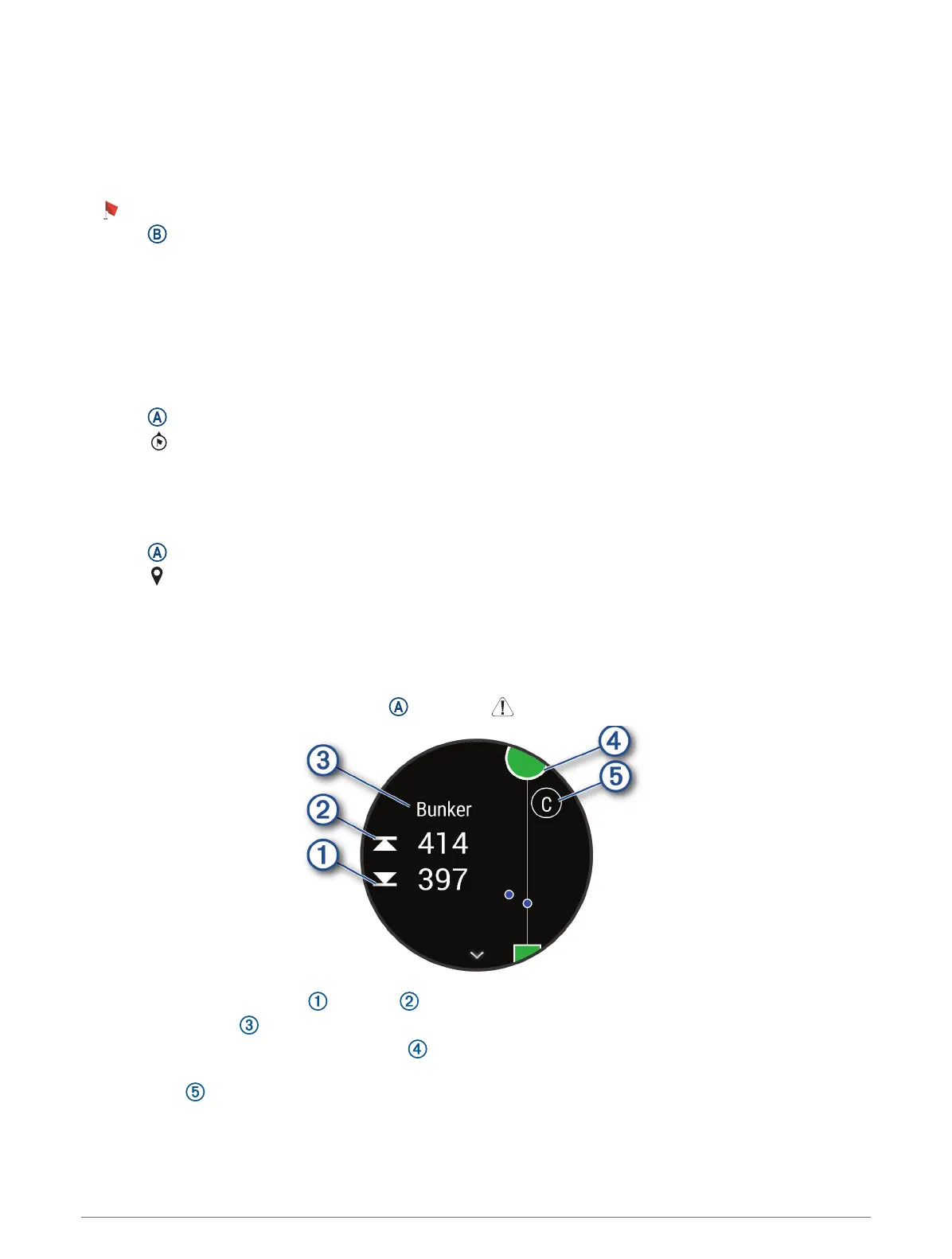
Viewing Hazards
You can view distances to hazards along the fairway for par 4 and 5 holes. Hazards that affect shot selection
are displayed individually or in groups to help you determine the distance to layup or carry.
1 From the hole information screen, press , and select .
• The distances to the front and back of the nearest hazard appear on the screen.
• The hazard type is listed at the top of the screen.
• The green is represented as a half circle at the top of the screen. The line below the green represents
the center of the fairway.
• Hazards are indicated by a letter signifying the order of the hazards on the hole, and are shown below
the green in approximate locations relative to the fairway.
2 Swipe to view other hazards for the current hole.
Apps and Activities 35





 To Next Page