www.gateway.com
7
Connecting power
To connect power:
1 Position your monitor so you can reach the back, then connect the power cord to the power
connector under the back of the monitor.
2 Plug the power cord into a correctly grounded power outlet. We recommend using a surge
protector to protect your monitor from voltage spikes.
3 To make sure that the monitor’s power is correctly connected, check the power button on
the front button panel. The power icon on the power button should be glowing purple. If
the power icon is not visible, power is not connected.
Connecting a security cable
You can secure your monitor to your computer desk (or to another heavy object) with a cable lock.
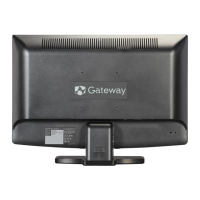
To connect a cable lock, follow the cable lock’s instructions to connect it to the Kensington lock
slot on the back of your monitor (cable lock not included).
Kensington lock slot



 To Next Page