EasyManua.ls Logo

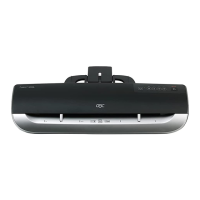
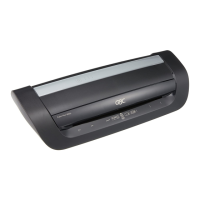
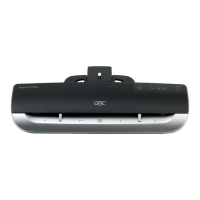
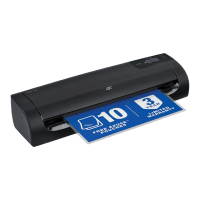
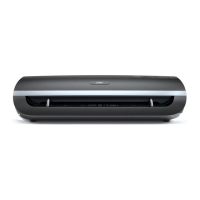
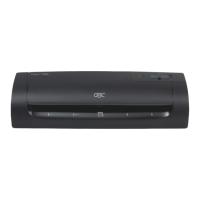
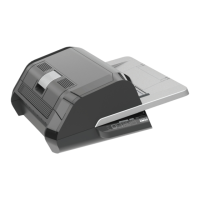
GBC FOTON 30 - User Manual

GBC FOTON 30
15 pages
Print Icon
To Next Page IconTo Next Page
Loading...
GBC FOTON 30
AUTOMATED LAMINATOR
INSTALLATION & OPERATION MANUAL
Document Number: CBT10000 Rev B
Do not duplicate without written
permission
from ACCO
Brands

Other manuals for GBC FOTON 30

Questions and Answers

  • M
    michaelkennedyAug 2, 2025
    How to turn on GBC FOTON 30 if the power button doesn't work?
    • M
      Michael RiveraAug 3, 2025
      If pressing the power button doesn't turn on the machine, the power cord may not be fully inserted. Fully insert the plug into the outlet and ensure the outlet has power.
  • J
    Jenna AcevedoAug 7, 2025
    How to fix film wrinkles on GBC FOTON 30 output?
    • A
      Annette MillerAug 7, 2025
      To resolve wrinkles, press and hold the RUN button to manually advance the film. After advancing approximately 125 – 500mm of film, the wrinkles should disappear. If they do, press the manual cut button to continue. If wrinkles persist, open the laminator door, grasp the film as it exits, hold it taut, and then close the door. Repeat the above step until the wrinkles disappear.
  • L
    lindsay43Aug 12, 2025
    What to do if my GBC Laminator is experiencing frequent mis-feeds?
    • M
      Matthew CummingsAug 12, 2025
      Frequent mis-feeds may occur if the paper has heavy static or the rollers are slipping. Try fanning the media or placing it in a paper jogger before feeding. If the issue persists, use the Manual Feed / Auto Cut mode.
  • M
    Michelle CampbellAug 22, 2025
    Why are film edges not evenly aligned on my GBC Laminator?
    • B
      bryannguyenAug 22, 2025
      Misalignment often occurs because the top and bottom rolls of film are not matched properly. To correct this, press and hold the RUN button to manually advance the film. After advancing about 125 mm, the film edges should align. If they do, press the CUT button to continue. If the edges remain misaligned, open the laminator door and hold the exiting film taut while closing the door.
  • A
    Antonio HartmanAug 28, 2025
    Why documents are skewed in the film when exiting GBC Laminator?
    • E
      emily56Aug 28, 2025
      Skewed documents are often caused by documents fed in skewed. Before loading paper, try tapping the leading edge of the paper on a flat surface, and then repeat with the bottom or top edge to properly square your paper. When inserting your media in the auto feeder, slide the edge guide up to the edge of your media.
  • K
    Kyle SimpsonNov 17, 2025
    What to do if GBC FOTON 30 Laminator shows multiple red errors?
    • V
      victorsmithNov 17, 2025
      First, remove any paper from the feeder tray. Then, open and close both the laminator door and the feeder door, ensuring they are fully closed. If the error persists, press and hold the RUN button for 10 seconds to manually feed the film to clear any jam. If the jam error remains, open the laminator door to check if the film leader is caught on any obstacle or the rollers. Do not cut the film; instead, lift the film leader and reposition it correctly before closing the laminator door and holding the RUN button for 10 seconds again. If a 'Cartridge End of Roll' label has been detected, replace the film cartridge. Try pressing the manual cut button once to activate the cutter. If the issue isn't resolved, press and hold the RUN button for about 10-20 seconds to manually advance the film. If ...

Summary

Safety Precautions

General Safety Guidelines

Lists general safety precautions for operating the laminator to prevent injury.

Electrical Safety Measures

Details crucial electrical safety measures for connecting and using the laminator.

Warranty Information

Warranty Coverage and Exclusions

Outlines the 2-year warranty, what it covers, and specific exclusions.

Consumer Rights and Claim Process

Explains statutory consumer rights and the procedure for making a warranty claim.

Product Specifications

Performance and Media Specifications

Covers operating speed, warm-up time, media compatibility, and document handling.

Electrical and Environmental Details

Outlines voltage, fuse type, operating environment, and auto shut-off features.

Physical Dimensions and Weight

Provides the machine's dimensions, weight, and shipping specifications.

Installation and Maintenance

Service and Support Information

Advises on when to contact customer service for issues and user-serviceable parts.

Installation Guidelines

Covers placement, surface requirements, and power connection for proper installation.

Routine Cleaning and Care

Describes routine maintenance, specifically cleaning the rollers for optimal performance.

Feature Guide

Laminator Components Overview

Explains the physical parts of the laminator, including trays, doors, and trimmer.

Control Panel Functions

Details the operation of buttons and indicators on the control panel.

Manual Feed Indicator

Explains the indicator light that signals readiness for manual document feeding.

Film Cartridge Details

Describes the film cartridge, its label, and the film leader.

Operation Instructions

Operating Modes Explained

Guides through Auto Feed/Cut and Manual Feed/Cut modes for lamination.

Film Cartridge Loading

Step-by-step instructions for removing and inserting film cartridges.

Troubleshooting Common Issues

Power and Status Indicator Errors

Addresses issues like the machine not powering on or status indicators showing errors.

Paper Feed and Film Errors

Resolves problems related to paper jams, empty film, and cutter malfunctions.

Lamination Quality Issues

Provides solutions for film wrinkles, misaligned edges, and skewed documents.

GBC FOTON 30 Specifications

General IconGeneral
TypeHot laminator
CutterYes
FormatA3
Control typeButtons
Warm-up time3 min
CertificationWEEE, CE
Product colorBlack, White
Preheating time- min
Built-in displayNo
Lamination speed700 mm/min
Number of speeds3
Lamination systemCartridge
Auto power off after15 min
Maximum film thickness125 µm
Minimum film thickness75 µm
Maximum lamination width306 mm
Maximum document thickness- mm
AC input voltage220 - 240 V
AC input frequency50 / 60 Hz
Weight and Dimensions IconWeight and Dimensions
Depth440 mm
Width580 mm
Height250 mm
Weight11580 g
Package depth570 mm
Package width695 mm
Package height375 mm
Package weight16800 g

Related product manuals